1 What a search folder does
In this interface, search folders are managed. A search folder selects the Windows updates that meet the criteria you set. SoftwareCentral uses these search folders in the update service, to find and download the correct updates.
When you create an update service in Manage Update Service, step 3 is Select or create search folder. You can pick an existing search folder there, or create one from that step.
The list shows the search folders of the site selected at the top of the page.
2 The interface
The interface has a list of the existing search folders in the middle, a button to add a new search folder on the left, and a search box to find one quickly.

- Add new search folder opens a window to create a search folder.
- The search box filters the list by name. Type a word and press Enter to search for all folders whose name contains it. If you enter more than one value, a folder must contain all of them.
- The list is split into pages. Choose 20, 50 or 100 rows per page at the bottom of the list.
3 Create a search folder
Click Add new search folder. A window opens where you name the search folder and choose the criteria.
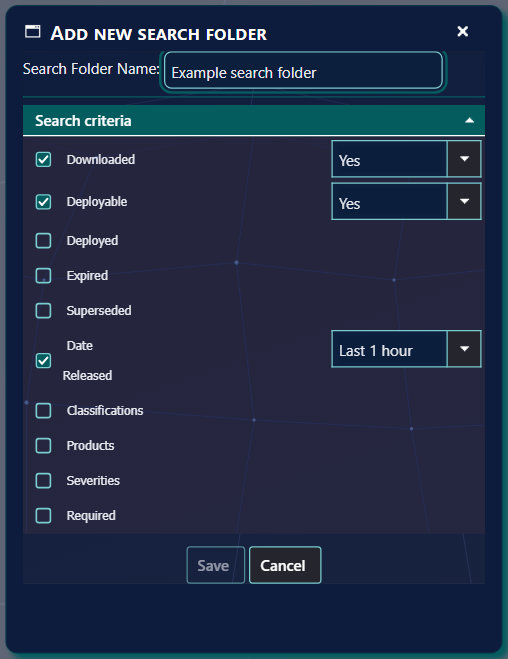
- Type a name in Search Folder Name. Save becomes available when the name is not empty.
- Tick each criterion you want to use and set it (see section 4).
- Click Save. The window closes, and the new search folder is ready for use in the update service.
If no criterion is ticked, the window shows No search criteria selected and nothing is saved. Click Cancel to close the window without saving.
4 The criteria
SoftwareCentral supports ten search criteria. Every criterion you tick must match for an update to be selected.
| Criterion | Choices | What it selects |
|---|---|---|
| Downloaded | Yes or No. The default is Yes. | Updates that are downloaded, or not downloaded. |
| Deployable | Yes or No | Updates that can be deployed, or cannot. |
| Deployed | Yes or No | Updates that can already be deployed, or cannot. |
| Expired | Yes or No | Updates that are expired, or not expired. |
| Superseded | Yes or No | Updates that are superseded, or not superseded. |
| Date Released | Last 1 hour is the default. Other choices: Last 2, 3, 4, 8, 12 and 20 hours; Last 1 to 6 days; Last 1 week, 2 weeks, 3 weeks and 28 days; Last 1 to 11 months; Last 1 year. | Updates released within the period. The period is counted from the moment the update service looks for updates, so Last 1 month always means the last month at that time. |
| Classifications | A list of check boxes. Only the classifications you have subscribed to are listed. | The kind of update, for example security updates or service packs. |
| Products | A list of check boxes. Only the products you have subscribed to are listed. | The products the updates are for. |
| Severities | A list of check boxes, one for each custom severity. | Updates with the custom severity you choose. |
| Required | More than 0. This is the only choice and it is the default. | Updates that at least one computer needs. |
Classifications and products are subscribed to in Patch Management Settings.
5 Edit a search folder
Click Edit on the row of the search folder. The window opens with the search folder's name and criteria.
- Change the name or the criteria.
- Click Save. The window closes and the list is refreshed.
The changes are used the next time an update service that uses this search folder runs. Criteria that the window does not show are kept when you save.
6 Delete a search folder
Click Delete on the row of the search folder you want to remove.
A window asks Do you want to delete followed by the name of the search folder, with Delete and Cancel. Click Delete to remove it, or Cancel to keep it.
7 Best practice
- Subscribe first. Classifications and products are listed only when you have subscribed to them in Patch Management Settings. Set the subscriptions before you build the search folders.
- Tick only the criteria you need. The ticked criteria are combined, so each extra criterion narrows the result.
- Remember that dates are relative. Last 1 month moves forward each time the update service looks for updates, so the set of updates changes over time.
- Give each folder a clear name. The name is what you see when you choose the search folder for an update service.
- Check the update services before you delete. A search folder used by an update service cannot be deleted until that service uses another search folder.
8 Troubleshooting
| Symptom | Cause | What to do |
|---|---|---|
| "No search criteria selected" | No criterion is ticked. | Tick at least one criterion, then click Save. |
| "Can't remove package <name> in use in following update services:", with the names of the update services listed below it. | An update service uses the search folder. | In Manage Update Service, change the search folder of each listed update service to another one. Then delete the search folder. |
| "No search folder your criteria" in the list. | No search folder exists yet, or the search box matches none of them. | Click Add new search folder, or clear the search box. |
| The Classifications or Products list is empty. | Only the classifications and products you have subscribed to are listed. | Subscribe to them in Patch Management Settings, then open the window again. |
| The page does not open, or it shows an access-denied message. | The page checks whether the Patch Management module is enabled for you when it opens, and the check failed. | Ask your SoftwareCentral administrator to check which modules are enabled for your account. |