1 Overview
On this page you choose what SoftwareCentral asks the WSUS server to download. The settings are the update classifications, the products and the languages. Only what you tick is synchronized.
The page is part of the Patch Management module. For the WSUS server name that the page uses, see Patch Management Configuration.
2 Before you start
- The Patch Management module must be enabled for your installation.
- The WSUS Server name must be entered in Settings under Extra Modules › Patch Management. See Patch Management Configuration.
- Configuration Manager must have a software update point with that same server name. SoftwareCentral asks Configuration Manager to synchronize it.
Open the page from the Patches menu, Patch Management Settings.
3 Choose what to synchronize
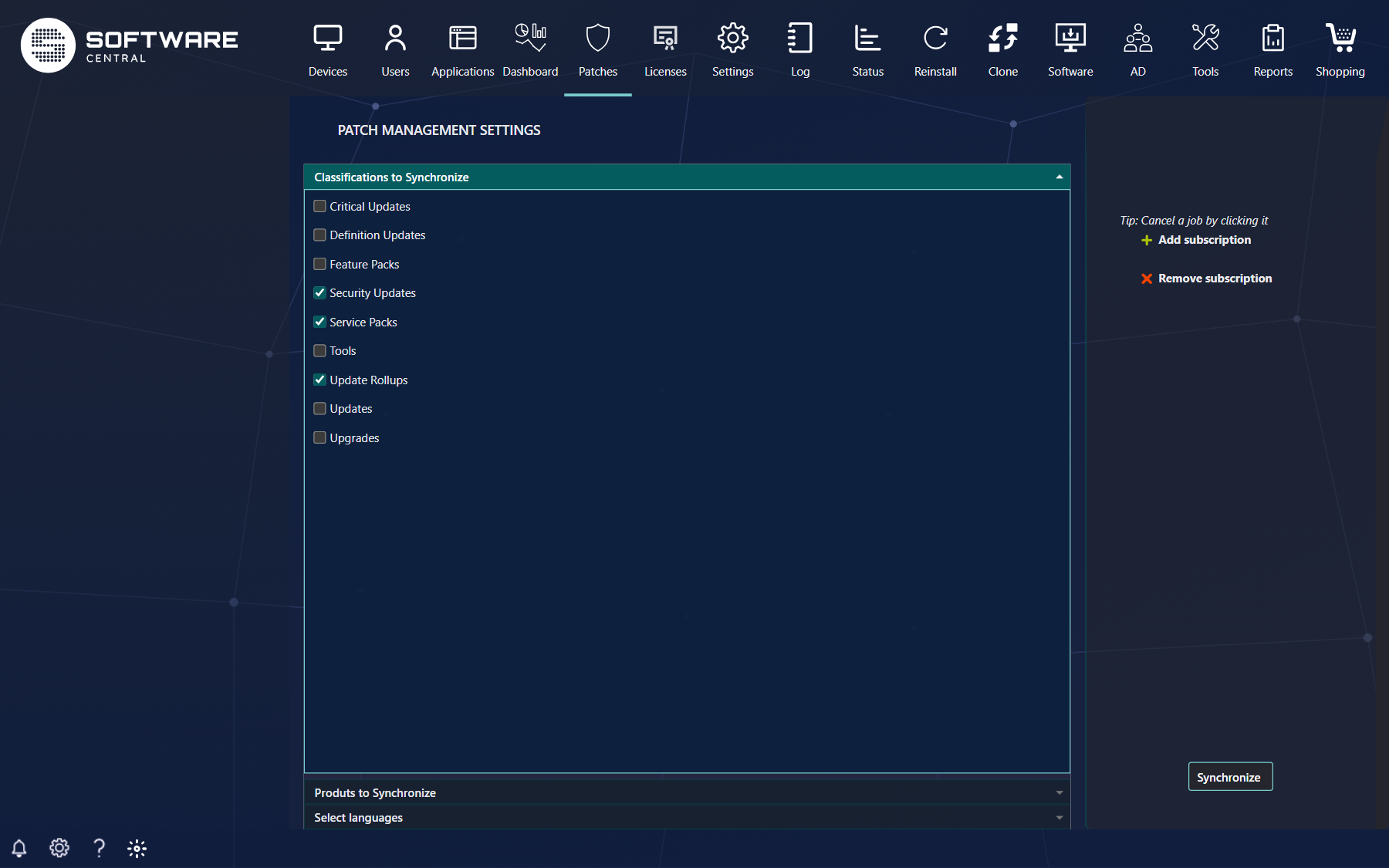
The page has three panels. Open a panel by clicking its header, and tick the items you want.
| Panel | What you tick |
|---|---|
| Classifications to Synchronize | The kinds of update, for example Critical Updates, Security Updates, Service Packs, Update Rollups or Definition Updates. Only the classifications that can be subscribed to are listed. |
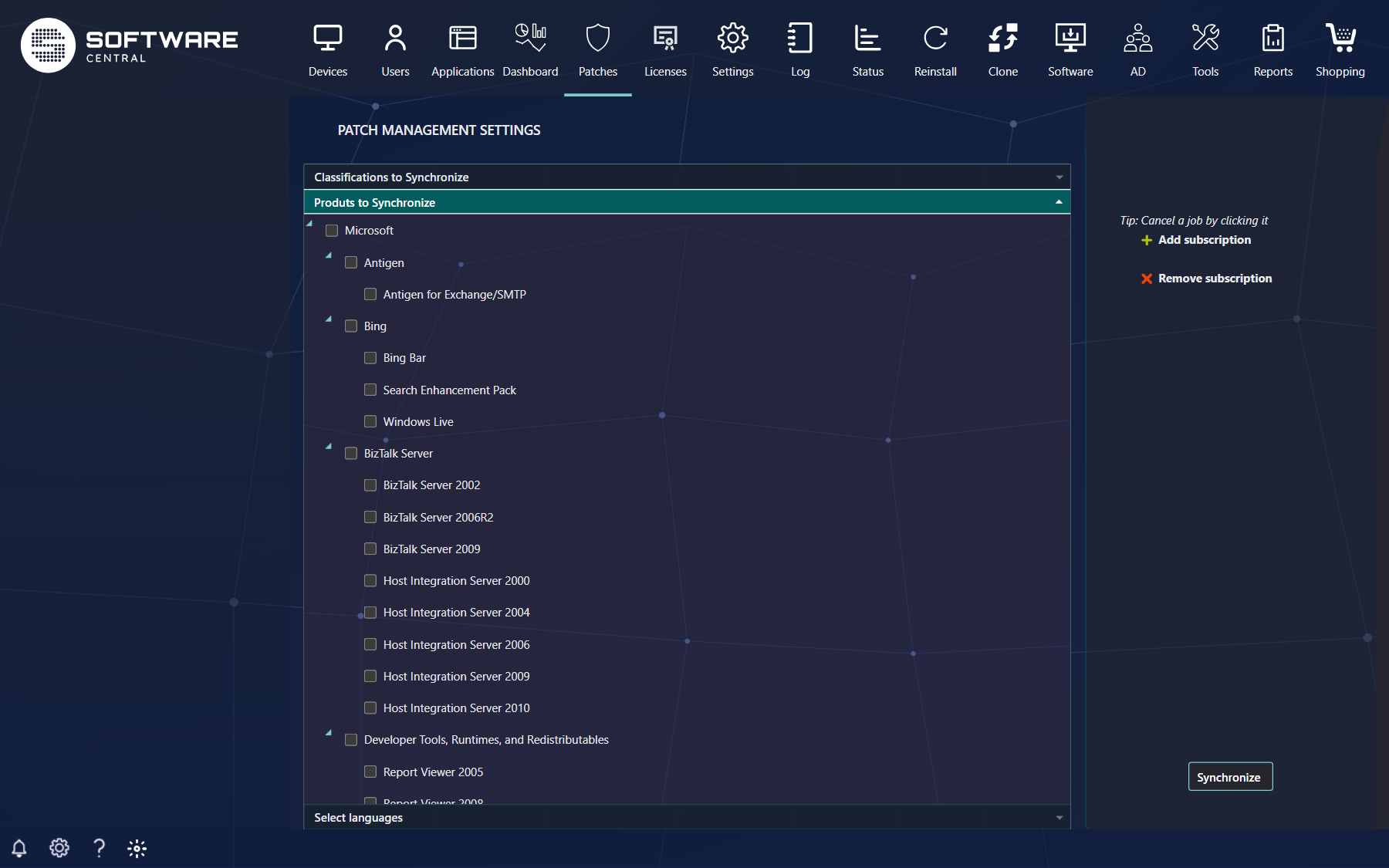
| Produts to Synchronize | The products, shown as a tree of vendors and products, for example Microsoft and the products under it. Ticking a vendor ticks all the products under it. |
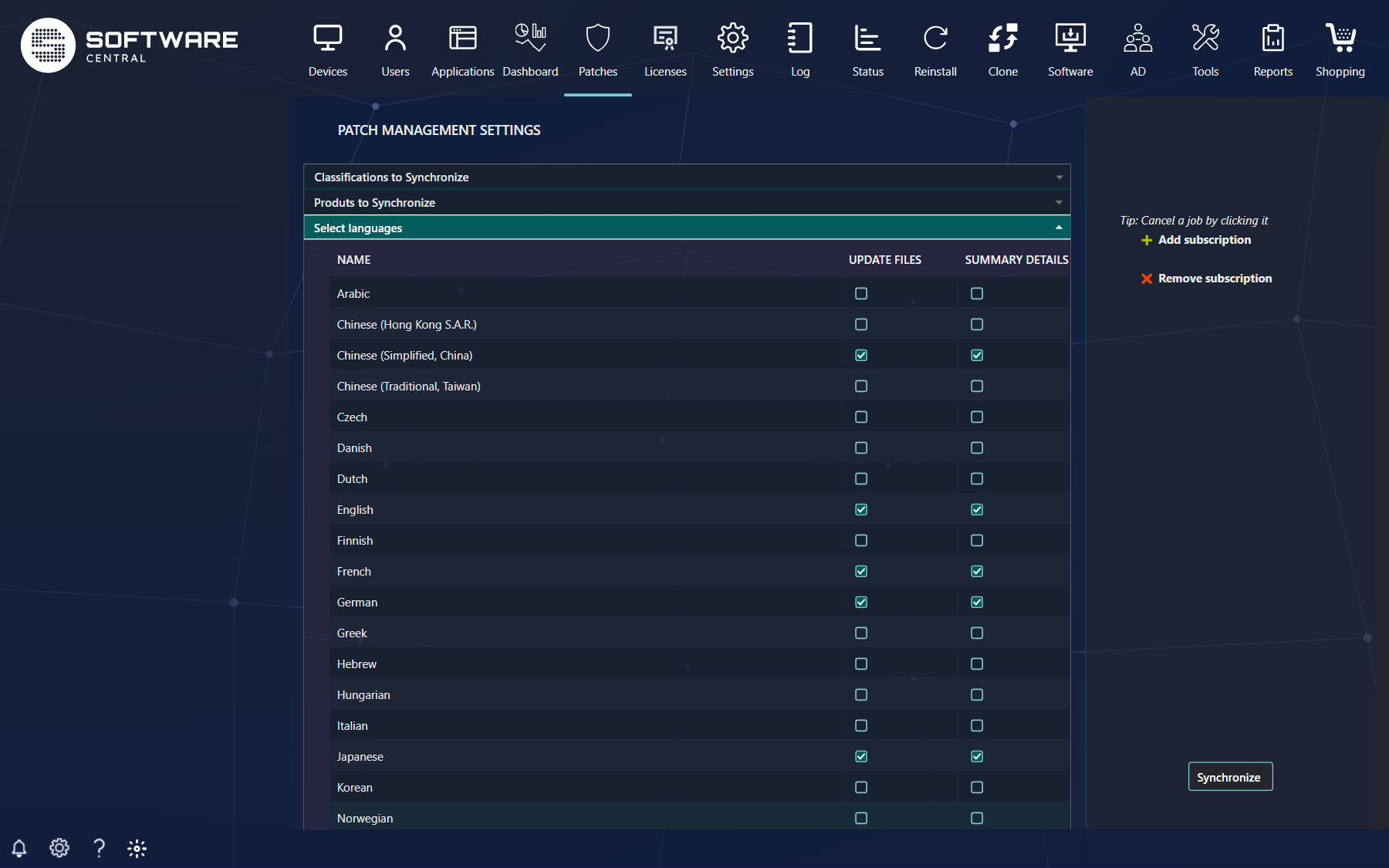
| Select languages | The languages. For each language, tick Update Files to download the update files in that language, and Summary Details to download the summary information of the updates in that language. |
Each tick moves the item to the right side of the page. A new tick is listed under Add subscription, and a removed tick is listed under Remove subscription. Nothing is saved yet.
4 Synchronize
Press Synchronize when all the changes are made. This button is the only one on the page that saves.
- SoftwareCentral saves the products and classifications you added and removed.
- If the languages changed, the language choices are saved too.
- SoftwareCentral asks Configuration Manager to synchronize the software update point (the WSUS server). The synchronization finds the metadata of the updates that match your choices.
Each change is also written to the SoftwareCentral Log as it is saved, with a success or a failure message. The result of the synchronization itself is not shown on this page.
5 Best practice
- Tick only what you deploy. Every ticked classification, product and language is downloaded to WSUS and has to be stored there. Start with the classifications you really use, such as security updates.
- Tick the update files only for the languages you need. Update files are downloaded for each language with Update Files ticked. A language with only Summary Details adds the summaries but not the files.
- Make all the changes, then press Synchronize once. Each press saves the choices and starts a new synchronization on the WSUS server.
- Check the Log after a synchronization. A failure is written to the Log, and it does not appear on the page.
6 Troubleshooting
| Symptom | Cause | What to do |
|---|---|---|
| The Log shows "Failed Updating patch management settings and synchronzing software update point" | Saving the choices or starting the synchronization failed. | Read the entry in the Log for the details. Check that the Configuration Manager connection works, then press Synchronize again. |
| The Log shows "Failed to sync softupdate Point at site '...' on server '...'." | Configuration Manager could not start the synchronization. The most common reason is a WSUS server name that does not match the software update point in Configuration Manager, or an empty name. | Check the WSUS Server name under Settings › Extra Modules › Patch Management, and compare it with the software update point in Configuration Manager. |
| The Log shows "Failed to update subscibtion." for a product or classification | Configuration Manager could not change the subscription of that item. The Log entry for the failure contains the details. | Read the entry in the Log, then tick the item again and press Synchronize. |
See also Patch Management Configuration.