1 The Deployment Packages window
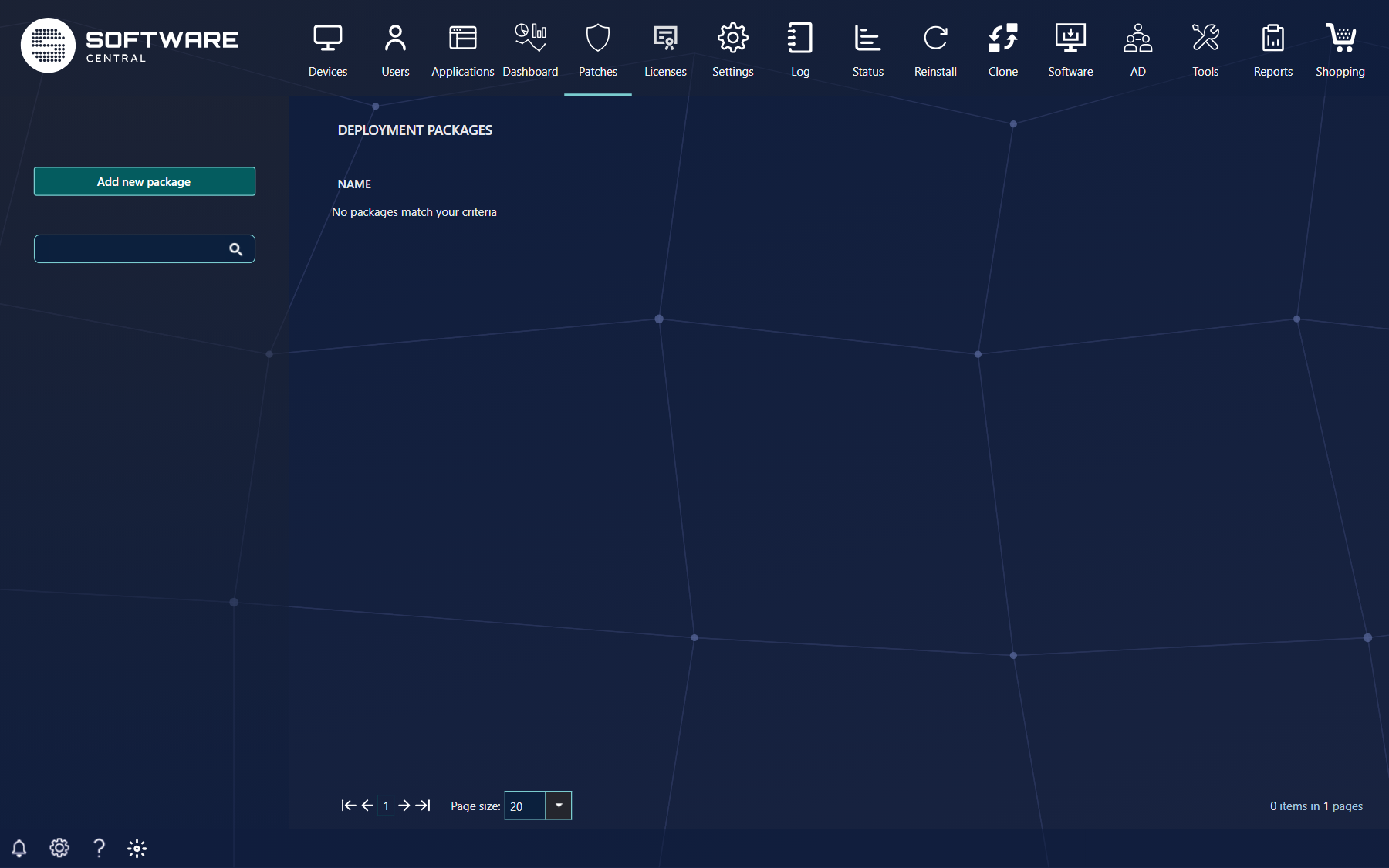
In this interface, Deployment Packages are managed. A Deployment Package determines where the patches are downloaded to, and which distribution points they are distributed to.
The interface consists of a list of the existing Deployment Packages in the middle, the Add new package button to create a new one, and a search box to find a package. The search finds the packages whose name contains the text you type.
2 Create a Deployment Package
To create a new Deployment Package, click Add new package. A new window opens, where you enter the settings of the package.
Type a name for the package in Patch Management Package Name:.
Type the path of the folder on a share in Patch Management Package Source Path:, for example \\server\folder name. This is where the files of the package are downloaded to. If the folder does not exist, SoftwareCentral creates it when you click Save.
Tick the distribution points you want the package to be copied to, in the list under Patch Management Package Distribution Points. The list shows each distribution point of the site, with its site code.
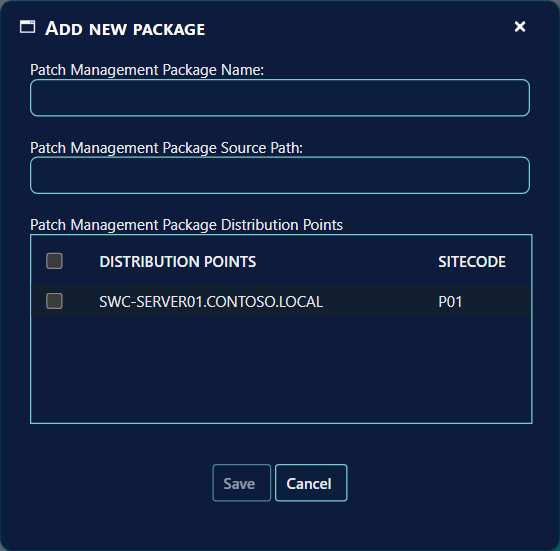
When all the desired settings are set, click Save. The Deployment Package is created in Configuration Manager, the files are copied to the distribution points you ticked, and the package is ready for use in the update service. The window closes when the package is saved.
3 Edit a package
A Deployment Package can be changed by clicking the Edit link on the row of the package. The same window opens with the current name, source path and distribution points of the package.
Make the changes you need, and click Save.
4 Delete a package
A Deployment Package is deleted by clicking the Delete link on the row of the package.
A window asks Do you want to delete the name of the package. Click Delete in that window to remove the package, or Cancel to keep it. The window says Use the log to follow the progress of your request; the result of the delete is written to the Log.
A package that an update service uses cannot be deleted. The window then lists the update services that use it, and the package stays.
5 Best practice
- Type a share path that every distribution point can reach. SoftwareCentral creates the source folder when it is missing, but it does not test that the distribution points can read it. If the folder cannot be created, the window stays open and the reason is written to the Log.
- Tick only the distribution points you need. The files are copied to every ticked distribution point when you save, and each copy takes network and disk space on that point.
- Change the source path with care. The new path is used for future downloads. The files that are already downloaded stay where they are.
- Remove a package from the update services before you delete it. SoftwareCentral refuses to delete a package that an update service uses.
- Name the package for what it holds. You choose the package by its name in Servicing Plans and in the update service.
6 Troubleshooting
| Symptom | Cause | What to do |
|---|---|---|
| “Please fill out Patch Management Package Source Path” | The Patch Management Package Source Path box is empty. | Type the path of the folder on a share, for example \\server\folder name. |
| The window stays open after Save, and no package appears | SoftwareCentral could not create the source folder or the package in Configuration Manager. The window shows no message; the reason is written to the Log as “Failed to save patch management package.” | Check that the share is reachable and that the account can create folders on it. Then open the Log, find the entry for the failure, and try again. |
| Save is greyed out | The Patch Management Package Name box is empty. | Type a name for the package. |
| “No distribution points match your criteria” in the distribution point list | The site has no distribution point that SoftwareCentral can list. | Check that the distribution points are set up in Configuration Manager for this site. |
| “Can't remove package”, followed by the names of update services, when you click Delete | The package is used by the update services listed under it. | Remove the package from those update services, then delete it again. |
| “No packages match your criteria” in the list | There are no packages on this site, or the search text matches none of them. | Clear the search box, or click Add new package. |