1 Open a tool from the Tools menu
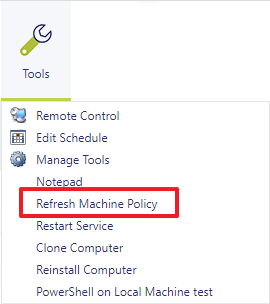
When a tool has been created, it shows up in the Tools menu.
A tool appears in the menu of the security roles it is assigned to, so the list you see can be shorter than the one in the picture. To create a tool or assign it to a role, see Manage Tools and Assign Tools to Security Roles.
2 Fill in the tool window
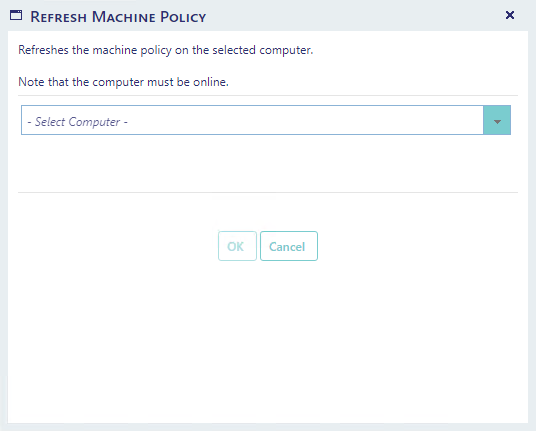
Once you open your tool from the menu you will see a window with your selected drop-down boxes. The window shows only the boxes that the tool needs.
| Box | What to choose |
|---|---|
| - Select Computer - | A drop-down box with the computers you can choose from. Choose a computer and a coloured dot appears next to the box. |
| - Select Computer - (second box) | Shown only for a tool that works on two computers. |
| - Select User - | A drop-down box with the users, for tools that work on a user. |
| - Select Program - | A drop-down box with the programs, for tools that work on a program. |
| Additional Parameters | A text box. What you type is added to the command line of the tool as it is typed. |
| Software variables | Shown below the boxes when the tool has software variables. Each one has a name and a description. A red * after the name marks a mandatory variable. |
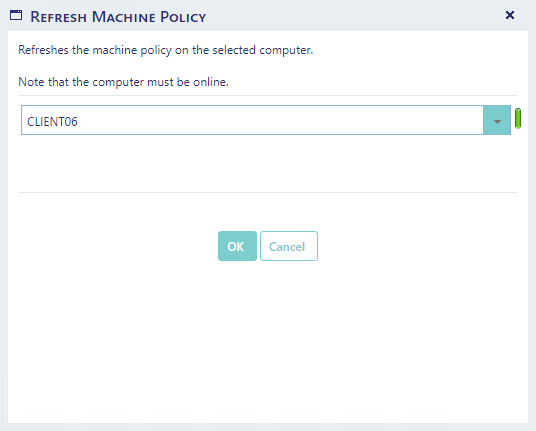
The coloured dot will indicate if the computer is online or not. A green dot means the computer is online. A red dot means it is offline.
To test our “Refresh Machine Policy” function, we will select a computer:
Click on the “OK” button to execute the function.
3 Run on the server or locally
The buttons depend on where the tool runs.
| Tool | What the buttons do |
|---|---|
| Runs on the server | The buttons are OK and Cancel. Clicking OK closes the window at once and the script runs in the background. You do not see the result on screen. Check the log, as described in section 4. |
| Runs locally | The button reads Launch followed by the name of the tool, with the tooltip on this computer, and Close Window replaces Cancel. Clicking Launch starts the program on the computer you are using. |
A script on the server runs under the account set as Run as in the tool settings. If that is the application pool account, or no account is set, the script runs as the application pool account.
4 Check the result in the log
From the log you can see that the script has been executed. If the execution fails, the script's return code is written to the SoftwareCentral log.
Open the SoftwareCentral log (see Log). The entries of a tool run are in the Custom Action category.

| Log entry | When it is written |
|---|---|
| Successfully executed 'script'. | The script ran under the application pool account and returned code 0. |
| Successfully executed 'script' as 'user'. | The script was started with the account set as Run as. |
| Failed to execute 'script' from 'server' with user 'user'. followed by the reason, for example Script 'script' exited with code: 'code'. | The script failed. This is a critical entry. The return code of the script is in the text. |
5 Best practice
- Read the log after every run. A tool on the server gives no result on screen, so the log is the only place where you see whether it worked.
- Choose the computer, user or program with care. OK runs the tool at once, and there is no second confirmation.
- Check the dot before you run a tool on a computer. A red dot means the computer is offline.
- Keep passwords and other secrets out of Additional Parameters. When a script starts, its arguments are written to the debug log.
6 Troubleshooting
| Symptom | Cause | What to do |
|---|---|---|
| “Please select a computer” in the window | The tool needs a computer and no computer is chosen. | Choose a computer in the drop-down box, then click OK again. |
| “Please select a user” in the window | The tool needs a user and no user is chosen. | Choose a user, then click OK again. |
| “Please select a program” in the window | The tool needs a program and no program is chosen. | Choose a program, then click OK again. |
| Red dot next to the computer | The computer is offline. | Wait until the dot is green, then run the tool again. |
| Log: “Invalid credentials - wrong username or password.” | The user or the password of the Run as account in the tool settings is wrong. | Edit the tool in Manage Tools and enter the correct user and password. |
| Log: “Failed to launch script 'script'.” | SoftwareCentral could not start the script with the Run as account. | Check the path of the script and the Run as account in the tool settings. |
| Log: “Make sure that the script exists and the user has permission to execute it.” | The path of the script is wrong, or the Run as account cannot run it. This text is added when the server reports “The directory name is invalid”. | Check the path of the script in the tool settings. Give the Run as account the rights to read and run the script. |
| Log: “Script 'script' exited with code: 'code'.” | The script ran and returned a return code other than 0. | Open the script and find out what the code means. Correct the script or the parameters, then run the tool again. |