1 Open Manage Software on Multiple Resources
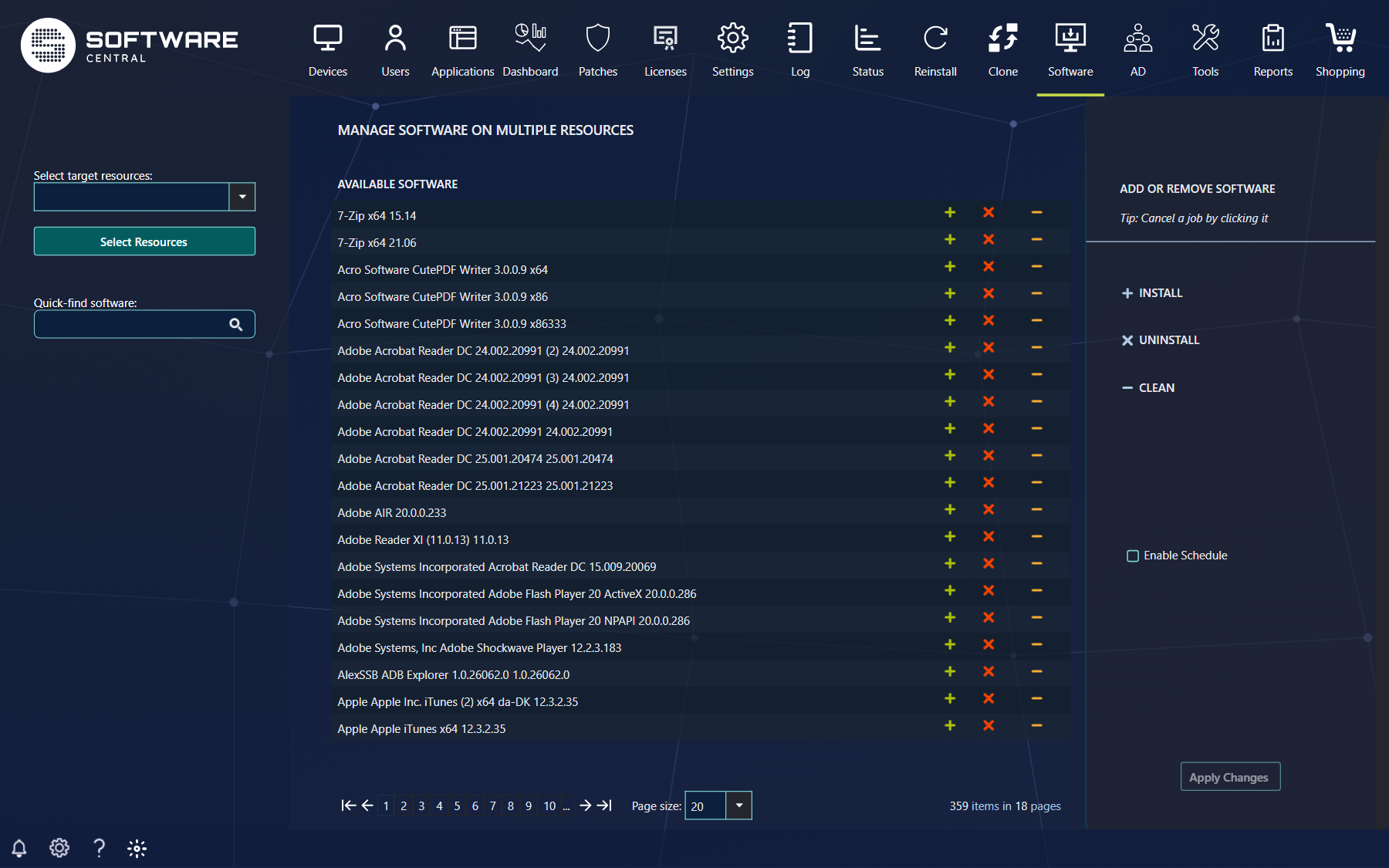
Open Software › Manage Software on Multiple Resources to add or remove programs on many computers in a single operation.
2 Choose the computers
Start by choosing a group of computers in Select target resources: pick a query or computer group in the drop-down. If your organisation has more than one site, a Select site drop-down at the top of the page chooses the site.
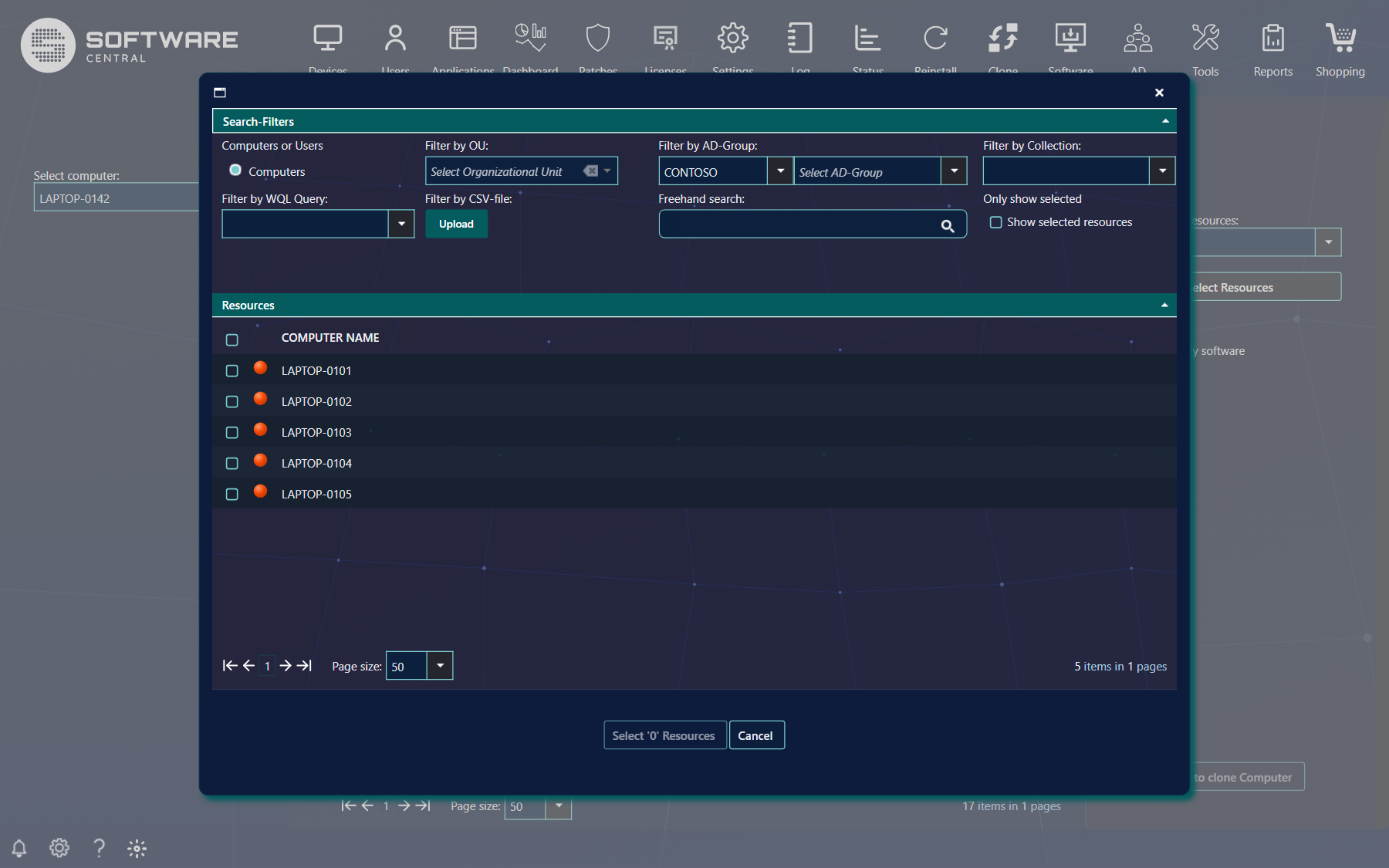
Click Select Resources to apply other filters or to pick specific computers in the group. The window offers the same filters as other multiple-computer interfaces (OU, AD group, collection, WQL query, CSV file or a free search). Tick or untick the computers and click the Select 'x' Resources button when done.
The button at the bottom of the page then shows how many resources are selected, for example Apply changes to '12' resources. You see the computers your security role may manage, and your role can also limit how many resources you may change in one operation; if you select more, the button stays disabled.
3 Queue software
Use Quick-find software to find a program. On each row there are three buttons.
| Button | What it does |
|---|---|
| Install (green plus) | Installs the program on the selected computers. |
| Uninstall (red cross) | Removes the program from the selected computers. |
| Clean (orange minus) | Removes the program from the install and uninstall collections and removes any assigned licences. It does not uninstall the software. |
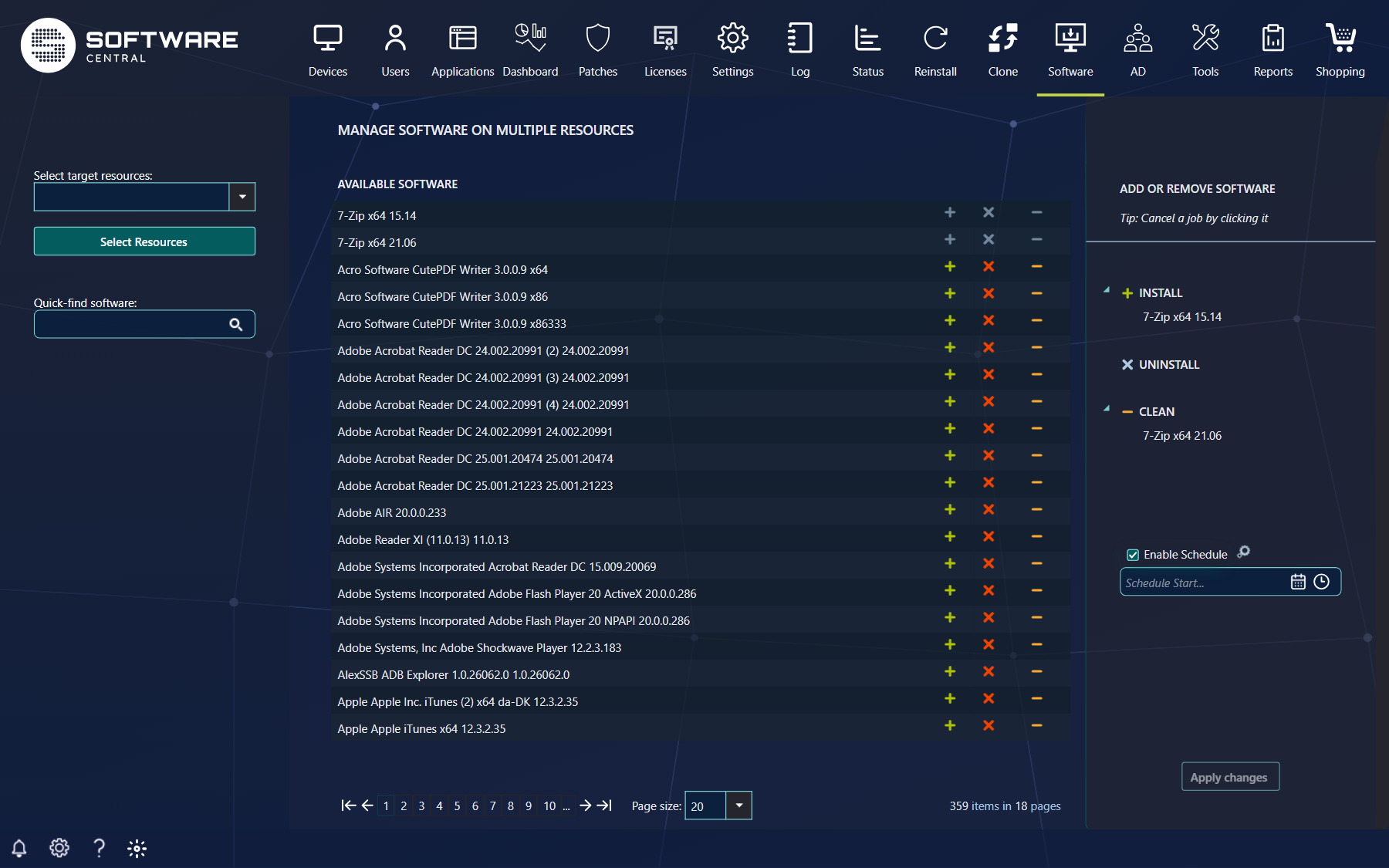
Type a search value in Quick-find software and press Enter to add it as a token; with several tokens the list only shows programs that contain all of them. Which of the three buttons you see depends on your security role: it can allow install, uninstall and clean separately. A Software Group has no Uninstall button. Once a program is in the queue its buttons are greyed out; click it in the queue to take it out. The queue has three lists, Install, Uninstall and Clean.
4 Schedule
Tick Enable Schedule to deploy later; see Scheduled Deployments for how to set a schedule.
Click the small settings icon next to Enable Schedule to open the advanced settings: a Job Name, a Schedule End (the latest run time; by default seven days after the start time), Use Wake-On-Lan to switch on computers that are off, and Ignore maintenance windows. Both check boxes are ticked by default. If you leave the job name empty, SoftwareCentral names the job after what it does, for example Software Deployment of 3 packages to 25 computers; the name is what you search for in Edit Schedule and the Deployment Manager. Times you enter are in your own time zone.
This page does not divide a deployment into phases. To roll software out in phases, see Phased Deployments.
5 Apply the changes
Click Apply Changes in the lower right corner to apply the software changes to the selected resources. Follow the result in the Deployment Manager. See also Manage Software on a Single Resource.
The button is only enabled when at least one resource is selected and at least one program is queued. The page shows a loading symbol while the changes are sent, and then starts again with an empty selection. The installs and uninstalls are started first and the Clean list is processed afterwards.
6 Best practice
- Try a change on a small group of computers first, then use the larger group.
- Deploy to many computers outside working hours with Enable Schedule, with Use Wake-On-Lan on, so the network and the users are not disturbed.
- Give a scheduled job a clear name; it is the name you will search for later.
- Use Uninstall to remove software and Clean only to correct assignments; Clean leaves the software on the computers.
- Check the result in the Deployment Manager before you repeat a deployment on the computers that failed.