1 The assigned software
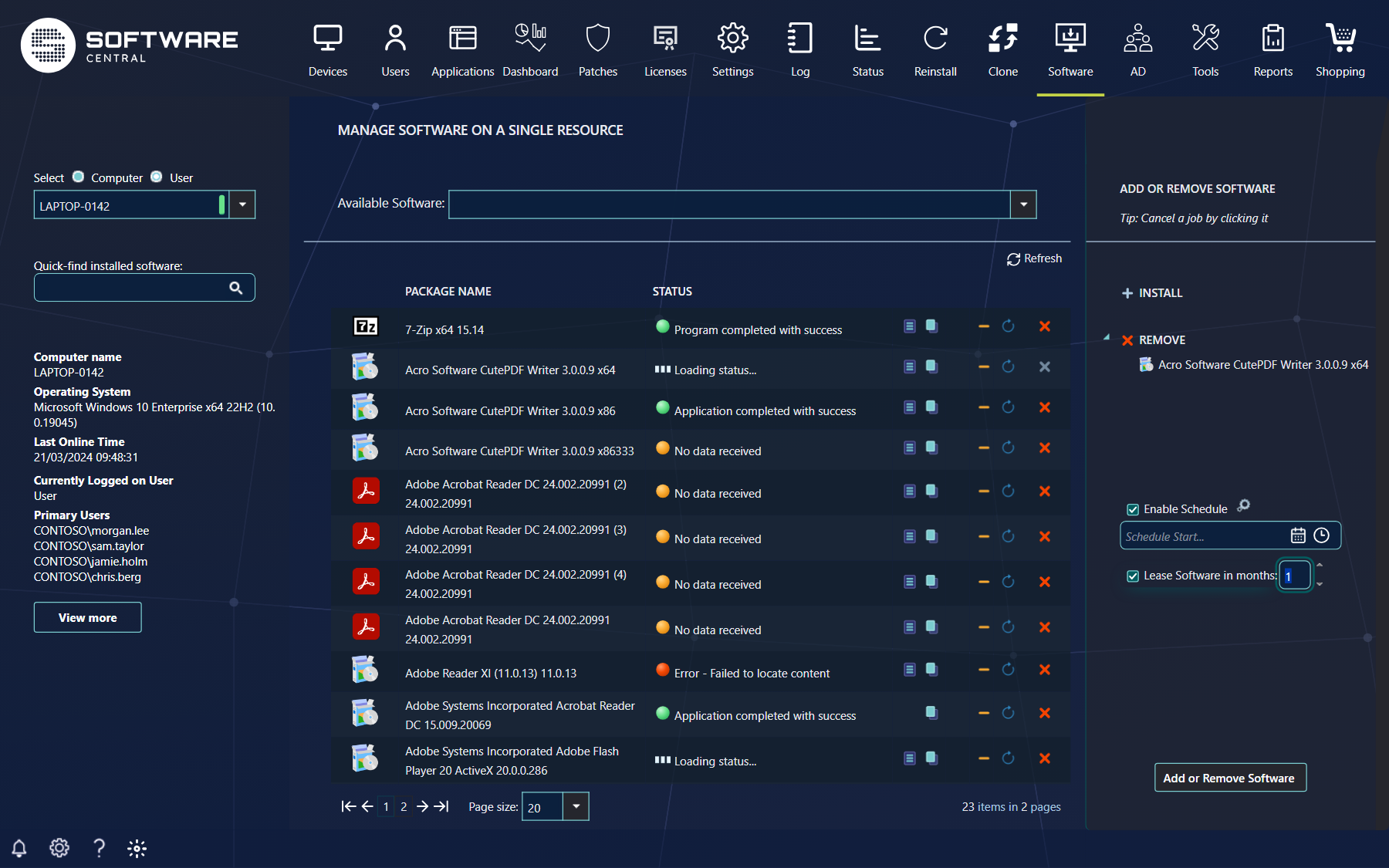
When a resource is selected, the centre shows the software already assigned to it. The Available Software drop-down at the top lists everything you can add.
Right-click a column header to choose more columns or to sort the list, and drag a header edge to change the width of a column. Use Quick-find installed software in the left menu to search the list.
Type a search value and press Enter; it becomes a token. With several tokens, the list only shows programs whose name contains all of them. Click the cross on a token to remove it. The list is paged with 20, 50 or 100 programs per page.
| Column | What it shows |
|---|---|
| Package Name (with the program icon) | The name of the program. Hold the pointer over an application group to see what it contains. |
| Status | The state of the deployment, with a coloured marker. See Status messages. |
| Device | Only when you have selected a user: the primary device the program is installed on. Click the name to open the computer details. |
| Hidden columns | Right-click a header to show Package ID, AppModelId, Type, Program Name, Collection ID, Collection Name, Advertisement ID, Advertisement Name or Enforcement State. They help when you troubleshoot or talk to the Configuration Manager administrator. |
When a computer has no assigned software that matches, the grid says No packages match your criteria.
2 Add software
Open Available Software, search for any part of the name, and click the program, or highlight it with the arrow keys and press the space bar.
The program is added to the list on the right. Click a queued program to take it out of the queue again.
The drop-down loads 50 programs at a time and shows how many match. A search with several words finds programs whose name contains all of the words. It is disabled until you have selected a resource, and your role must be allowed to deploy software to use it.
| You see in the list | What it means |
|---|---|
| A red entry marked (Already assigned) | The program is already assigned to the resource. It cannot be added again. This is only shown when your administrator has chosen to list assigned software in the drop-down; otherwise assigned programs are left out. |
| (License is expired) or (No available license) | The program is licence controlled and cannot be deployed now. For a Software Group the hover text lists the programs in it that are blocked. |
| Hover text Points to collection | The collection the program is installed through. |
| Hover text Software Group Content | The programs a Software Group installs together. |
| A type after the name | For Intune, the application type or the type of the configuration policy. |
3 Remove software
Click the red Remove cross next to a program in the centre grid. It is added to the Remove list on the right. Click it in the list if you change your mind.
You can add and remove programs in the same action. Nothing happens until you click Add or Remove Software in the lower right corner; then the queued programs move to the assigned list, and a program that is being assigned shows a loading symbol.
The cross turns grey when you have queued the program for removal. A program that you have just added or removed shows a message such as Adding to install collection... or Adding to uninstall collection... with a loading symbol until Configuration Manager reports the change; its buttons are hidden meanwhile.
4 Schedule and lease
The options under the queue control when and for how long software is deployed.
| Option | What it does |
|---|---|
| Enable Schedule | Deploys later. Tick it to choose a start time. The small settings icon next to it opens the advanced settings (job name, latest run time, Wake-On-Lan and maintenance windows). See Scheduled Deployments. An administrator can switch scheduling off with Disable schedule in Settings. |
| Lease Software | Installs the software at once and uninstalls it automatically after the number of months you enter (1 to 24; it can be set to days in Settings). Shown when Enable Software Lease is on in Settings. When you tick it, the label changes to show the unit and a number box appears. The lease counts from the start time, so if you also tick Enable Schedule it starts at the scheduled time. With the days setting, the box starts at 30 and accepts up to 730 days. |
| Assign Intune Applications as required | For Intune devices: assigns the Intune applications you add as required, not available. Shown only when Intune is used. If your role may only assign as available, or only as required, the box is fixed and a hover text tells which. Where only Intune is used, the label is Assign Applications as required. |
When you tick Enable Schedule, a Schedule Start... box appears and the calendar opens. If the start time is in the past, the page tells you Scheduled start time must be now or later. and nothing is applied. After you click Add or Remove Software, the schedule and lease boxes are cleared again.
5 Rerun, clean and install now
The buttons on each row of the grid:
| Button | What it does |
|---|---|
| Rerun (blue circular arrow) | Use it when an installation does not start, has failed or must be applied again. It triggers a policy refresh on the client. For a package it tries to rerun the advertisement; for an application it runs the application evaluation cycle, and runs the repair command if the application has one. A rerun is not added to the job queue; it runs immediately. |
| Clean (orange minus) | Removes the software from the install collection. It does not uninstall the software. It helps when a resource is a member of several install collections for the same program, in different versions. |
| Install now (play) | Shown for software that is available to the resource but not yet installed. It installs the program immediately. The device must be online and in some cases a user must be signed in. It is also shown for an available task sequence, when your administrator allows running task sequences here; the task sequence is then started on the computer. The button disappears when you click it, and the status shows Installing application... or Running advertisment.... |
Clicking Clean first asks for confirmation: Are you sure you want to remove this program assignment? This will not uninstall the program, it will only remove the device from the install collection. If you wish to uninstall this program, click on the remove button (red cross) instead. Use Clean only to correct the assignment; use the red Remove cross when the software must go.
While a rerun is working, the status column shows what is happening, for example Running application deployment evaluation cycle... or Rerunning advertisement..., and then Successfully ran application deployment evaluation cycle, Successfully ran advertisement or Failed to rerun advertisement. After Install now, Failed to install application or Client unreachable means the installation could not be started.
6 Status messages
Each assigned program has a status message with a short description and a coloured marker of the state of the deployment.
An underlined message can be clicked for more information. For example, click Requirements Not Met to open a window with the requirements of the application and the current value on the machine, so you can see what was not met. Right-click the header there to show or hide columns.
To follow an ongoing deployment, click Refresh above the grid. The messages also refresh automatically. If you searched for a program in Quick-find installed software, only that program is refreshed.
| Marker or message | What it means |
|---|---|
| Green | The deployment succeeded. |
| Loading symbol | The deployment is in progress, or SoftwareCentral is still collecting the status (Loading status...). |
| Yellow | The state is unknown, for example because the computer has not reported yet, or the deployment is scheduled. |
| Red | The deployment failed or the requirements were not met. |
| Grey | Used for configuration policies that are Pending or Not applicable; see Intune devices and users. A program without any reported state has no marker. |
| Scheduled Deployment - Starts after: '… (UTC)' | The program is waiting for a scheduled start. The time is shown in UTC. Rerun and Clean are hidden until it has started; see Scheduled Deployments. |
| … - If uninstalled the following program will also be removed: … | The program shares its install collection with other programs, so removing it would uninstall those too. Your administrator can switch the program names off in this message (Hide program names in status message). |
| Adding to install collection..., Adding to install group..., Applying policy..., Adding to uninstall collection..., Adding to uninstall group..., Removing from collection..., Removing from install group... | The change you have just applied is being carried out. The message goes away when Configuration Manager or Intune reports the new state; click Refresh to follow it. |
Software that is assigned by a query rule rather than directly to the resource can be hidden from this list by an administrator (Hide available software in Settings), so a program that exists as Available may not be listed for you.
7 Intune devices and users
When the selected resource is an Intune device or user, the page works with Intune applications, application groups and configuration policies instead of Configuration Manager programs.
- The grid lists the Intune apps and configuration policies assigned to the device. Click an underlined app status to open a window with the installation history of the app on the device: installed, failed, updated, assigned to a group and the last check-in, with the error code and details when something failed.
- Click Add or Remove Software to assign the apps and policies you queued. Apps are assigned as required or available according to the Assign Intune Applications as required box.
- The remove cross is greyed out for software that you cannot remove from here, with a hover text: Only Software with direct membership can be removed or Software Deployed to user can not be removed. Configuration policies cannot be removed here.
- A configuration policy shows Succeeded, Pending (the device has not checked in or reported yet), Conflict (an existing setting cannot be overridden, or two policies set the same value differently) or Not applicable (the policy does not apply to the platform of the device). Hold the pointer over the status for the explanation.
- Enable Schedule, Lease Software, Rerun, Clean and the client log buttons are not available for Intune devices. After you apply a change, SoftwareCentral asks the device to sync after a short delay.
- When you select a user, with Intune or Configuration Manager, only applications and application groups are offered, a Device column shows the user's primary device, and Rerun is not shown. In Configuration Manager, if your administrator has switched on Check for user collections, only applications that are deployed to a user collection are offered; this makes the page slower to load.
8 When a button is missing
The buttons on a row depend on the kind of software, on how it was assigned and on your role.
| If this is missing | It is because |
|---|---|
| Remove and Clean | The program is a Software Group or a software update group, it was not assigned directly to this resource (for example through a query rule), or Don't allow uninstall is on and the program is not assigned to your role. Both are also hidden while a change to the program is being carried out. |
| Clean only | The deployment is scheduled and has not started yet. |
| Remove only | The program is installed through several collections for the same kind of resource and the one this resource is in is not one SoftwareCentral created. |
| Rerun | The deployment is scheduled and has not started, you selected a user, the program is a software update group, or it is an Intune item. It is also hidden while a change to the program is being carried out. |
| Both log buttons | SoftwareCentral does not know where to look; see Advanced troubleshooting. |
| Install now | The software is required rather than available, it is already installed, or you selected a user. |
| Any button | Your security role may not use that function. |
9 Best practice
- Check the status before you rerun. If the status says Requirements Not Met, a rerun repeats the same result; open the requirements and fix the cause first.
- Know the difference between Clean and Remove. Remove uninstalls the software; Clean only takes the computer out of the install collection and leaves the software on the computer.
- Schedule outside working hours. For software that interrupts the user, tick Enable Schedule and pick a time when the computer is idle. Keep Use Wake-On-Lan on so a switched-off computer is started, and keep Ignore maintenance windows on if the installation must not wait for a maintenance window.
- Lease temporary software. Use Lease Software for software that is needed for a project or a trial, so it is removed automatically.
- Queue first, apply once. You can add and remove several programs and apply them with a single click of Add or Remove Software.