1 Open the application pool
In the Internet Information Server (IIS) Manager locate the application pool used by your website.
Right-click the application pool and choose Basic Settings.

Change the .NET Framework version to .NET Framework v4.0.

Locate the application pool once again. Right-click the application pool and this time, choose Advanced Settings.

2 Set the custom account
Locate the Identity setting in the Process Model group and change ApplicationPoolIdentity.

Choose Custom account and click Set.

Enter the credentials of the service account created in section 1 and click OK. The examples in this guide use CONTOSO\svc-swc.
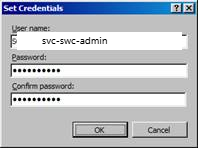
Click OK once more.

3 Enter the account in Settings
SoftwareCentral does not read the identity from IIS. Enter the same account in SoftwareCentral, on Settings › General Settings › Server Configuration.
| Setting | What to enter |
|---|---|
| Application Pool Username | The same account as the custom account in IIS, in the form DOMAIN\name. The field is required; SoftwareCentral shows * Required beside it when it is empty. |
| Application Pool Password | The password of that account. When you save, SoftwareCentral checks the password against the account. If it is wrong, it shows Wrong Password and does not save the page. |
The password is stored in the SoftwareCentral database. Settings are not kept in the Web.config file.
4 What the account is used for
| Use | When it applies |
|---|---|
| Connecting to SCCM | When no other account is entered for the SCCM server (SCCM Server Username and SCCM Server Password are empty) and the SCCM domain is trusted, SoftwareCentral connects to SCCM with the application pool account. |
| Active Directory actions | Where the application pool account is one of the accounts SoftwareCentral can use for Active Directory work, the call runs under the identity that IIS gives the website. |
For an untrusted domain, SoftwareCentral uses the service account entered for that domain. See Configuring SoftwareCentral with an untrusted domain.
5 Best practice
- Use one dedicated service account for the application pool and enter the same name under Application Pool Username. The two must match, or SoftwareCentral does not recognise the account as its own.
- Use a service account, not a personal account, so the website keeps working when people change jobs. A group managed service account, as in the example CONTOSO\svc-swc$, avoids storing a password that expires.
- Set the account before the first-time configuration. The server configuration page requires the application pool user name, so it cannot be saved empty.
- Change the password in three places. When the password changes in Active Directory, update the Identity in IIS Manager and Application Pool Password in Settings, then restart the website.
6 Troubleshooting
| Symptom | Cause | What to do |
|---|---|---|
| "Wrong Password" beside Application Pool Password when you click Save Settings. | The password does not match the account in Application Pool Username. | Enter the password of that account and save again. Nothing on the page is saved until the password is correct. |
| "* Required" beside Application Pool Username. | The field is empty. | Enter the account, in the same form as in IIS (DOMAIN\name), and save again. |