1 Overview
SoftwareCentral uses Security Roles to manage access to the application. SoftwareCentral requires one predefined Active Directory Group for top-level administrators of SoftwareCentral.
Members of this group have full access to SoftwareCentral. For other users, you define access with security roles in the SoftwareCentral interface.
2 Create the group
Create a group named SWC_ADMIN_GROUP in Active Directory.
| Field | What to enter |
|---|---|
| Group name | SWC_ADMIN_GROUP |
| Group scope | Global, as shown in the picture. |
| Group type | Security, as shown in the picture. |
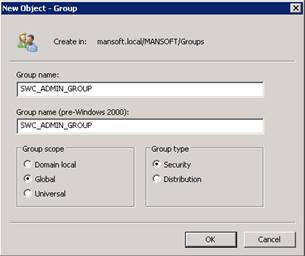
3 Add the users
At this time you should already add users to this group who will have full access to SoftwareCentral. Do not add users who should be limited in the use of SoftwareCentral. You will be able to define access for those users directly in the SoftwareCentral interface.
Add yourself as well. The configuration step in section 4 only accepts a group that you are a member of.
4 Choose the group in SoftwareCentral
On a new installation, SoftwareCentral asks for the administrator group on its first page.
- Open SoftwareCentral and sign in.
- On the page that says Please select an Administrator AD-Group, choose the domain in the first list.
- Choose SWC_ADMIN_GROUP in the group list.
- Click Save.
SoftwareCentral saves the group as DOMAIN\SWC_ADMIN_GROUP, with the domain name in front of the group name. The page shows the group list only while no administrator group has been saved.
For the next steps of the configuration, see Preparing the SCCM.
5 Best practice
- Add yourself before you configure SoftwareCentral. SoftwareCentral checks that the signed-in user is a member of the group you choose, and refuses the choice otherwise.
- Use a security group. SoftwareCentral checks the membership of the signed-in user in the role check. A distribution group does not work for this check.
- Keep the group small. Put only the people who need full access in it. Give everyone else a security role with only the permissions they need.
- Sign in again after you change membership. The new membership is picked up at the next sign-in.
6 Troubleshooting
| Symptom | Cause | What to do |
|---|---|---|
| “You are not a member of the selected AD-Group. You must be a member of the administrator group to proceed with the configuration of SoftwareCentral. The selected group has not been saved.” | The signed-in account is not a member of the group you chose. | Add your account to SWC_ADMIN_GROUP, sign in again, and click Save again. |