1 Open Computer Templates
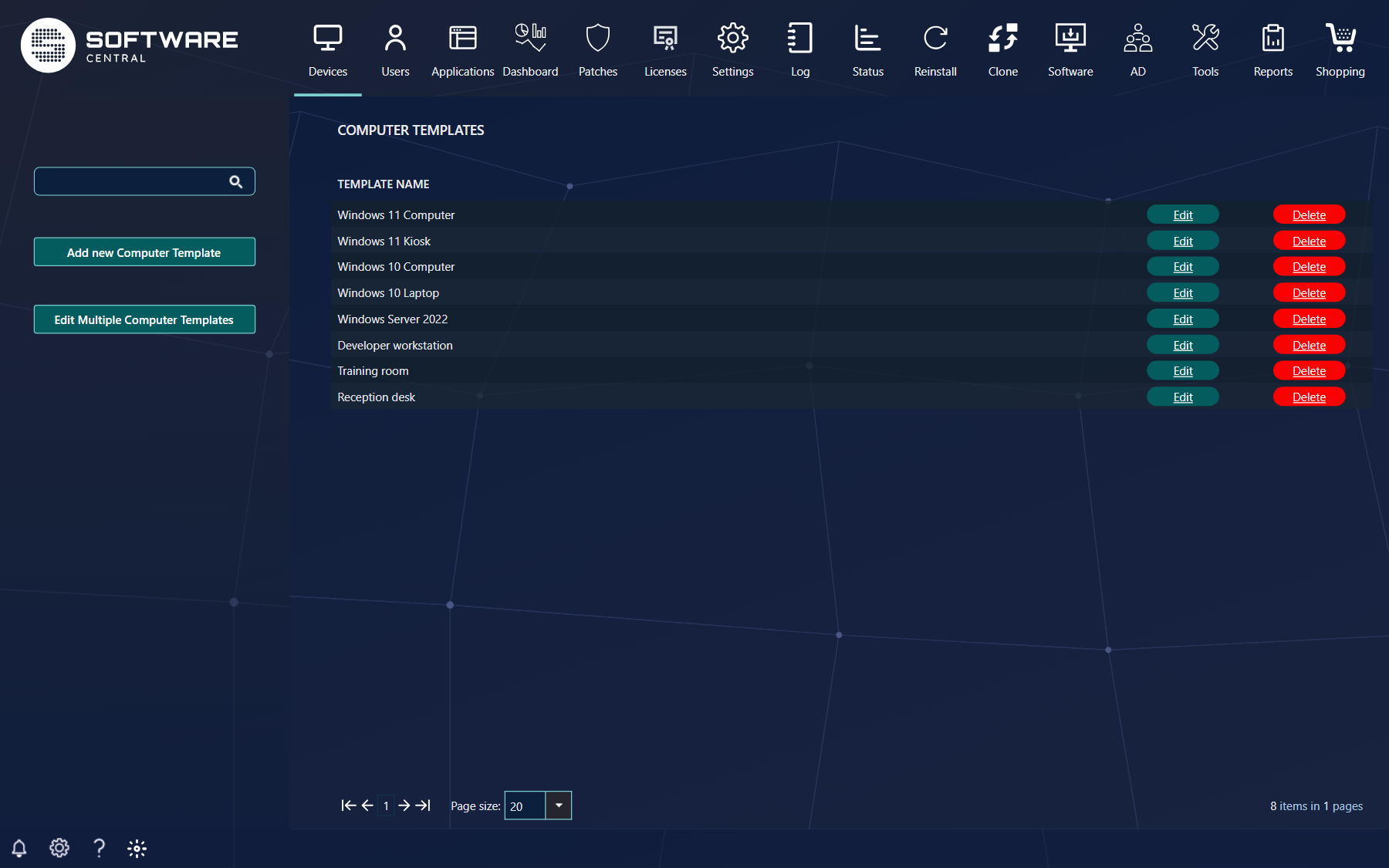
Open Devices › Computer Templates. From here you can create, edit or delete computer templates, and edit several templates in one operation.
The page lists all your computer templates. The left menu has a search field, Add new Computer Template and Edit Multiple Computer Templates. Each row has Edit and Delete buttons.
You only see the templates that are assigned to your security role. If nothing matches your search, the list says that no template matches your criteria. Add new Computer Template, Edit Multiple Computer Templates and the Delete buttons are only shown when your administrator has given your role the right to change templates; without it, Edit opens the template read-only, without a Save button.
2 Create a computer template
Click Add new Computer Template. A window opens. The two mandatory fields are the Name and the OS Advertisement.
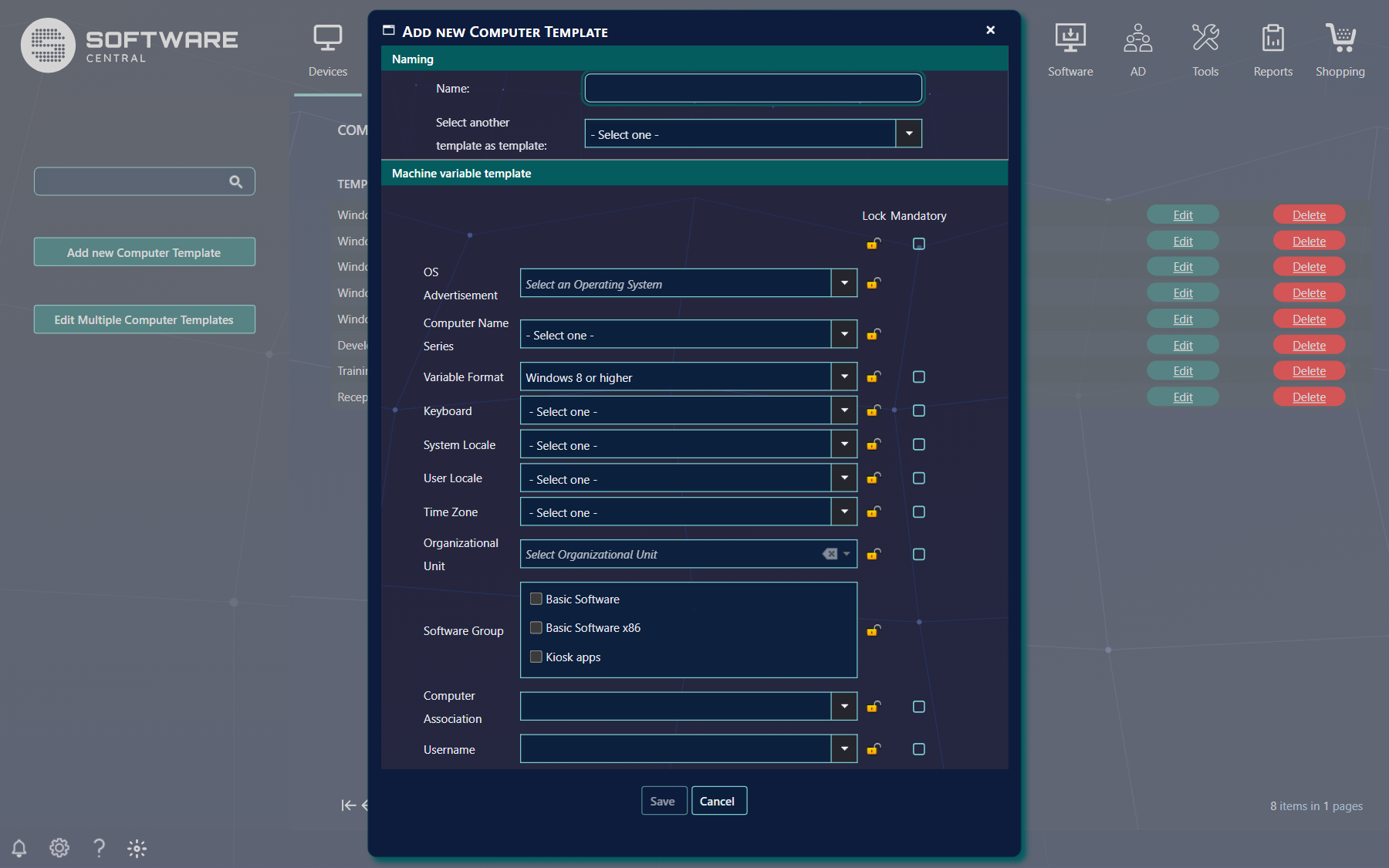
To copy the settings of an existing template, choose it in Select another template as template. This option is only shown when you create a new template.
| Variable | What it does |
|---|---|
| OS Advertisement | Determines which operating system is installed when the template is used. |
| Computer Name Series | Applies a computer name series to the template. Devices imported with it are automatically given the next available name in the series. Manage series in Computer Naming Schemas. |
| Variable Format | Determines the format of the keyboard, system locale, user locale and time zone variables. Different operating systems use different formats. |
| Keyboard | The language of the keyboard. |
| System Locale | The system locale (the language for non-unicode programs). |
| User Locale | The user locale: time format, number formats, currency values and so on. |
| Time Zone | The time zone. |
| Organizational Unit | Adds the computer to this organisational unit in Active Directory. |
| Software Group | The software groups installed on computers that use the template. |
| Computer Association / Username | Associates the computer with another computer and a user. See Computer Association when importing a computer. |
You may see other variables in the list. Variables are managed in the Machine Variables interface, where you can also change the values added to the devices in ConfigMgr.
Lock and mandatory
To the right of each variable there are two options. The padlock locks the variable, so users cannot change its value during an import. The Mandatory checkbox forces users to select a value for the variable.
The padlock and checkbox in the top row apply to all variables at once: Lock/Unlock all variables in this template and Check all variables. OS Advertisement, Computer Name Series and the software groups each have their own padlock too. A locked variable cannot be mandatory, so locking a variable clears its Mandatory checkbox and disables it until you unlock the variable again.
Locked variables can be hidden from users: enable Hide locked variables in the Settings menu.
Security roles
At the bottom of the window, Security Roles lists the roles that may use the template. A new template is automatically assigned to your own security role. Templates can also be assigned to roles from the Security roles interface.
The list only shows roles with lower credentials than your own. A role that is set to receive all templates is already ticked and cannot be unticked; its tooltip says the template is dynamically assigned. The software groups you can pick are the ones your own security role may use.
Click Save to save the new template. Save is not available until the template has a name and an operating system. If the name is already used, SoftwareCentral tells you Template name already exists in database and does not save.
3 Edit a computer template
Click Edit next to the template. The same window opens with the template's current values. Make your changes and click Save.
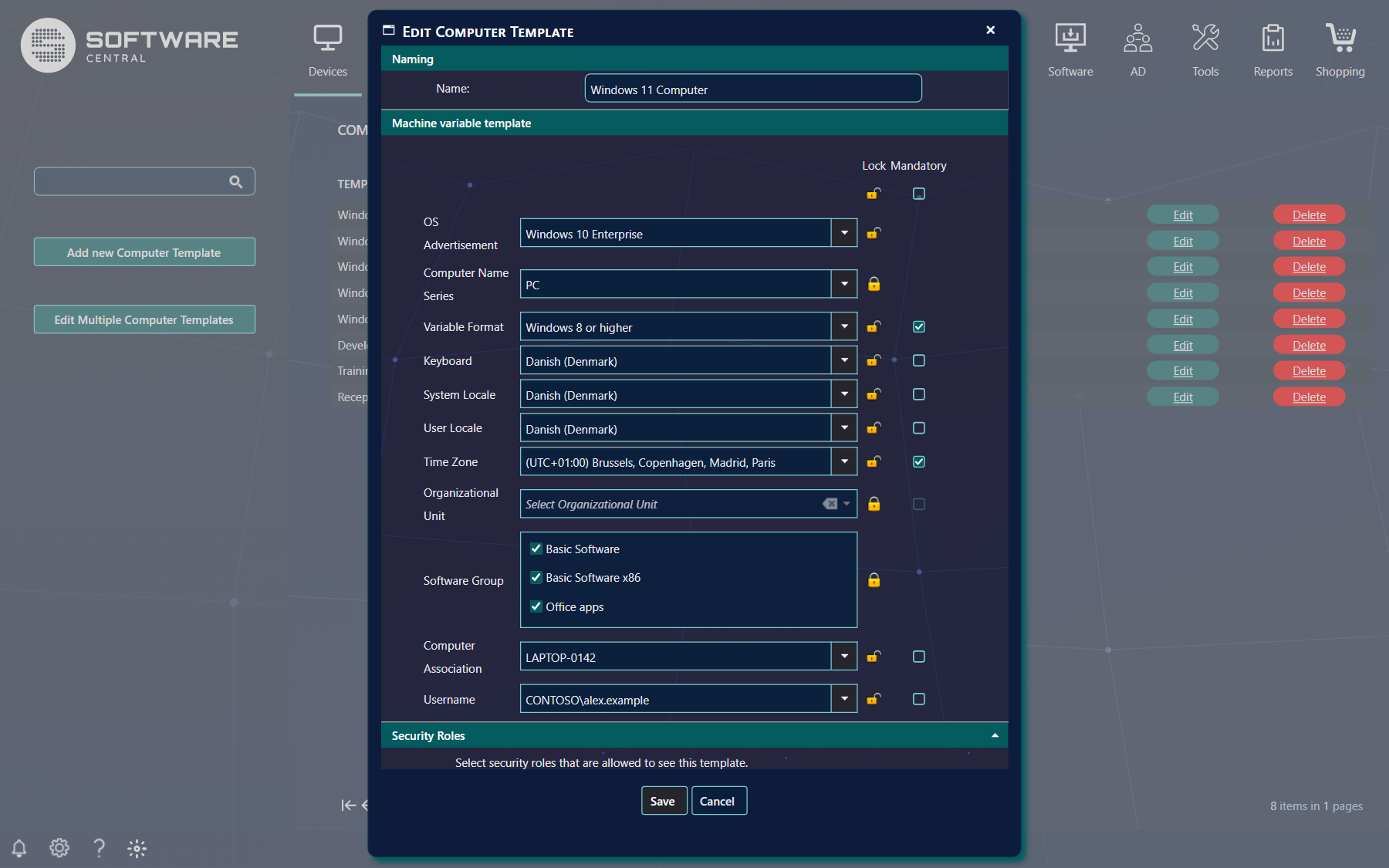
You can rename the template in the Name field, and change its security roles. A template that is not assigned to your own security role cannot be opened. When you save, the variables and software groups of the template are replaced with what the window shows.
4 Edit several templates at once
Click Edit Multiple Computer Templates in the left menu. This is useful, for example, when you need to add a new software group to many templates.
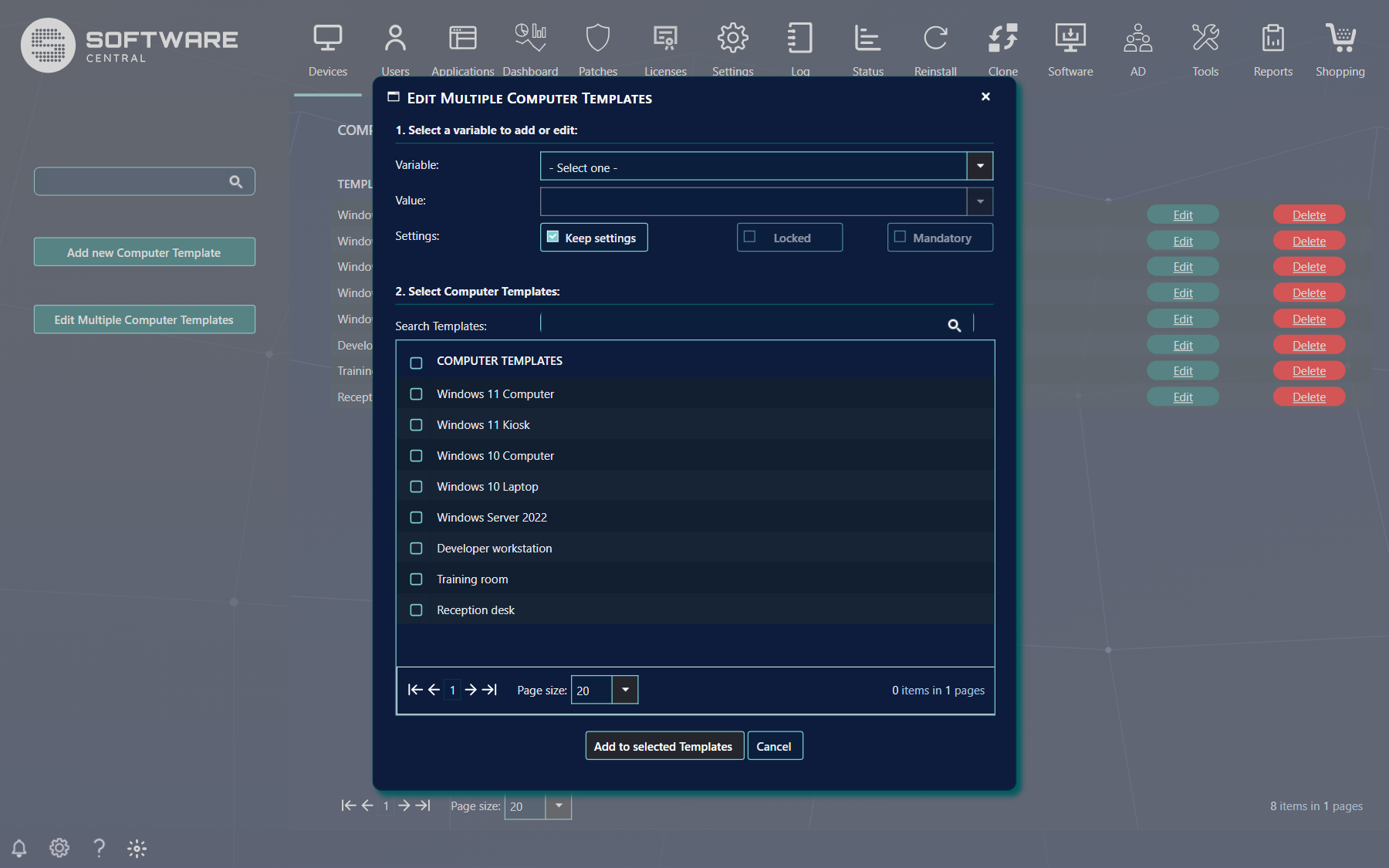
- Select a variable to add or edit. Choose the Variable and its Value, for example a new organisational unit.
- Under Settings, Keep settings is ticked by default so the locked and mandatory settings of the templates are not changed. Untick it to set Locked and Mandatory as well.
- Select Computer Templates. Tick the templates to update. The grid also shows the current setting of the chosen variable for each template.
- Click Add to selected Templates to apply the change.
If you chose to change software groups, you can also click Remove from selected Templates to take the software group out of the selected templates.
The Variable list also contains OS Advertisement and Computer Name Series. The Mandatory option is not offered for software groups, OS Advertisement or Computer Name Series. When a variable is chosen, the grid shows a Current Setting column, and the Locked and Mandatory columns where they apply, so you can see what you are about to change. Use the header checkbox to select all displayed templates, or the search field to narrow the list.
5 Delete a computer template
Click Delete next to the template. A confirmation window asks whether you want to delete it. Click Delete to remove it permanently, or Cancel to keep it.
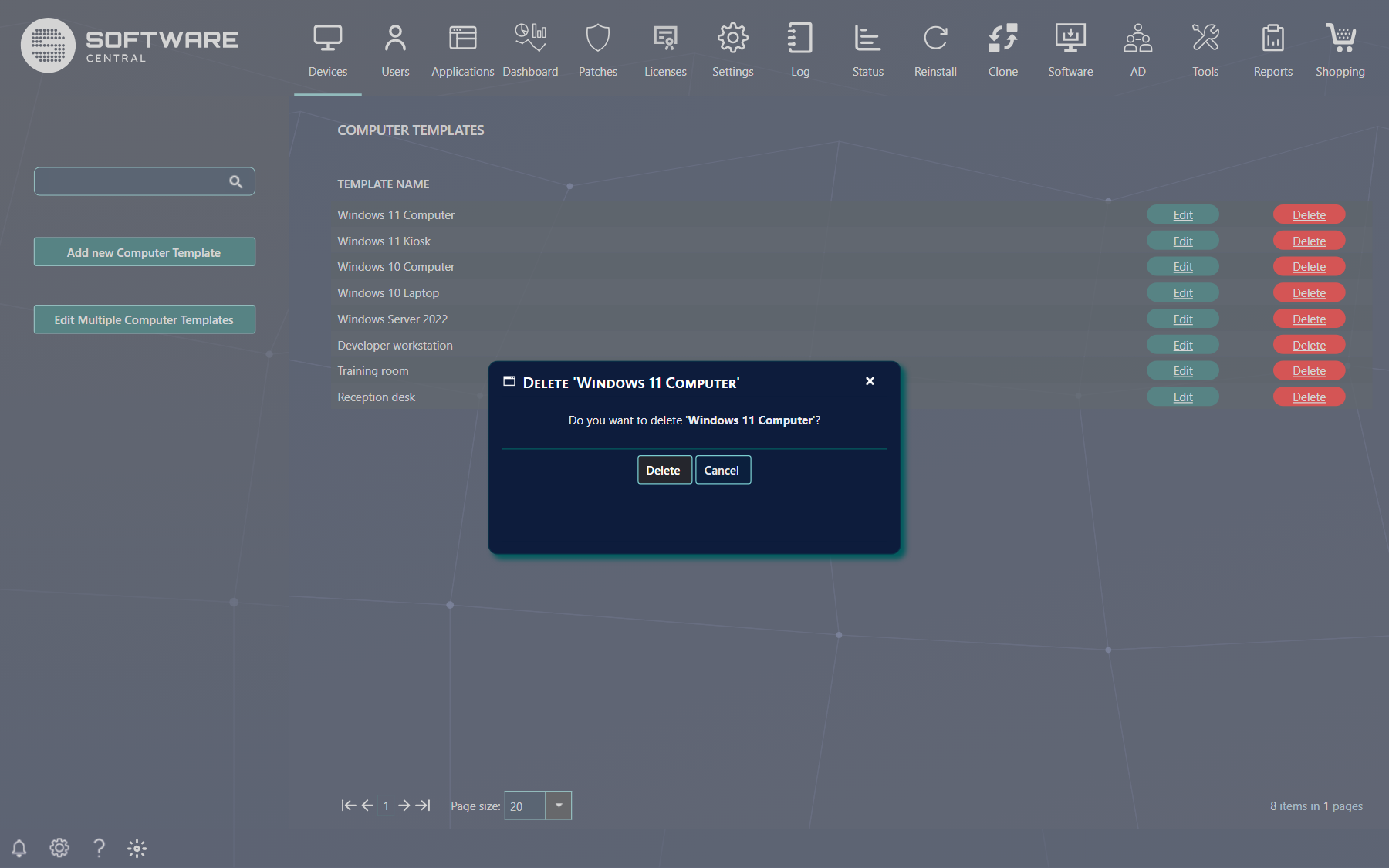
Deleting a template also removes its assignment to security roles.
6 Best practice
- Lock what users must not change and make a variable mandatory when users must choose it themselves. Remember that administrators are not affected by either.
- Use a computer name series so computers imported with the template get consistent names.
- Copy before you create. Use Select another template as template instead of filling in a new template from scratch.
- Use Edit Multiple Computer Templates when the same change, such as a new software group or organisational unit, applies to many templates.
- Assign each template only to the security roles that need it. Users only see the templates of their own role.
- Test a new template on one computer with Edit Computer or an import before you roll it out widely.