1 Create the machine variable
To do this, we first need to create a Machine Variable named LAB_OldComputerName. This is done from the Machine Variables interface in the Settings menu. SoftwareCentral recognizes the variable name to create the association, so the variable name must be exactly LAB_OldComputerName.
- Open Settings and then Machine Variables.
- Click Add new variable.
- In Variable Name, type LAB_OldComputerName.
- In Display Name, type the name the users see, for example Computer Association. Keep Enabled ticked.
- Under Type, select Computer Drop-down.
- Save the variable.
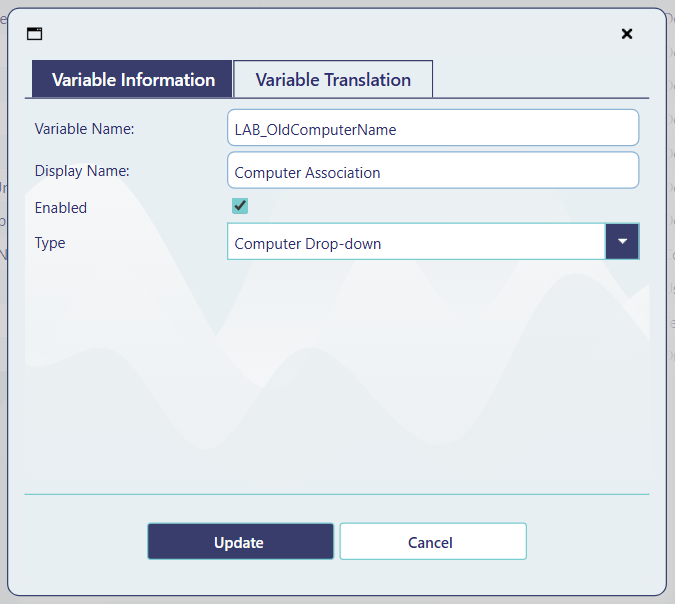
Name and type are fixed
The import looks for the variable by its name only, and the type must be Computer Drop-down, so that the box on the import page searches the computers in ConfigMgr.
2 Choose the old computer when importing
Now when importing a computer, users will get the possibility to create a computer association to an existing computer.
- Open Devices › Import Computer (see Import Computer).
- Open Optional computer settings. The box is shown with the display name of the variable, for example Computer Association.
- Type the name of the existing computer. The box searches the computers in ConfigMgr while you type, so pick the computer from the list.
- Import the computer as usual.

3 What happens during the import
- When the new computer has been created in ConfigMgr, SoftwareCentral looks up the computer named in the variable. If that computer exists, the old computer is associated with the new one. The association is created in ConfigMgr as a state migration association.
- If the old computer cannot be found, nothing is associated, and no message is shown.
- Import Computer and the web service Import Computer From Web Service create the association. The web service only does this when the template gives the variable a value.
- Import Computers and Import Multiple Computers do not create the association. Import one computer at a time with Import Computer when you need it.
- The same box is shown on Edit Computer, where it creates the association for the computer you are editing.
4 Best practice
- Create the variable once, with the exact name LAB_OldComputerName. A second variable with another name is not used for the association.
- Keep the variable enabled. A disabled variable is not shown on the import page, so no computer can be chosen.
- Import the new computer while the old computer still exists in ConfigMgr. The association is only made when the old computer is found at that time.
- Choose the old computer from the list instead of typing a name, so the name matches the computer in ConfigMgr.
5 Troubleshooting
| Symptom | Cause | What to do |
|---|---|---|
| The computer is imported, but no association is made, and no message is shown | The computer named in Computer Association is not in ConfigMgr at the time of the import, or the computer was imported with Import Computers or Import Multiple Computers. | Check that the old computer exists in ConfigMgr under that name, and import the new computer with Import Computer. |
| There is no Computer Association box under Optional computer settings | The variable does not exist, or it is not enabled in Machine Variables. | Create the variable as in step 1, or tick Enabled on it. |
| The box is shown, but the type is a text box and not a list of computers | The variable was created with another type. | Edit the variable and set Type to Computer Drop-down. |
| An imported computer from the web service has no association | The template does not give LAB_OldComputerName a value, and the web service does not take the value from the caller. | Give the variable a value in the template that the tool uses. |