1 Select the computer
Open Devices › Edit Computer and pick a computer in Select computer in the left menu. All of its variables show up in the centre of the page.
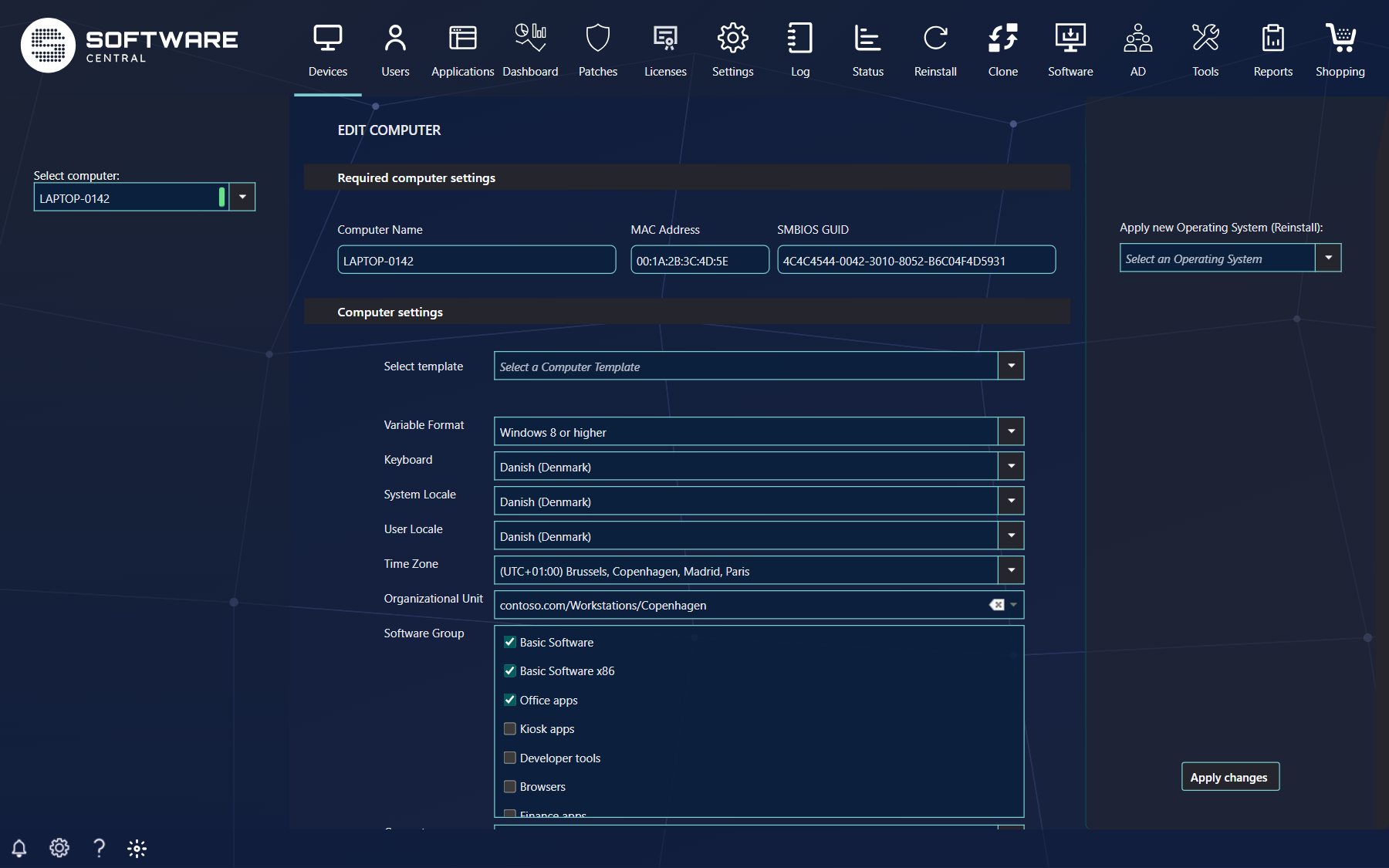
The marker next to the name shows the online status of the computer. Click a green marker to see detailed information about the computer in a new window; click a red marker to check the status again. The Apply changes button stays disabled until a computer is selected. The drop-down only offers the computers your security role may manage.
2 What you can change
The page has two parts: Required computer settings and Computer settings.
| Field | What it is |
|---|---|
| Computer Name | The NetBIOS name of the computer. It is shown for reference and cannot be changed here. |
| MAC Address / SMBIOS GUID | The hardware identifiers ConfigMgr uses to recognise the computer when it installs. The fields only accept hexadecimal characters and you can paste a value into them. If you change either value, the record ConfigMgr holds for the computer is overwritten with the new one when you save. |
| Select template | Fills the settings below from a computer template. |
| Variable Format, Keyboard, System Locale, User Locale, Time Zone | The machine variables used during the installation. Other variables may appear; they are managed in the Machine Variables interface in the Settings menu. |
| Organizational Unit | The Active Directory organisational unit the computer is placed in. |
| Software Group | The software groups assigned to the computer. Tick the groups it should have. Only the groups your security role may use are listed, and the groups are numbered in the order they are listed. A group that contains blocked or expired licensed software is left out when you save. |
| Computer Association | Shown when your administrator has made the variable available. Saving associates the computer with the computer you name. |
Variables that are locked in the template may be hidden, depending on the Hide locked variables setting in the Settings menu. Locked variables that are still shown are greyed out and cannot be edited.
A red asterisk marks a variable that the template makes mandatory. If a mandatory variable is empty when you save, the variable is shown in red, the page tells you how many mandatory variables are missing, and nothing is saved until you have filled them in.
3 Apply a new operating system
In the right menu, Apply new Operating System (Reinstall) selects an operating system to install on the computer.
The right menu is only shown to security roles that have the edit-and-reinstall function, and the list only contains the operating systems your role may install. When you save with an operating system selected, SoftwareCentral starts the installation on the computer and records it as a deployment job named Reinstallation of the computer with the operating system.
4 Save the changes
Click Apply changes in the lower right corner to save. When you have selected a new operating system you are asked to confirm before the computer is reinstalled; if you only changed variables, the changes are saved straight away.
A save without a new operating system is recorded as a deployment job named Edit computer followed by the computer name, with no deployment, so you can find it in the Deployment Manager.
5 Best practice
- Test on one computer first. Check the result on a single computer before you change the same variables on others.
- Start from a template. Select template fills in the variables consistently, and the locks and mandatory markers of the template protect you from missing or changed values.
- Do not select an operating system unless you mean to reinstall. It reinstalls the computer and the user data is lost.
- Copy and paste the MAC address and SMBIOS GUID. A wrong value replaces the identifier ConfigMgr uses to recognise the computer.