Nobody gets it until you say so
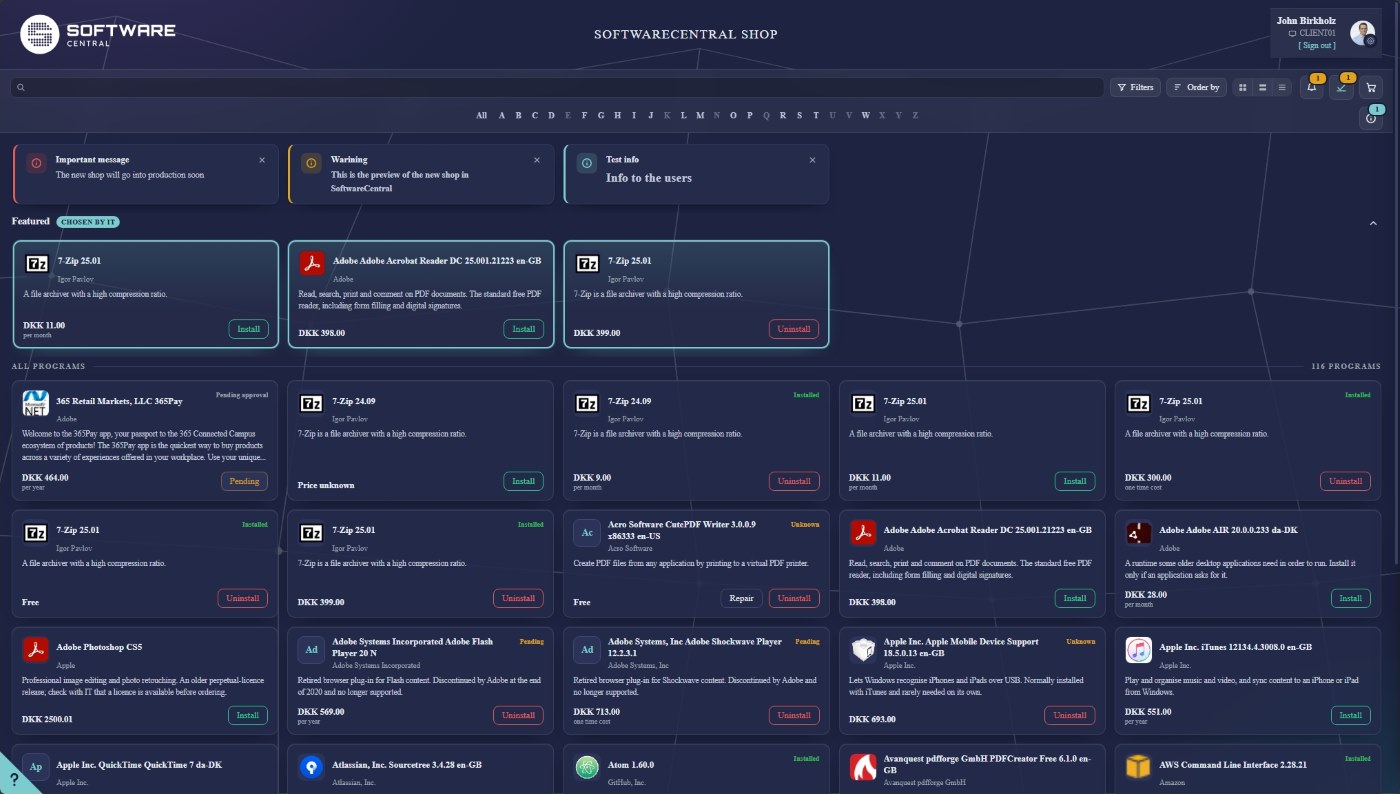
The rebuilt Shop is ready for a real test, and we would like you to be part of it. It is switched off in every installation, and an upgrade never switches it on. You decide when it is turned on, who sees it first, and when everyone else follows. Until you choose a pilot group, every user keeps the shop they know.
You need SoftwareCentral 26R3.2.3 or newer. Earlier versions do not have everything the pilot depends on, so update first. You can check the version at the bottom of the menu.
Start a pilot in six steps
1. Update to 26R3.2.3 or newer
Run the installer as you normally do. The installer also prepares the database for the new shop, so there is nothing to run by hand.
2. Switch the new shop on
The new shop has a master switch that is off by default. Run this script against the SoftwareCentral database, then recycle the application pool so SoftwareCentral picks the change up. Until you do, the New Shop tab in Settings and the new shop's admin pages stay hidden, and nothing changes for your users.
IF NOT EXISTS (SELECT * FROM Configuration WHERE PropertyName = 'ORDER_ShopModernEnabled')
BEGIN
INSERT INTO Configuration (PropertyName, PropertyValue) VALUES ('ORDER_ShopModernEnabled', 'true')
END
ELSE
BEGIN
UPDATE Configuration SET PropertyValue = 'true' WHERE PropertyName = 'ORDER_ShopModernEnabled'
END
3. Choose your pilot group
Create or pick a group in Active Directory, or in Entra ID if your group memberships come from Entra. Ten to twenty people is a good size: a few from the service desk, a few approvers, and some ordinary shoppers.
4. Set the pilot group in Settings
Open Settings › SoftwareCentral › New Shop, choose the group under Pilot the new shop and save. Leave Use the new shop for everyone unticked. From the next time they open the shop, the people in the group are taken to the new shop and the new approvals page, at the addresses they already use. Links to a program keep working, and so do the links in your approval mails. Everyone else is not touched.
While you are on the tab, go through the other New Shop settings, check a handful of applications for icon, description and approval flow, and write a first message from IT to welcome the pilot users.
5. Tell the pilot users how to get back
A pilot user who needs the classic shop can open /Shop?shop=classic and stays on the classic shop for the rest of the session. /Shop?shop=modern brings them back. Tell them before you start, so a problem never stops anybody from ordering. A user added to the group gets the new shop the next time they sign in.
6. Collect feedback
Shoppers can send a debug report from the settings panel in the new shop, and it tells us exactly what they saw. Tell us what works and what does not at support@softwarecentral.com.
When you are happy
Tick Use the new shop for everyone and save. The old addresses now serve the new shop to everybody, so no links, menu buttons or bookmarks need changing. To go back, untick the box. To end the pilot without switching everyone over, click Clear the pilot group.
The mobile shop and mobile approvals are not part of this, and stay as they are.
Read more
Questions, or want a hand with the pilot? Write to us at support@softwarecentral.com.