1 Open Prestage Computer
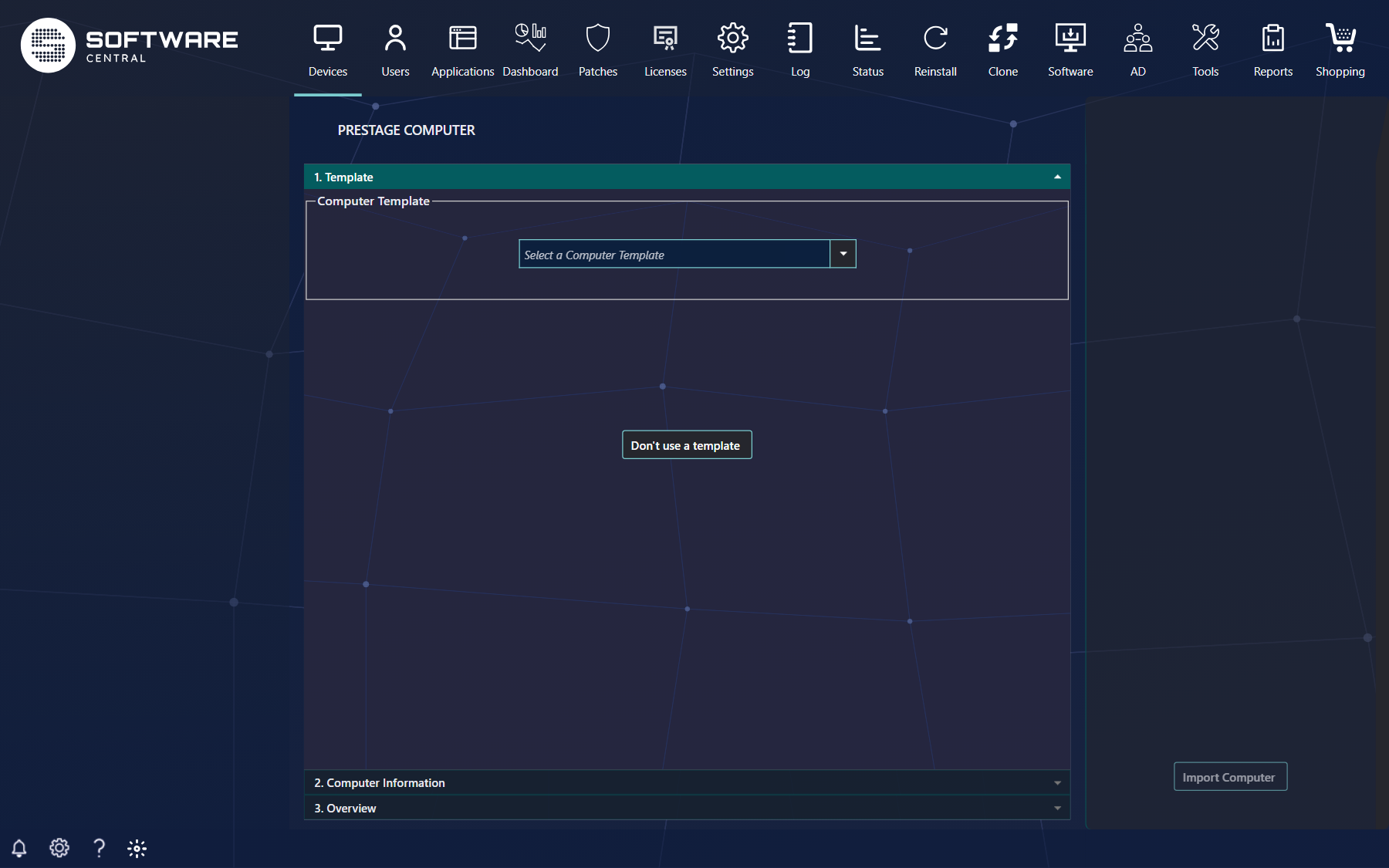
Open Devices › Prestage Computer. The page is a three-step wizard: 1. Template, 2. Computer Information and 3. Overview.
2 Fill in the computer information
Step 2 asks only for what the template does not already supply. As a minimum you must give the MAC address or the SMBIOS GUID. If the template is locked, you see only the fields where data is missing.
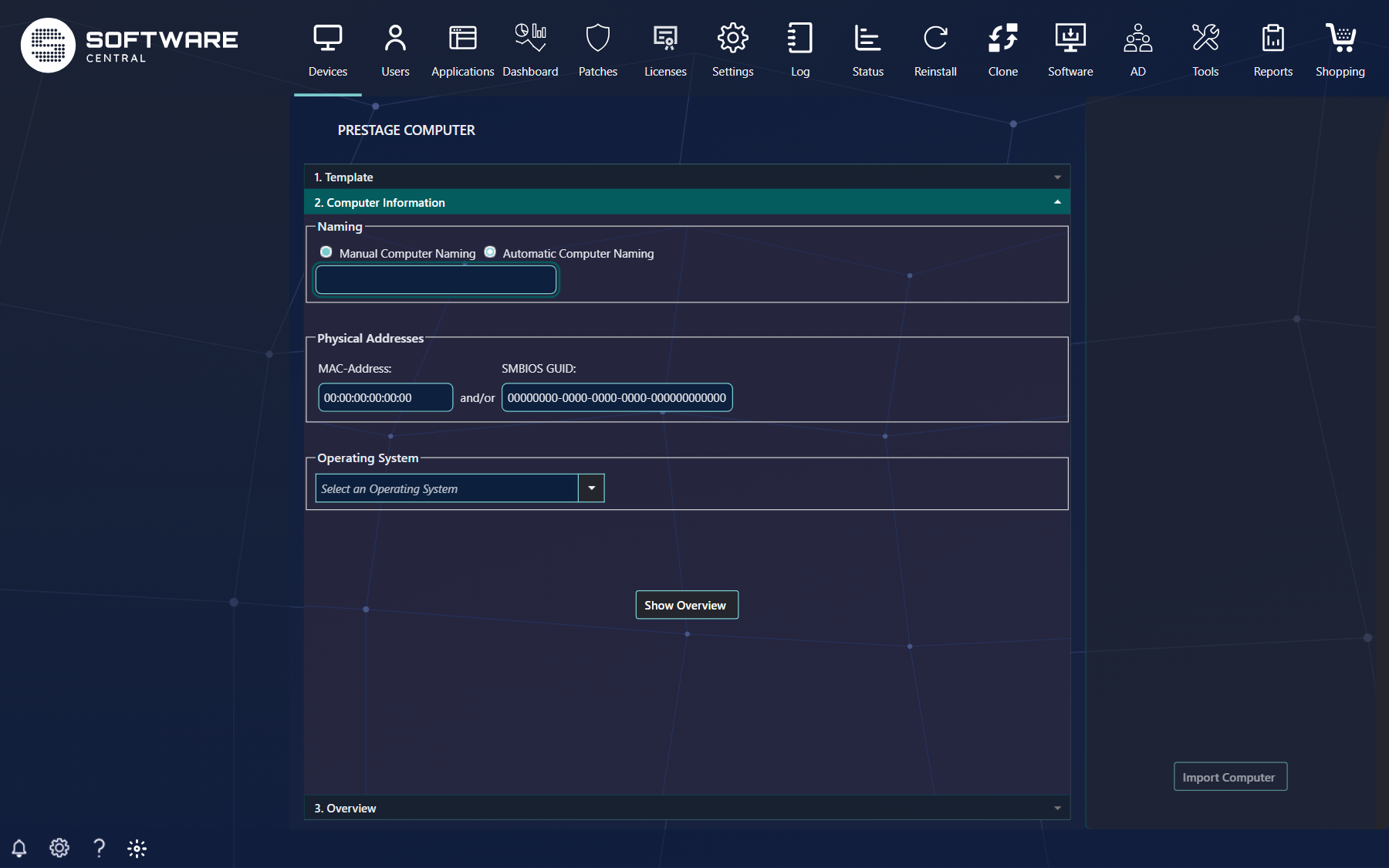
- Enter a name for the computer (Manual Computer Naming), or choose Automatic Computer Naming and select a naming series.
- Enter the MAC-Address and/or the SMBIOS GUID.
- Select the Operating System.
- Click Show Overview.
3 Check the overview and import
Step 3 shows an overview of the computer about to be imported. If you chose an automatic name, the name the computer will receive is shown here. Click Import Computer in the lower right corner to import it.
4 Checks and error messages
When you click Show Overview, SoftwareCentral checks the entries. Anything wrong is shown in red under the field, and the wizard stays on step 2.
| Message | What to do |
|---|---|
| Please enter a computer name | Type a name in Manual Computer Naming. The name box accepts at most 15 characters. |
| Please select a computer name prefix | With Automatic Computer Naming, select a naming series. |
| Please enter a valid Mac Address or SMBIOS GUID | Enter at least one of them. Addresses made only of zeros count as empty. |
| Please select an operating system | Select the operating system collection, unless the template supplies and locks it. |
| Please select the operating system version | Shown only when SoftwareCentral cannot tell the version from the template or from the name of the operating system. Choose Windows XP, Windows Vista or Windows 7 or Windows 8 or higher (this includes Windows 10). |
| The MAC address is a Hardware Identifier in SCCM and can't be used, enter a SMBIOS GUID or another MAC-address. | The MAC address is registered as a duplicate hardware identifier in ConfigMgr. Enter an SMBIOS GUID, or a different MAC address. |
If the computer already exists
If the name, the MAC address or the SMBIOS GUID is already registered in ConfigMgr, the overview shows a red Important box that names the existing computer.
- When your IT department allows computers to be deleted during import, and the existing computer is one you are allowed to manage, the box says that the computer will be deleted if you proceed. Import Computer then deletes it before the new computer is imported.
- Otherwise the box says the computer is not allowed to be deleted and the import cannot proceed; Import Computer stays disabled.
The overview also lists the machine variables the computer will receive, including the software groups of the template. Software groups that contain a blocked or expired licensed package are left out.
With Automatic Computer Naming, the name is reserved as soon as the overview is shown, so nobody else is given the same name while you check the overview.
When your security role requires a template, Don't use a template is disabled (its tooltip says You must use a template) and step 2 and the overview stay closed until a template is selected.
The progress of the import is not shown on this page. After you click Import Computer the page reloads and the import runs in the background; follow the deployment in the Deployment Manager.
5 Best practice
- Use a template whenever you can. It fills in the naming series, operating system and software groups, so every computer is prestaged the same way and you only type the MAC address or SMBIOS GUID.
- Prefer a naming series to a typed name. The next free name is picked for you and reserved, which avoids duplicate names.
- Read the overview before you click Import Computer. It shows the final name, the operating system and the variables the computer gets, and warns if an existing computer will be deleted.
- Copy the MAC address or SMBIOS GUID from the computer itself or from your inventory rather than typing it by hand; the computer is matched by this address when it starts.
- If you need to prestage many computers, use Import Multiple Computers instead of repeating this wizard.