1 The hardware item
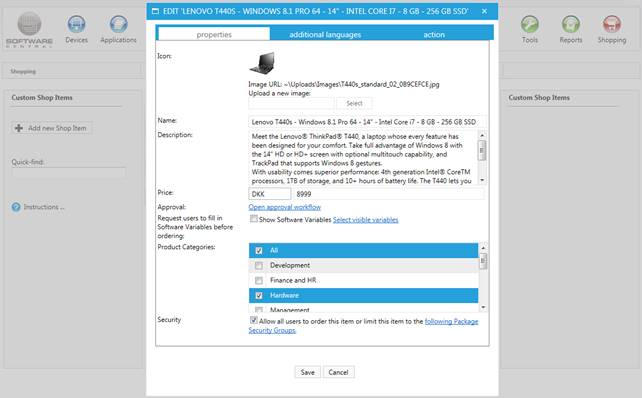
We can use the custom shop items to add hardware items to the shop. Here we have added a Lenovo T440s item, created in Custom Shop Items.
2 Choices for the shopper
We could use Software Variables to add drop-down boxes with different configurations such as memory, operating system and so on.
| Setting | What it does |
|---|---|
| Price | Price (default) writes the price as a number. If the price is 0, the price is hidden in the shop. Free, Unknown, Per year, Per month and One time cost write the price in that way. |
| Show Software Variables | Asks the shopper the questions you choose before the item goes into the basket. Use Select visible variables to pick the questions. |
| Security | Allow all users to order this item, or limit the item to the following Package Security Groups. See Package Security Groups. |
3 In the shop
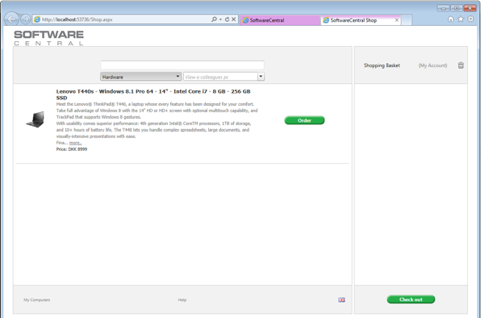
In the shop it will look like this:
4 Best practice
- Choose the price type on purpose. With Price (default), a price of 0 is hidden in the shop; Free or Unknown tells the shopper what to expect instead.
- Use Show Software Variables for the choices that differ, such as memory or operating system, rather than making one item for each configuration.
- Use Security to limit a hardware item to the people who may order it when not everyone should see it.
- If an order must be approved, set an approver on the Approval Flow tab. See Approval Flow.