1 The severity levels
Each entry in the log has one of these five levels. The icon in the first column shows the level; hover over it to read its name.
| Level | Icon and name | What it means |
|---|---|---|
| 1 – Details | Information icon. Tooltip Details. | None important information such as start and end of transactions. Debugging messages use this level too. |
| 2 – General | Bell icon. Tooltip General. | None important information such as item requests. |
| 4 – Success | Green check icon. Tooltip SuccessInfo. | Whenever an operation has completed successfully. |
| 8 – Warning | Orange triangle icon. Tooltip Warning. | An error has occurred, but the operation was able to continue. |
| 16 – Critical | Red octagon icon. Tooltip Critical. | An error has occurred and the operation wasn’t able to continue. |
Refusals are warnings
A refusal, such as Access denied or a page that the security role does not allow, is written as a
Warning even when it is logged as an error. The user was refused; nothing in SoftwareCentral broke.
2 The Severity filter
The Severity box in the left menu of the Log shows the entries at the level you choose, and every level above it.
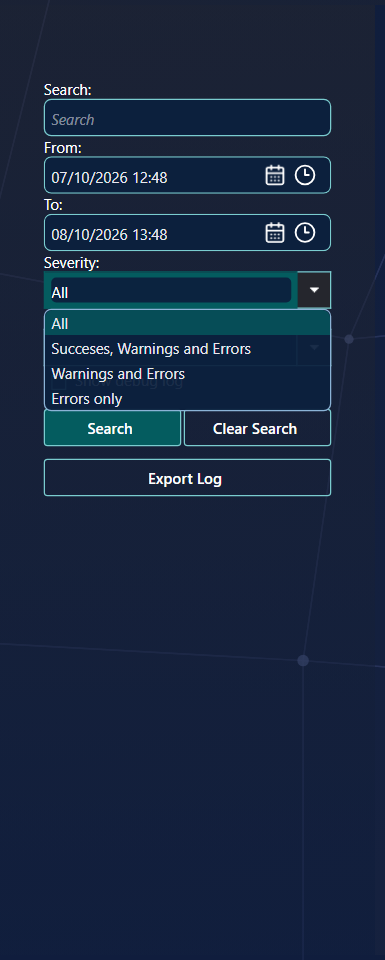
| Option | Shows the levels |
|---|---|
| All | Every level, from 1 Details upwards. This is the default. |
| Succeses, Warnings and Errors | 4 Success, 8 Warning and 16 Critical. Details and General are left out. |
| Warnings and Errors | 8 Warning and 16 Critical. |
| Errors only | 16 Critical and above. |
The Severity filter applies to the General log and the Personal Log. The Event Log does not use it.
3 Popup notifications
Messages that you start can pop up as notifications. The level you choose decides which ones pop up.
To change the level, open Settings (the gear icon at the bottom left of the window) and choose an option under Notifications.
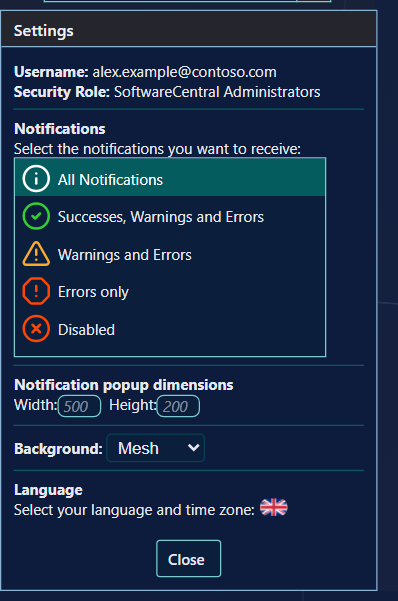
| Option | Popups are shown for |
|---|---|
| All Notifications | Every level, from 1 Details upwards. This is the default. |
| Successes, Warnings and Errors | 4 Success, 8 Warning and 16 Critical. |
| Warnings and Errors | 8 Warning and 16 Critical. |
| Errors only | 16 Critical. |
| Disabled | No popups. |
- Popups only show messages that you started. Messages from the system are not shown as popups.
- Popups never show debugging messages. The entries stay in the log.
- For warnings and errors, the popup leaves out the stack trace and the operation ID. The full text is in the log.
4 Best practice
- Use Errors only or Warnings and Errors for daily work. Popups for every success interrupt you without adding much. Choose All Notifications when you are trying something new and want to see each step.
- Read Warning and Critical entries first. In the General log, set Severity to Warnings and Errors to see them together.
- Treat an Access denied warning as a permissions question. The user was refused by the security role. Check the menus and tabs assigned to that role before you look for a fault.
- Do not rely on popups as the record. They leave out debugging messages and messages from the system. The General log and the Personal Log hold the full history.
5 Troubleshooting
| Symptom | Cause | What to do |
|---|---|---|
| No popups appear for the messages you expect. | The level under Notifications is Errors only, Warnings and Errors or Disabled, or the message was not started by you. | Open Settings and choose All Notifications, then carry out the action again. |
| An entry with the Warning icon says Access denied. | The security role of the user does not allow the action. The refusal is written as a Warning. | Check the security role of the user and the menus and tabs it includes. This is not a system fault. |
| A Critical entry starts with "Failed to". | An operation failed and could not continue. The reason is added to the end of the entry. | Read the details of the entry and fix the cause, for example a connection to the database, before you try again. |