1 What a log entry contains
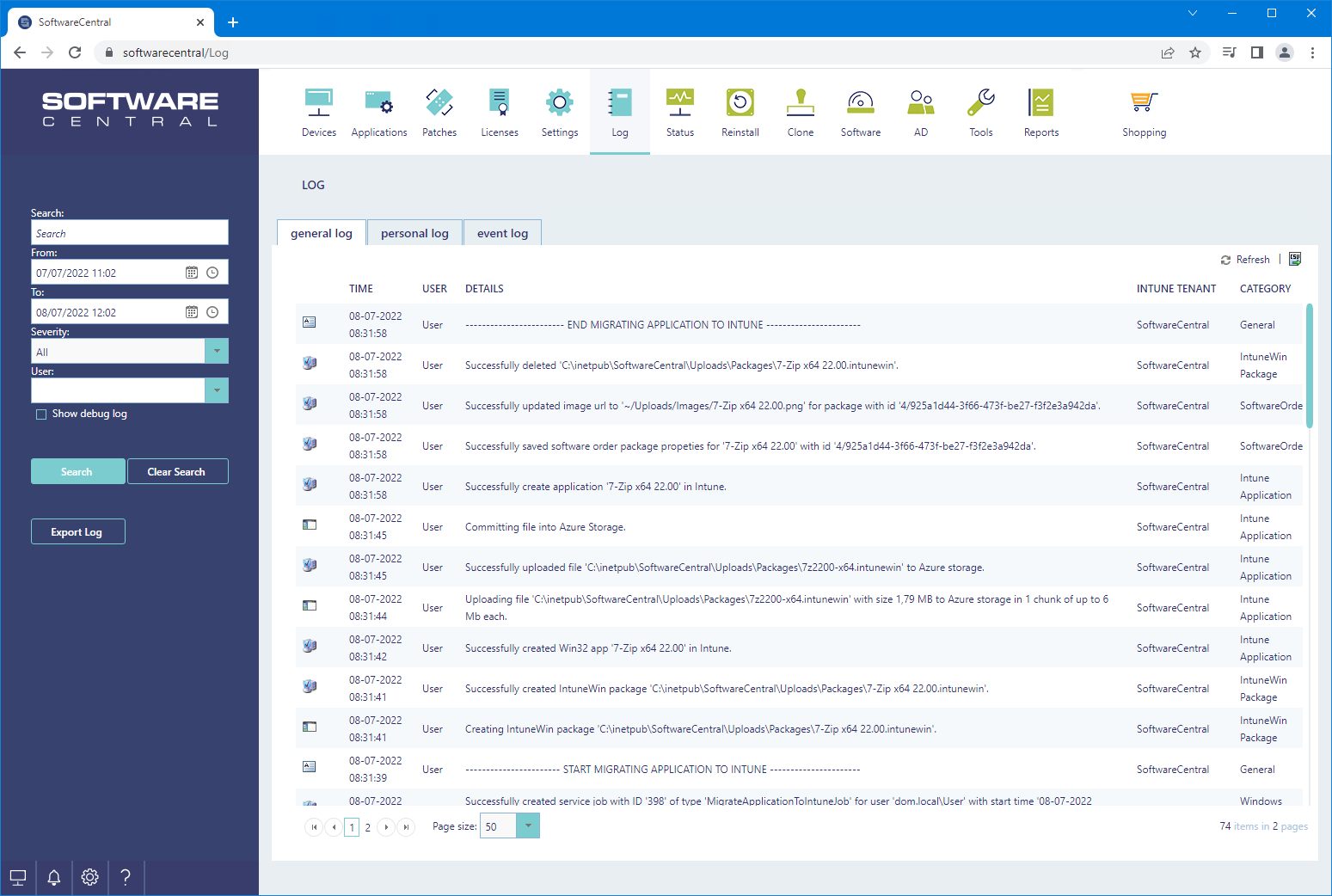
Every action made in SoftwareCentral will add an entry to the log. A log entry is made up of a timestamp, a severity number, the user who initiated the action, details about the action and a category.
| Column | What it shows |
|---|---|
| Icon | The severity of the entry. Hover over the icon to see its name. See Log message severity (importance). |
| Time | When the entry was written, in your own time zone. The time is stored in UTC and converted for your screen. |
| User | The user who initiated the action. A domain prefix such as CONTOSO\ is removed when the entry is written, so the name shows as alex.example. Shown on the General log only. |
| Details | The message. Error messages also say where the error happened and give the exception message. |
| Intune Tenant | The Intune tenant the entry belongs to. Shown only when Intune is switched on in SoftwareCentral. |
| Category | The area that wrote the entry, for example General, Site or Clients. Not shown on the Event Log. |
| Function | Hidden by default. It holds the place in the code that wrote the entry. |
2 System user names
Actions started by the system are not registered under a person's name. They appear under these user names.
| User name | Used for |
|---|---|
| SWC Service Account | Work done by the SoftwareCentral Windows service, such as its daily tasks and index builds. Entries without a known user also appear under this name. |
| Service | Actions started by the system itself. |
| ExternalWebService | Calls to SoftwareCentral's web services that arrive without a signed-in user, through the anonymous website. |
3 The Log interface
Open Log in SoftwareCentral. The log is shown in a grid, and three tabs sit above it.
| Tab | What it shows |
|---|---|
| General log | All log messages, from all users and the system. See General Log and Personal Log. |
| Personal Log | Only the messages started by the user who is signed in. |
| Event Log | Events from the Windows Event Viewer on the server where SoftwareCentral is installed. Only needed for advanced troubleshooting of site related errors. |
The tabs can be assigned to security roles, so a user may only see his or her personal log. Your IT department decides which tabs you see.
Click a column heading to sort the entries. Use the page size box below the grid to show 50, 100, 250 or 500 entries per page. The Refresh link above the grid reloads the entries.
4 Search filters
You can use the search filters in the left menu to find and export log messages. Click Search to apply them. See Search the log for a step-by-step search.
| Filter | What it does |
|---|---|
| Search | Shows the entries whose details contain the text you type. |
| From and To | The period to search, in your time zone. When the page opens, From is one day ago and To is one hour from now. |
| Severity | Shows the entries at the chosen level and above. The General log and the Personal Log use it; the Event Log does not. |
| User | On the General log, shows the entries of one user. Leave it empty for all users. |
| Show debug log | Adds the debugging messages, which are hidden otherwise. Shown only to roles with the General log tab. |
| Clear Search | Resets the search and the filters. |
| Export Log | Downloads the entries of the current search as a CSV file. The icon column is not included. |
5 Best practice
- Narrow the period before you search. A search loads at most 10.000 entries, newest first. A short From and To range is quicker and gives the entries you need.
- Export before you shorten the retention period. Entries older than the retention period are deleted from the database and cannot be restored. See Log for the setting.
- Keep Show debug log off in daily use. Debugging messages are noise for most questions. Turn the box on when support asks for them.
- Handle exported logs as personal data. Entries contain user names and details of what people did, so store and share an export with the same care as the log.
6 Troubleshooting
| Symptom | Cause | What to do |
|---|---|---|
| "The latest 10.000 log entries were loaded. Please specify the search to load older log entries." | More than 10.000 entries match the search. | Narrow From and To, or type text in Search, and search again. |
| "No log entries match your criteria. Try to adjust your search with a longer timespan." | No entry matches the period, the text, the severity or the user. | Widen From and To, click Clear Search, or set Severity to All. |
| "Failed to read log details." (a Critical entry) | SoftwareCentral could not read the log from its database. The reason is added to the entry. | Read the details of the entry, check the connection to the SoftwareCentral database, and search again. |
| "Failed to export the log." (a Critical entry) | The CSV export did not complete. The reason is added to the entry. | Read the details of the entry, narrow the search and try again. |
| A tab is missing. | Your security role does not include the tab, or the Event Log is not offered on the cloud version of SoftwareCentral. | Ask your IT department which tabs are assigned to your security role. |
| Older entries are missing. | The retention setting removes entries older than the number of months set. See Log. | Check the retention setting. Entries that have been removed cannot be restored. |
7 See also
| Page | What it covers |
|---|---|
| Log | What is kept, for how long, and the personal data note. |
| General Log and Personal Log | The General log, the Personal Log and the Event Log, and which roles see them. |
| Search the log | How to search and export the log. |
| Log message severity (importance) | The severity levels, the Severity filter and the popup notifications. |