1 Before you start
SoftwareCentral needs a SQL Server database of its own. Check these points first.
| Item | What you need |
|---|---|
| SQL Server | Microsoft SQL Server 2019 or later, Express or Azure SQL. See Prerequisites. |
| Collation | The SQL Server and the SoftwareCentral database must use the same collation. We recommend SQL_Latin1_General_CP1_CI_AS. |
| Account | An account that can create a database and add logins. If it cannot, your database administrator creates the empty database for you (see section 3). |
| Azure SQL | Auto-pause must be disabled, and the database must be in the same tenant as the app registration. |
2 Create the database
Use SQL Server Management Studio to create an empty database named SoftwareCentral.
- Open Microsoft SQL Server Management Studio and connect to the SQL Server that will host the database.
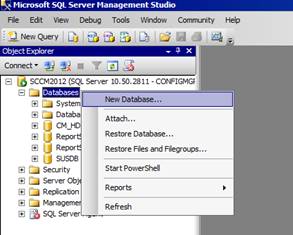
- In Object Explorer, locate the Databases folder. Right-click Databases and choose New Database….
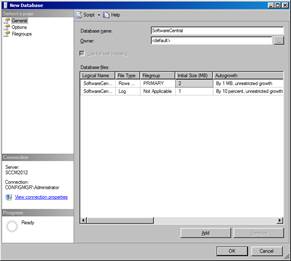
- Enter SoftwareCentral as Database name and click OK.
3 Let the installer create the tables
You leave the database empty. The SoftwareCentral installer fills it.
The installer creates the SoftwareCentral tables in the database and runs the database scripts for the version it installs. You do not download a script and you do not run it in SQL Server Management Studio. In the installer, enter the database server and the database name in the step for the site and database information (step 5.3 of the Installation & Setup Guide).
| If… | Then |
|---|---|
| The account you install with can create databases and logins | Create the empty database as in section 2 and let the installer do the rest. |
| The account cannot create databases and logins | Ask your database administrator to create the empty SoftwareCentral database as in section 2, and a login for the SoftwareCentral service account. |
The service account needs read, write and execute permissions on the SoftwareCentral database. This does not apply to Azure SQL. See Prerequisites.
4 Best practice
- Use one collation for the server and the database. SoftwareCentral joins its own temporary tables to the database. When the collations differ, those joins fail with the error shown in the troubleshooting table below.
- Leave the new database empty. The installer creates the tables, so do not create tables in the database yourself.
- Give the service account its own login. Use the login that the installer or your database administrator creates for the service account, not a personal login, and keep the permissions in place after the installation.
- Back up the database before you update or uninstall. Without a backup you cannot roll back. See Updating the SoftwareCentral database.
- On Azure SQL, keep auto-pause disabled. The database must also stay in the same tenant as the app registration.
5 Troubleshooting
| Symptom | Cause | What to do |
|---|---|---|
| An error that contains "Cannot resolve the collation conflict" | The SQL Server and the SoftwareCentral database use different collations, so a join between them fails. | Ask your database administrator to check the collation of the server and of the database. Use SQL_Latin1_General_CP1_CI_AS for a new database. Changing the collation of an existing database is a database task that SoftwareCentral does not do for you. |