1 Select the computer
In the left menu, select the Computer option (selected by default) and use the drop-down below to search for the computer you want to control.
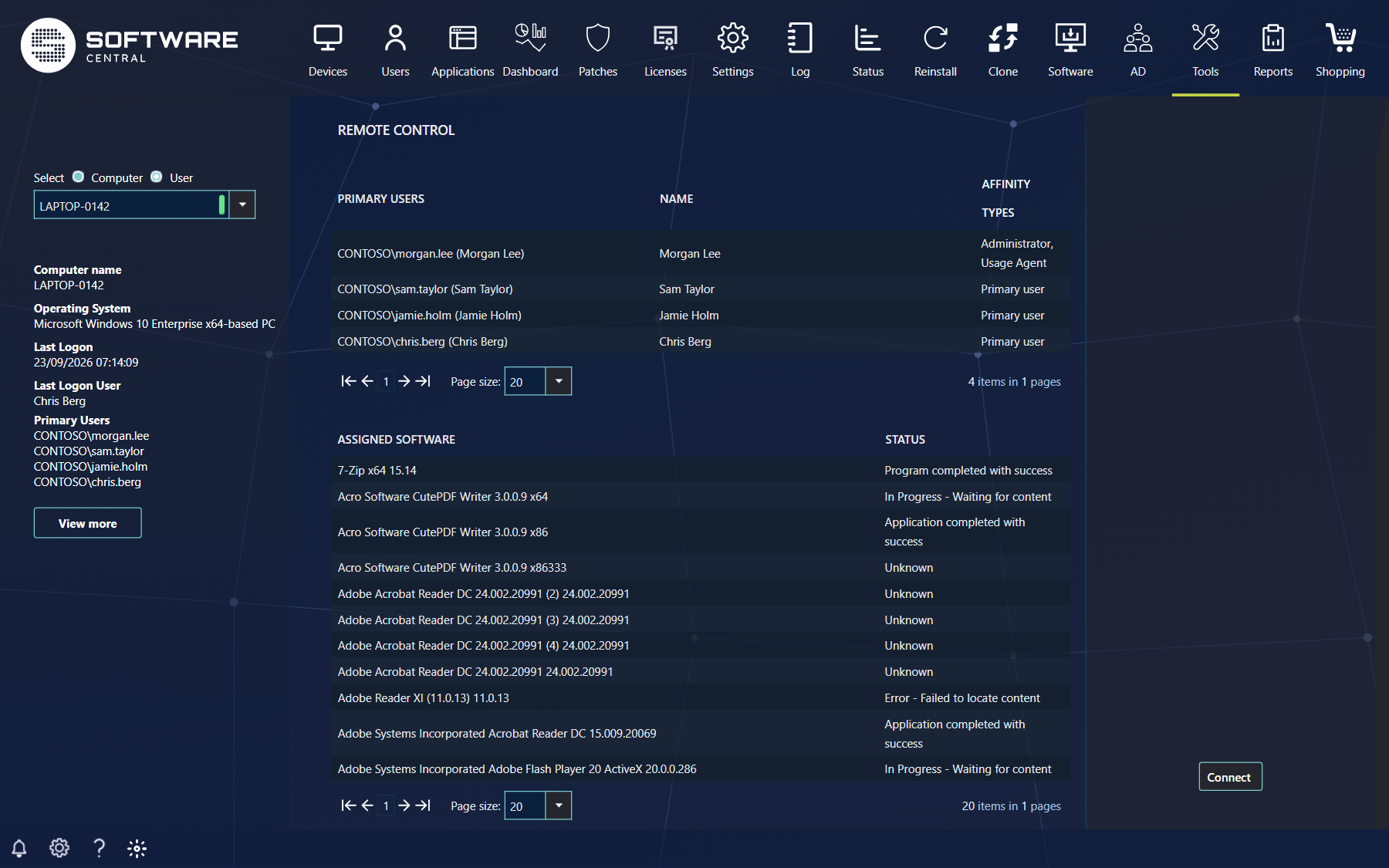
A coloured marker next to the drop-down shows whether the computer is online. In the centre you see the computer's primary users and the software currently assigned to it. Click Connect in the lower right corner to take over the computer. See Using the Remote Control Tool.
| What you see | What it tells you |
|---|---|
| Green marker | The computer is online. Click it to see detailed information about the computer in a new window. |
| Red marker | The computer appears to be offline. Click it to check again. |
| Left menu details | Name, type (computer or mobile), operating system, last logon, the user logged on and the primary users. View more opens the detailed information. |
| Primary users grid | The primary users of the computer, with their Name and the Affinity Types that link them to the computer. |
| Assigned Software grid | The software assigned to the computer and its Status. |
The drop-down only offers computers that your security role may manage. If you paste a computer name and press Enter before the suggestions appear, SoftwareCentral accepts it only when exactly one allowed computer matches. Connect is not available until a computer has been selected, and not at all unless the administrator has entered the viewer path in the Settings menu.
2 Best practice
- Wait for the green marker. Connect when the computer is online; if the marker is red, click it to check again first.
- Look at the primary users and the logged-on user before you connect, so you know whose session you are about to take over.