1 Add the HTTPS binding
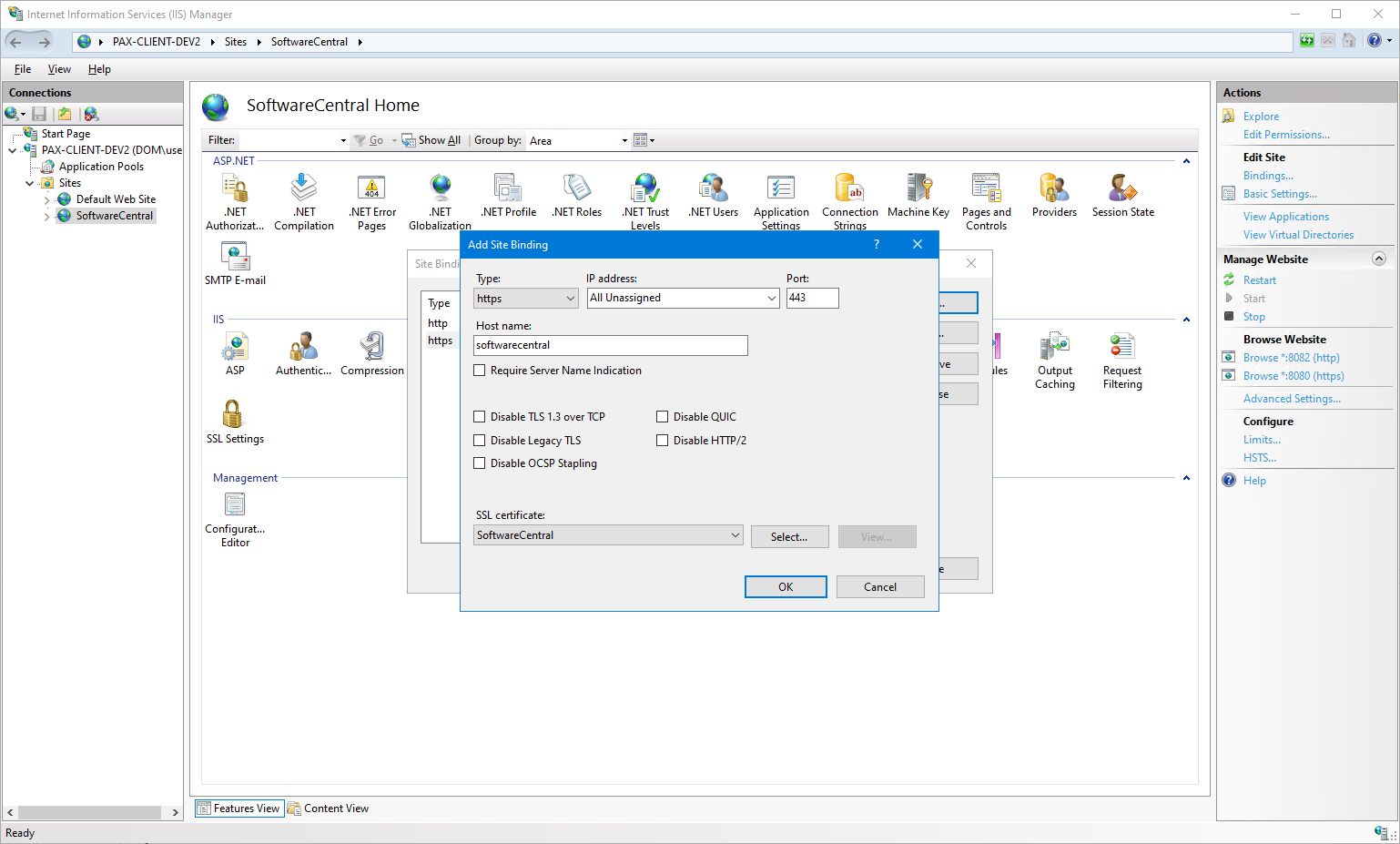
Add a binding for your desired host name. The host name should also be configured in your DNS.
- In IIS Manager, on the SoftwareCentral site, click the Add… button and add a binding for your host name.
- Choose a certificate that is trusted by your clients and click OK.
Optional port 80 binding
You may also add a binding on port 80 for your SoftwareCentral host name, so users who do not type
https:// can still find SoftwareCentral. A rewrite rule redirects them to the https site.
2 Azure / Entra Update the app registration
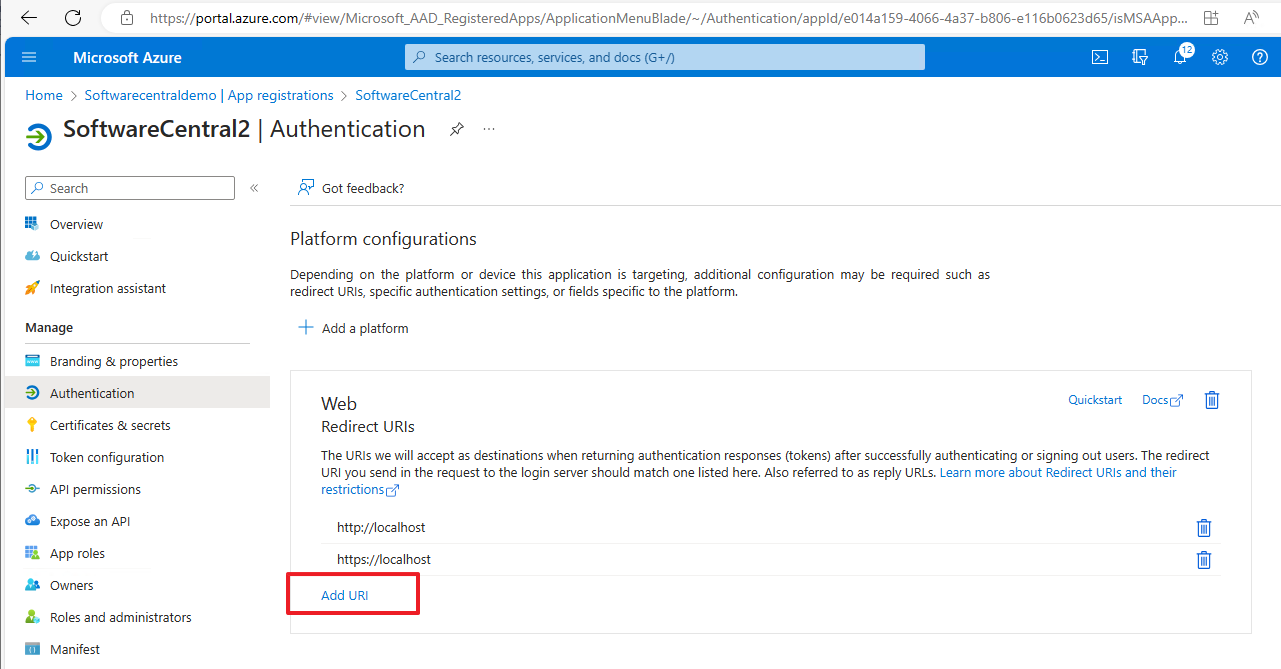
Once you have added a host name, go to the app registration in the Azure portal and add the new host name to the Redirect URIs.
You should also add the front-channel logout URL. This is required if you want to use single sign-out. The sign-out URL is your host name followed by /logout.
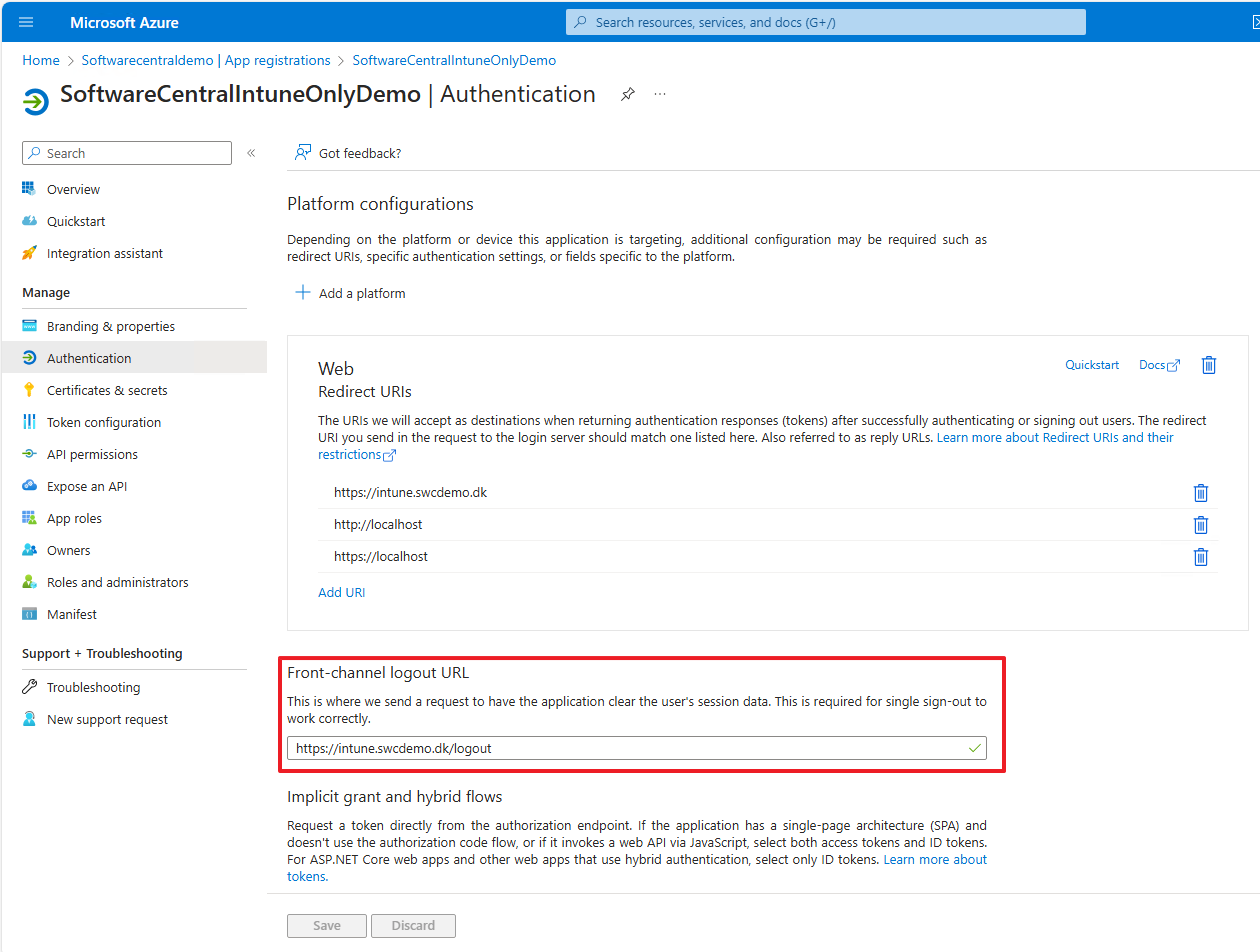
/logout) for single sign-out.📄 Original page: Configure HTTPS
✓ Installation complete
Done 🎉
SoftwareCentral is installed and reachable. Finish configuring the Application Manager Only edition in the in-app Setup Guide (Intune, mandatory settings, Robopack, templates).