1 What is here
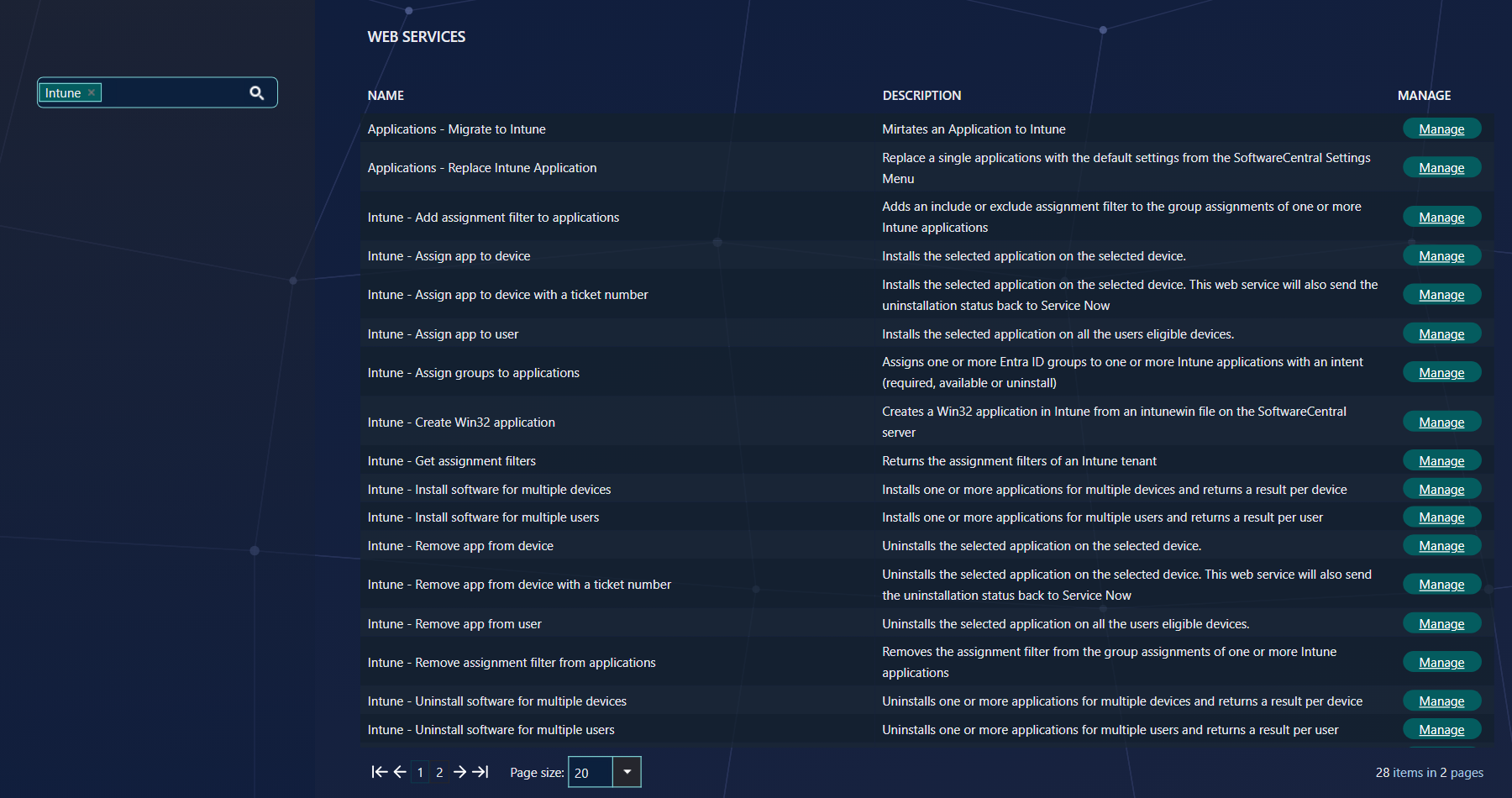
These web services manage Intune applications, application groups, assignments and filters from a script.
They are listed under Settings › Web Services, with names that start with Intune or Intune Application Groups. Like all web services, a role must have access to each one on its Security tab, and the call can only reach the users, devices, applications and groups that the role may use. See Security.
Parameters that are the same everywhere
| Parameter | What to send |
|---|---|
strIntuneTenantName | The name of the Intune tenant in SoftwareCentral, for example Default. The role must be allowed to use the tenant. |
| Applications | The display name of the application as SoftwareCentral shows it, or the application ID. |
| Users | The user principal name, for example alex@contoso.com. |
| Devices | The name of the managed device. |
| Groups | The name of the Entra ID group, or its ID. If two groups have the same name, use the ID. |
| Application groups | The name of the application group, or its ID. |
Parameter names show their type: str is text, astr is a list of text and bln is true or false.
2 Intune Application Groups
An application group bundles applications, so that they are installed together. These web services are in WS_IntuneApplicationGroups.asmx.
| Web service | Parameters | What it does |
|---|---|---|
Intune Application Groups - Get allGetApplicationGroups | strIntuneTenantName | Returns the application groups of the tenant, each with its items. |
Intune Application Groups - Get oneGetApplicationGroup | strApplicationGroup, strIntuneTenantName | Returns one application group, with its items. |
Intune Application Groups - CreateCreateApplicationGroup | strDisplayName, strDescription, astrApplicationNames, strIntuneTenantName | Creates the application group and the Entra ID group behind it, and returns the new group. The applications are optional. It fails if a group with the same name exists. |
Intune Application Groups - UpdateUpdateApplicationGroup | strApplicationGroup, strNewDisplayName, strDescription, strStatus, strIntuneTenantName | Changes the name, the description or the status (Enabled or Disabled). A value that is empty is not changed. Returns true or false. |
Intune Application Groups - DeleteDeleteApplicationGroup | strApplicationGroup, strIntuneTenantName | Deletes the application group and its Entra ID group. Returns true or false. |
Intune Application Groups - Add applicationAddApplicationToGroup | strApplicationGroup, strApplicationName, strIntuneTenantName | Adds an application to the group. It is true also if the application is already in the group. |
Intune Application Groups - Remove applicationRemoveApplicationFromGroup | strApplicationGroup, strApplicationName, strIntuneTenantName | Removes an application from the group. |
Intune Application Groups - Install for userInstallApplicationGroupForUser | strUserPrincipalName, strApplicationGroup, strIntuneTenantName, blnIsRequired | Installs every item of the group for the user. blnIsRequired true installs it as required, false as available. A disabled group cannot be installed. |
Intune Application Groups - Uninstall for userUninstallApplicationGroupForUser | strUserPrincipalName, strApplicationGroup, strIntuneTenantName | Uninstalls the group for the user. |
Intune Application Groups - Install for deviceInstallApplicationGroupForDevice | strManagedDeviceName, strApplicationGroup, strIntuneTenantName, blnIsRequired | Installs every item of the group for the device. |
Intune Application Groups - Uninstall for deviceUninstallApplicationGroupForDevice | strManagedDeviceName, strApplicationGroup, strIntuneTenantName | Uninstalls the group for the device. |
A group is returned with its Id, DisplayName, Description, Status, EntraIdGroupId and Items. An item has a Type, Application or ConfigurationPolicy, and an ItemId. Only applications can be added to or removed from a group with these web services.
3 Install software for many users or devices
Install or uninstall several applications for several users, or for several devices, in one call. These are in WS_Intune.asmx.
| Web service | Parameters |
|---|---|
Intune - Install software for multiple usersInstallSoftwareForUsers | astrUserPrincipalNames, astrApplicationNames, strIntuneTenantName |
Intune - Uninstall software for multiple usersUninstallSoftwareForUsers | astrUserPrincipalNames, astrApplicationNames, strIntuneTenantName |
Intune - Install software for multiple devicesInstallSoftwareForDevices | astrManagedDeviceNames, astrApplicationNames, strIntuneTenantName |
Intune - Uninstall software for multiple devicesUninstallSoftwareForDevices | astrManagedDeviceNames, astrApplicationNames, strIntuneTenantName |
Every application is installed for every user or device, with the same logic as the calls for a single user or device. The answer has one result for each user or device, with three values:
| Value | Meaning |
|---|---|
| Target | The user or device name you sent. |
| Success | True only if every application was handled for this target. |
| Message | How many applications were assigned or removed, or what went wrong, for example that the user does not exist or which application failed. |
A target that cannot be found, or an application that the role cannot use, is reported in the result and does not stop the other
targets. The devices are synchronised once after the call. To change a single user or device, use
InstallSoftwareForUser, UninstallSoftwareForUser, InstallSoftwareForDevice or
UninstallSoftwareForDevice, which take strUserPrincipalName or strManagedDeviceName,
strApplicationName and strIntuneTenantName.
4 Assign groups and filters to applications
Assign a group to many applications at once, for example a test group as available, and add or remove assignment filters in bulk.
| Web service | Parameters | What it does |
|---|---|---|
Intune - Assign groups to applicationsAssignGroupsToApplications | astrGroupNames, astrApplicationNames, strIntent, strIntuneTenantName | Assigns every group to every application. strIntent is Required, Available or Uninstall. An assignment that already exists counts as done. |
Intune - Add assignment filter to applicationsAssignFilterToApplicationAssignments | astrApplicationNames, astrGroupNames, strFilterName, strFilterMode, strIntuneTenantName | Sets a filter on the assignments. strFilterMode is Include or Exclude. Send groups to change only the assignments to those groups, or leave the list empty to change all assignments of the applications. |
Intune - Remove assignment filter from applicationsRemoveFilterFromApplicationAssignments | astrApplicationNames, astrGroupNames, strFilterName, strIntuneTenantName | Removes the filter from the assignments. Send a filter name to remove only that filter, or leave it empty to remove any filter. Groups work as above. |
Intune - Get assignment filtersGetAssignmentFilters | strIntuneTenantName | Returns the filters of the tenant, each with Id, DisplayName, Description and Platform. |
A filter is found by its name or its ID. These web services answer with one result for each assignment, named application -> group (intent), with Success and a Message, in the same way as the install web services above.
5 Create a Win32 application
Create a Win32 application in Intune from a package file that is on the SoftwareCentral server.
| Web service | Parameters |
|---|---|
Intune - Create Win32 applicationCreateWin32Application | strIntunewinFilePath, strIntuneApplicationTemplateName, strIntuneTenantName |
strIntunewinFilePathis the full path of an.intunewinfile, as the SoftwareCentral server sees it.strIntuneApplicationTemplateNameis the name of an application template that the role may use. Leave it empty to use the default template.
The application is created in the same way as when you create an Intune application in SoftwareCentral: its properties are read from the package, and the template provides the install and uninstall commands, return codes and requirements. The web service returns true or false.
6 Examples
Lists are sent as lists. In PowerShell, call the web service with New-WebServiceProxy (SOAP):
# Install two applications for two users, and show one line per user.
$proxy = New-WebServiceProxy -Uri "https://swc/Api/WS_Intune.asmx" -Class "Proxy" -UseDefaultCredential

$users = @("alex@contoso.com", "morgan@contoso.com")
$applications = @("7-Zip", "Adobe Acrobat Reader")

$results = $proxy.InstallSoftwareForUsers($users, $applications, "Default")
$results | Format-Table Target, Success, Message
With JSON, send the lists as arrays:
# Assign a test group as available to two applications.
$body = @{
    astrGroupNames       = @("Pilot users")
    astrApplicationNames = @("7-Zip", "Adobe Acrobat Reader")
    strIntent            = "Available"
    strIntuneTenantName  = "Default"
} | ConvertTo-Json

$url = "https://swc/Api/WS_Intune.asmx/AssignGroupsToApplications"
Invoke-RestMethod -Method Post -Uri $url -ContentType "application/json" -Body $body -UseDefaultCredentials
With HTTP GET or POST, repeat the parameter once for each value:
https://swc/Api/WS_Intune.asmx/InstallSoftwareForUsers?astrUserPrincipalNames=alex@contoso.com&astrUserPrincipalNames=morgan@contoso.com&astrApplicationNames=7-Zip&strIntuneTenantName=Default
To call as an app or as a user with an access token, see Call web services using Microsoft Security Tokens. The PowerShell box in the Manage window shows the parameter names of each web service.
7 Best practice
- Give the tenant name on every call. Each call checks the tenant first, so a wrong or missing tenant name stops the call before any change is made.
- Read every result. The install and assignment calls answer with one result per user, device or assignment. One failed target does not stop the others, so read each Success and Message.
- Use the filter ID when two filters share a name. The call stops with an error when a filter name matches more than one filter.
- Enable an application group before you install it. A disabled group is refused with an error.
8 Troubleshooting
| Symptom | Cause | What to do |
|---|---|---|
| A single result named Request with a message such as “strIntent must be Required, Available or Uninstall.” or “No devices are specified.” | A parameter is missing or has a value the call does not accept. The message applies to the whole call. | Correct the parameter named in the message, then call again. |
| “An application group named 'name' already exists.” | A group with that name is already on the tenant. Upper and lower case are not told apart. | Choose another name, or update the existing group. |
| “The application group 'name' is disabled.” | The group has the status Disabled, so it cannot be installed. | Update the group with strStatus set to Enabled, then call again. |
| “The application group 'name' does not exist on this Intune tenant.” | No group with that name or ID is on the tenant named in the call. | Check the name or ID, and the tenant name. |
| “The file must be an intunewin file.” or “The file 'path' does not exist on the SoftwareCentral server.” | The path does not end in an .intunewin file, or the file is not at that path on the SoftwareCentral server. | Give the full path, as the SoftwareCentral server sees it, of the .intunewin file. |
| “This role is not allowed to use the selected application template or the template does not exist.” | The security role may not use that template, or no template has that name. | Choose a template the role may use, or leave the name empty to use the default template. |
| A result shows “'application': failed, see the SoftwareCentral log.” or “Failed, see the SoftwareCentral log.” | Intune did not accept the change. The reason is written to the SoftwareCentral log. | Read the log entry for the application, correct the cause, then call again. |
| “The assignment filter 'name' does not exist.” or “More than one assignment filter is named 'name'. Use the filter ID instead.” | No filter has that name, or two filters have it. | Check the name, or use the filter ID. |