1 What the web services are
A web service is an address that you call with a few parameters, and that does one job in SoftwareCentral.
SoftwareCentral offers an API made of a wide range of web services. You call them from a script or from a third-party tool, for example to add a computer to a collection, clone a computer, set the price of a shop item, create an Intune application group or install software on many Intune devices at once.
All web services support both SOAP and REST (HTTP GET and POST), and they can also be called with JSON. By default they are secured with Windows Authentication, but they can also be set up to use Basic Authentication, anonymous access or a Microsoft access token. See Security.
2 Open the list of web services
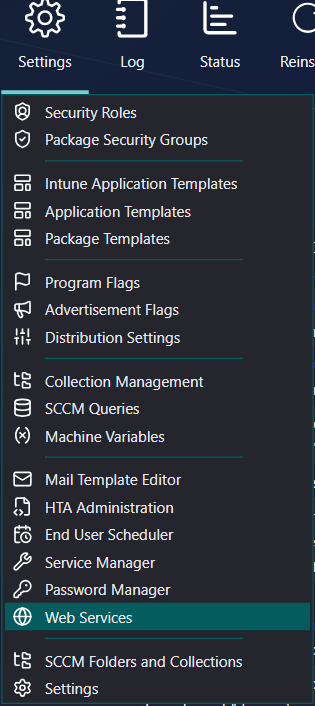
Click Settings in the top menu, then Web Services.
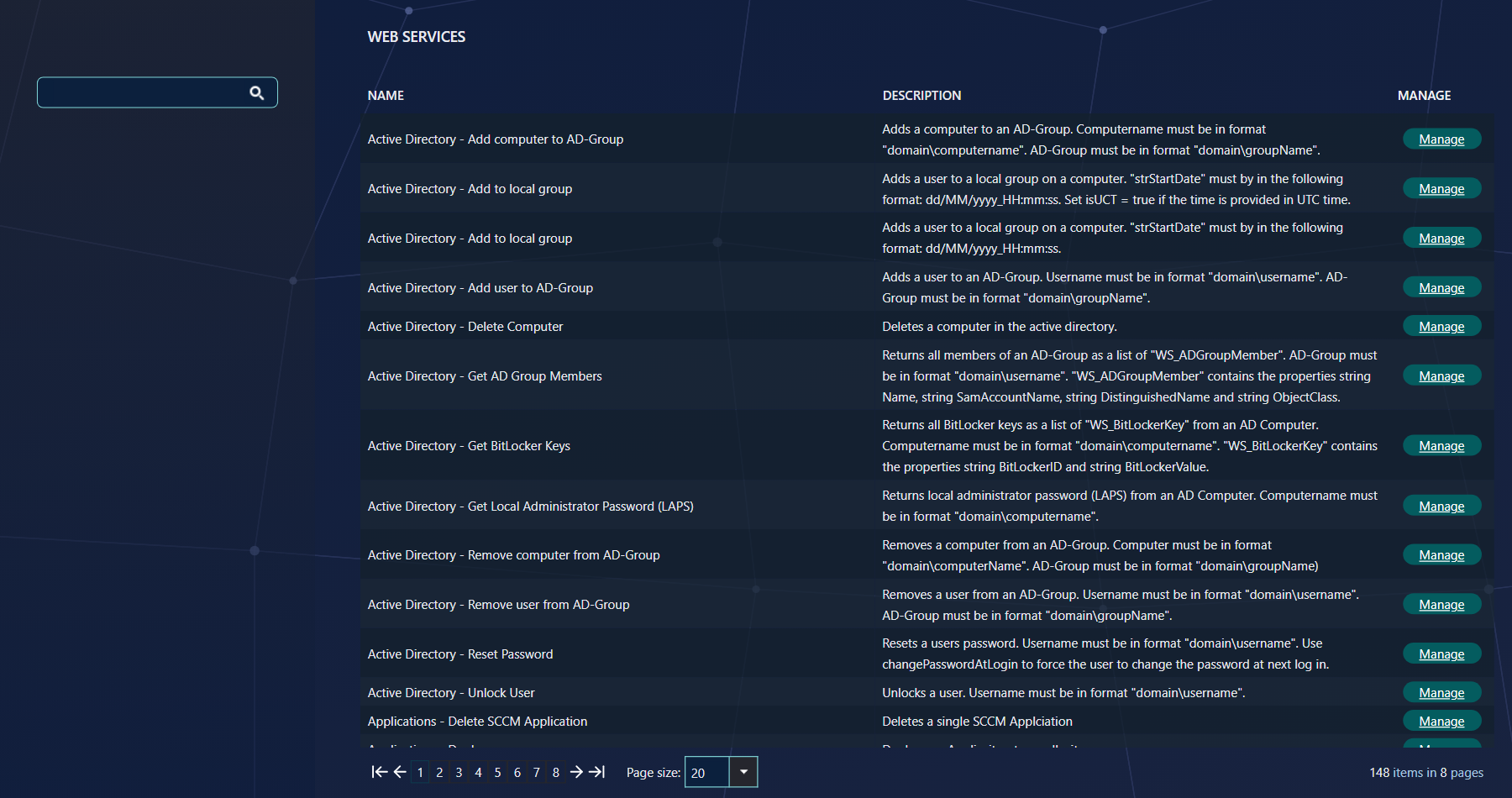
The grid has three columns:
| Column | What it tells you |
|---|---|
| Name | The area and the action, for example Devices - Clone Computer. Click the name to open Manage. |
| Description | What the web service does, and in some cases the format a value must have. |
| Manage | Opens the window where you see the address, copy a sample, set the security and test the call. |
To find a web service, type part of its name in the search box and press Enter. Type more words to narrow the list: a web service must match all of them. Use the page size at the bottom (20, 50 or 100) to see more rows at a time.
3 Manage a web service
Click Manage next to a web service to open its window. It has three tabs.
| Tab | Use it to |
|---|---|
| General | See the web service name, the description with its parameters, and the address. It also has ready-made PowerShell and VBScript samples and a link to the Samples page. See Call a Web Service. |
| Security | Choose which security roles may call the web service, and turn anonymous access on or off. See Security. |
| Test | Run the web service from the browser, in your own context. See Call a Web Service. |
4 Where to go next
- Security – who may call a web service, and what they can reach.
- Configure Anonymous or Basic Authentication – the extra site you need for those two.
- Call a Web Service – the address, the samples and the Test tab.
- Intune web services – application groups, bulk install, group and filter assignment, and creating a Win32 application.
- Call web services using Microsoft Security Tokens – PowerShell scripts that call as an app or as a user.
- ServiceNow – call a web service from ServiceNow.
- Import Computer From Web Service
5 Best practice
- Tick only the roles that need the web service. The Security tab saves the roles that may call that one web service. Other web services are not changed.
- Test a call on the Test tab before you script it. The Test tab runs the web service with the values you enter, so you see the answer first.
- Copy the sample, then change the values. The General tab builds its PowerShell sample from the web service's own parameters.
6 Troubleshooting
| Symptom | Cause | What to do |
|---|---|---|
| There is no Security tab on Cloud - Log in or Cloud - Log out. | These two web services are how a caller signs in, so they have no security roles. | Nothing to do. |
| There is no Enable anonymous access checkbox. | SoftwareCentral Cloud does not offer anonymous access, so the setting is hidden. | Nothing to do. |