SoftwareCentral · Setup

Setup login as a service permission

SoftwareCentral runs a Windows service on the web server. The application pool account installs and starts that service, so the account needs the Log on as a service right.

Log on as a service Local Security Policy SoftwareCentral service

1 Why the account needs it

The web application installs the SoftwareCentral service and starts it, using the application pool account. Windows only runs a service under an account that has the Log on as a service right.

  • The service is named SoftwareCentral. An Application Manager only installation names it SoftwareCentralApp.
  • When a SoftwareCentral page loads, the service is installed if it is not installed yet, and then started.
  • The account and its password are the ones in Application Pool Username and Application Pool Password in Settings (see step 3).

2 Add the right

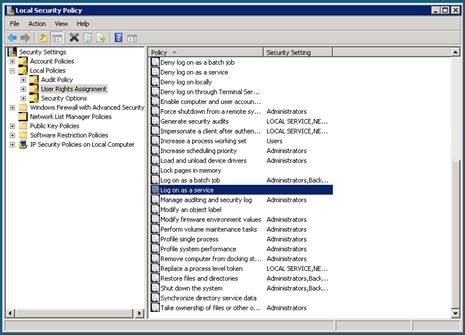
Open Local Security Policy and browse to Local Policies › User Rights Assignment.

Local Security Policy window with Local Policies, User Rights Assignment selected. The list on the right shows the rights, with Log on as a service highlighted.
Local Security Policy, Local Policies › User Rights Assignment, from an earlier setup (external product). Open Log on as a service.

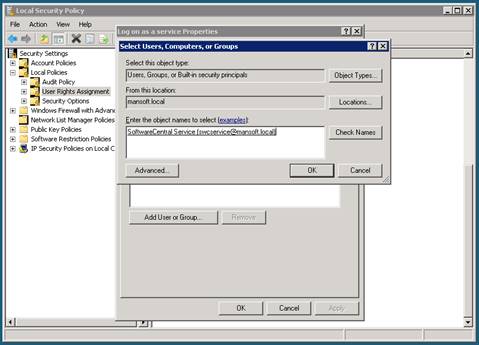
Open Log on as a service and click Add User or Group. Add the application pool account, then click OK.

Log on as a service Properties window with the Select Users, Computers, or Groups dialog open, and the account entered in the object name box.
The Log on as a service Properties window with the object name entered, from an earlier setup (external product). Add the application pool account and click OK.
Domain servers On a server that is a member of a domain, this right can be set by Group Policy. In that case, add the account in the Group Policy that applies to the web server, because a local change can be overwritten when the policy is refreshed.

3 Check the account in Settings

Enter the same account in Settings, under General Settings › Server Configuration.

SettingWhat it does
Application Pool UsernameThe account that installs and starts the SoftwareCentral service, in the form CONTOSO\svc-swc.
Application Pool PasswordThe password of that account. Not needed for a group managed service account, whose name ends in $.

4 Best practice

  • Use a dedicated account for the application pool and the service, not a personal account.
  • Consider a group managed service account. Its name ends in $, so SoftwareCentral installs the service without a password, and there is no password to store or change.
  • Change the password in two places. The service is installed only once. A new password in Settings does not change the logon of the installed service, so also change it in the Services console, on the Log On tab of the SoftwareCentral service.
  • Enter the account before the first start. The service is installed when SoftwareCentral starts, and the install needs the account and its password in Settings.

5 Troubleshooting

SymptomCauseWhat to do
"Please enter app-pool user and password under "Settings" in order to install and run the SoftwareCentral service."The application pool username or password is empty in Settings.Enter the account and password under Settings › General Settings › Server Configuration, then sign in again.
"Failed to start SoftwareCentral service." in the SoftwareCentral log.The account cannot start the service: the password is wrong, or the account does not have the Log on as a service right.Check the password in Settings, add the right as in step 2, then start the service from the Services console.
"Failed to install SoftwareCentral Service." in the SoftwareCentral log.The service could not be installed. Often the account is not an administrator on the server, or the password is wrong.See Setup local admin permission, check the password, then sign in again.