1 Why the account needs it
SoftwareCentral installs its Windows service from the web application, running as the application pool account. Creating a Windows service needs administrator rights on the server, so the account is added to the local Administrators group.
The account is the same one you enter in Settings › General Settings › Server Configuration and give the Log on as a service right. See Setup login as a service permission.
2 Add the account
Open Local Users and Groups (lusrmgr.msc) and go to the Groups folder.
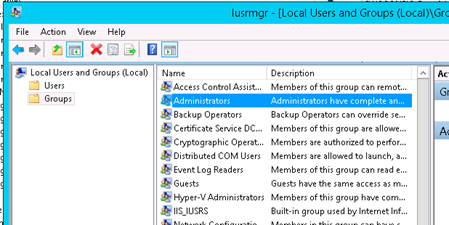
Open the Administrators group and click Add.
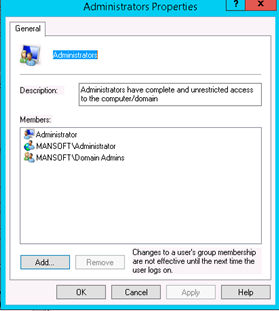
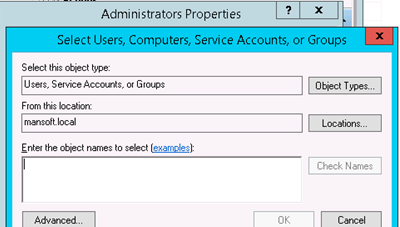
Find the account, click OK, and click OK again.
Restart the application pool
Changes to a user's group membership are not effective until the next time the user logs on. After you change the membership, recycle the application pool (or restart the web server) before you start SoftwareCentral, so that the change applies to it.
3 Best practice
- Use one dedicated account for the application pool, the Windows service and the entry in Settings. The install reads the account from Settings, so the three must match.
- Make the change before the first start. The service is installed when a SoftwareCentral page loads, so the account must already be an administrator at that time.
- Keep the web server locked down. The account is an administrator on the server, so only administrators should be able to sign in to it.
- Apply the password policy. Keep the password of this account under your normal password policy, and update it in Settings and in the Services console when it changes.
4 Troubleshooting
| Symptom | Cause | What to do |
|---|---|---|
| "Failed to install SoftwareCentral Service." in the SoftwareCentral log. | The account is not an administrator on the server, or the password in Settings is wrong. | Check the account in the Administrators group, recycle the application pool, check the password in Settings, then sign in again. |