1 Database settings
SoftwareCentral reads report information directly from the report server's database. The SoftwareCentral application pool user must therefore be granted read access to this database. You can also use a SQL login instead.
The report server is also called with the application pool account when a report opens, so that account must be allowed to run the reports on the report server.
2 SoftwareCentral settings
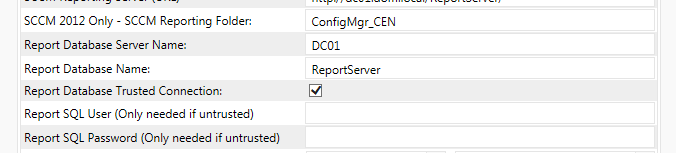
In the SoftwareCentral settings, specify the reporting server and the reporting server database. If you use a SQL login, turn off the trusted connection, and specify the SQL user and password.
Open Settings, then choose General Settings › Server Configuration. The reporting rows are in the middle of the page.
| Setting | What it does |
|---|---|
| SCCM Reporting Server (URL) |
The address of the report server, for example http://[SERVERNAME]/ReportServer/. If you leave it empty,
SoftwareCentral builds http://[servername]/ReportServer/ from the Configuration Manager database server.
|
| SCCM Reporting Folder |
The folder of the reports on the report server. It is only enabled for Configuration Manager 2012. If you leave it empty,
SoftwareCentral uses ConfigMgr_[SITECODE].
|
| Report Database Server Name | The server of the report server database. If the database runs in an instance, use servername\instancename. |
| Report Database Name | The name of the report server database, usually ReportServer. |
| Report Database Trusted Connection | Ticked, the database is read with Windows authentication as the application pool account. This is the default when no report database is set. Unticked, the SQL user and password below are used. |
| Report SQL User (Only needed if untrusted) | The SQL login name. It is only enabled when the trusted connection is unticked. |
| Report SQL Password (Only needed if untrusted) | The password of the SQL login. It is stored encrypted. |
| SoftwareCentral Report Username and SoftwareCentral Report Password | The Windows account for the SoftwareCentral reports on the SoftwareCentral database. The Configuration Manager reports on this page do not use them. |
3 Best practice
- Prefer the trusted connection. With a ticked Report Database Trusted Connection, no password is stored for the report database. Use a SQL login only when the application pool account cannot be given read access.
- Give the application pool account what it needs. It reads the report database, and it opens the reports on the report server. Both must be allowed for it, or the reports cannot load.
-
Leave the folder empty unless your reports are elsewhere. An empty SCCM Reporting Folder means
ConfigMgr_[SITECODE], the default folder name. - Keep the SoftwareCentral Report fields apart from the Configuration Manager reports. They are for the SoftwareCentral reports, and the Configuration Manager reports do not use them.
4 Troubleshooting
These messages are written to the SoftwareCentral log. They are not shown on the page.
| Symptom | Cause | What to do |
|---|---|---|
| Log: "Failed to load SCCM reports from report database." | SoftwareCentral cannot read the report server database: the server or database name is wrong, or the account (or the SQL login) has no read access. | Check Report Database Server Name, Report Database Name and Report Database Trusted Connection, and the rights in section 1. |
| Log: "Failed to load SCCM report data." | The report could not be loaded or run. The most likely causes are a wrong SCCM Reporting Server (URL) or missing rights for the application pool account on the report server. | Check the URL, and that the application pool account can open the report on the report server. |