1 Open a report
All license reports can be viewed in the License Report Viewer. Open the Licenses menu and go to the license reports page, which is headed License reports.
Find the report in the list. The search box filters the list by name. Click View Report on the report's row. The report window opens.
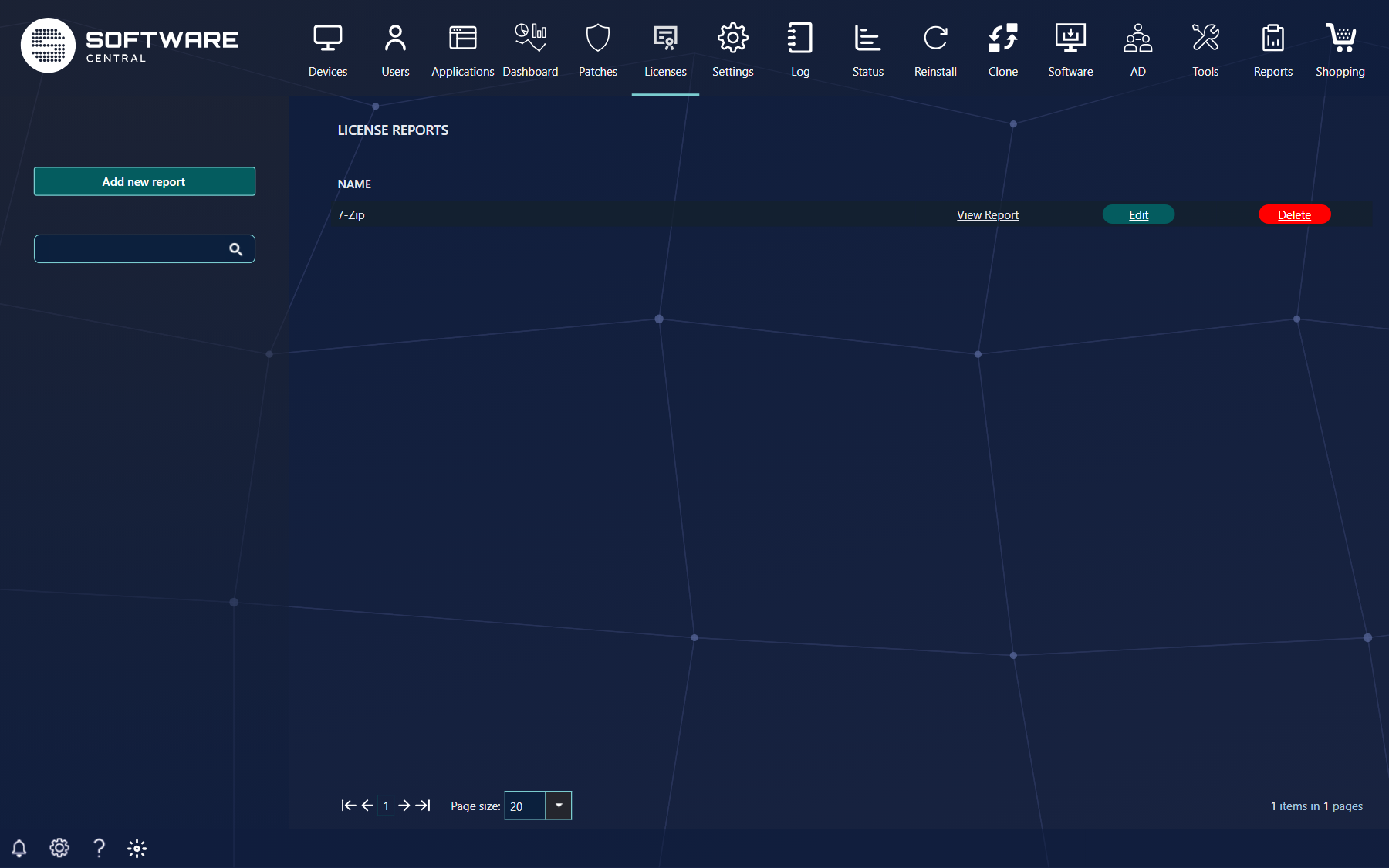
The roles decide what you see on this page. A role with the view license reports right sees View Report. A role with the manage license reports right also sees Add new report, Edit and Delete.
2 The report window
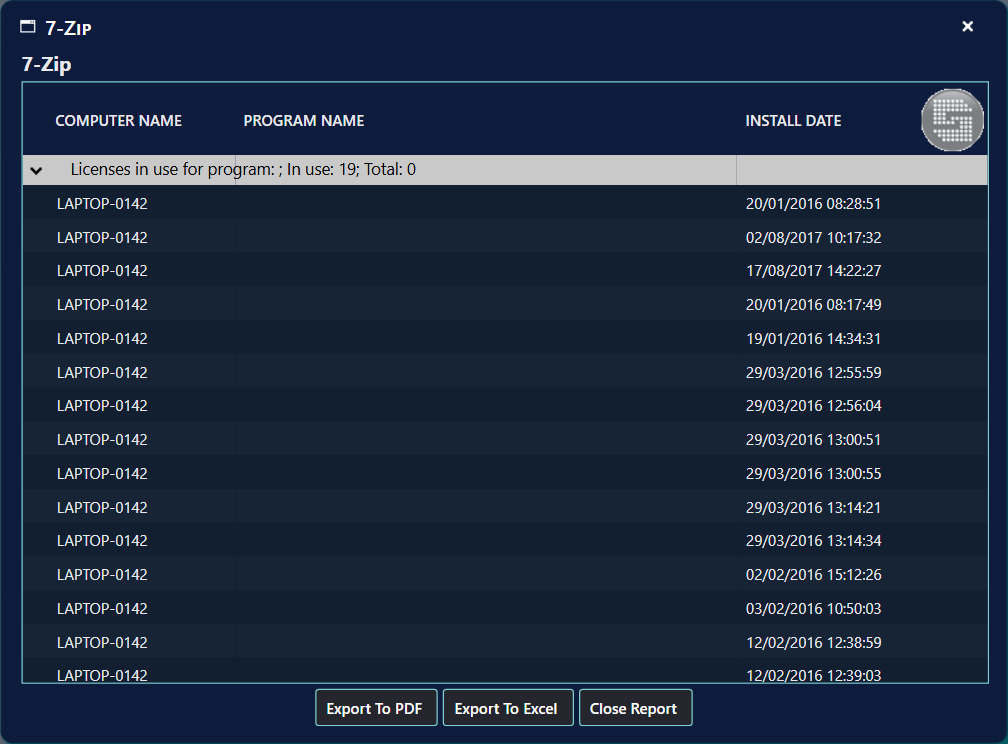
The window is titled with the name of the report. Under the title is the description of the report.
The result is a grid. The columns depend on the kind of report. When the report includes the primary users of a computer, a Primary Users column is shown. For most kinds of report the rows are grouped by program, and each group line shows how many licences are in use and how many are in total.
The report is read for the ConfigMgr site that is selected for you. If the site is wrong, the numbers are wrong.
3 Export the report
Here the report can be exported to PDF or Excel.
| Button | What it does |
|---|---|
| Export To PDF | Saves the grid as a PDF file, with the report name as its title. |
| Export To Excel | Saves the grid as an Excel file. |
| Close Report | Closes the report window. Nothing is saved. |
4 Best practice
- Give the view and manage rights separately. Only people who build reports need the manage license reports right. Everyone else only needs the view right.
- Check the site before you trust the numbers. The report reads the ConfigMgr site that is selected for you, so a wrong site gives wrong counts.
- Treat exported files as confidential. The grid shows computer names, and the primary users when the report includes them.
- Read the group line first. It shows the licences in use against the total, which is the figure to act on.
5 Troubleshooting
| Symptom | Cause | What to do |
|---|---|---|
| The license reports page cannot be opened | The license module is not enabled for this installation, so access is refused. | Ask your SoftwareCentral administrator to enable the license module. |
| "No items match your criteria" | The search box filters out every report. | Clear the search box. |
| "No matches." in the report window | No computer matches the report's filters. | Ask whoever maintains the report to check its filters. |
| The Log shows "Failed to display report. <report name>." | The report could not be read when it was opened, so the window stays empty. | Open the Log and read the entry's details. Check the ConfigMgr site connection, then open the report again. |
| The Log shows "Failed to export licenses '<report name>'" | The export did not finish. | Try the export again. If it fails again, read the Log entry's details. |