1 Who enters the license
This page describes the SoftwareCentral License screen. Click the ? button on that screen to open this page again.
If SoftwareCentral has no license, an administrator is taken to the SoftwareCentral License screen. Anyone else sees the message “No license available for SoftwareCentral. You must be a member of the administrator group to enter the license information.”
Only members of the administrator group can enter or change the license. If you are not in the group and open the screen, it says “Only members of the built in administrator group may enter license information.” and there is no Submit button.
2 Online installation: username and password
If the server can reach the internet, enter the title, username and password, and click Submit.
You get your username and password from your sales consultant, or by writing to support@softwarecentral.com.
SoftwareCentral will be unavailable until a valid username and password has been entered. If you use a proxy server, make sure that SoftwareCentral is able to call through it.
The screen says “SoftwareCentral communicates with a web service at https://www.softwarecentralupdate.com/api/authentication. It is highly recommended to allow this communication, as it will allow SoftwareCentral to automatically get license information, information about new versions, health checks and more.”
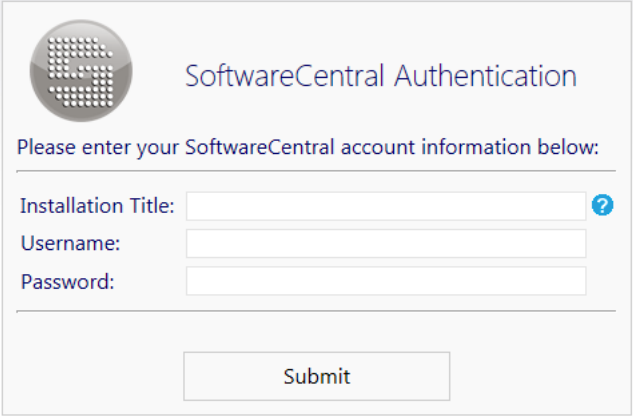
| Field | What to enter |
|---|---|
| Installation Title: | A name that tells this installation apart from your other installations, for example “2012 Production Server”. The title may not contain more than four dashes ( - ). |
| Username: | The username from your supplier. |
| Password: | The password from your supplier. The box is empty when the screen opens, so type the password each time you click Submit. |
To enter the license
- Type the Installation Title, the Username and the Password.
- Click Submit. Its tooltip says “Submits your license information and restarts the web site.”
- Wait while SoftwareCentral restarts. When the restart is done you go to Settings, or to the configuration page if the installation is Intune only.
3 Change the license later
Open Settings › General Settings › SoftwareCentral Update and click Open License Information Window.
You can at any time change your user and installation title from the Settings menu. The window opens the same License screen as in section 2.

When the window is opened from Settings, the screen says NOTE: Updating the license will cause SoftwareCentral to restart. Ongoing deployments and so on will not be affected.
4 Offline installation
If the server hosting SoftwareCentral does not have access to the internet, you need an offline license key.
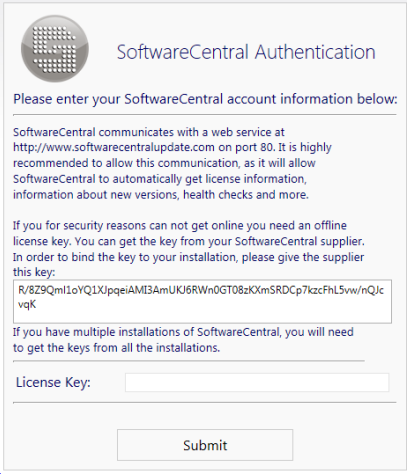
The offline license key is bound to your installation. To achieve this, a unique identifier from your installation is required. The identifier is generated for your installation when you are asked for the license key. The screen says Your installation does not appear to be online.; click the text to see the help.
You can get the key from your SoftwareCentral supplier. Give the supplier the installation key shown in the box on the screen (under “please give the supplier this key:”). If you have multiple SoftwareCentral installations, you need a key from each installation.
To use an offline key
- Send the installation key from the box to your supplier.
- Type the key you receive in License Key:.
- Click Submit.
5 SoftwareCentral Update account
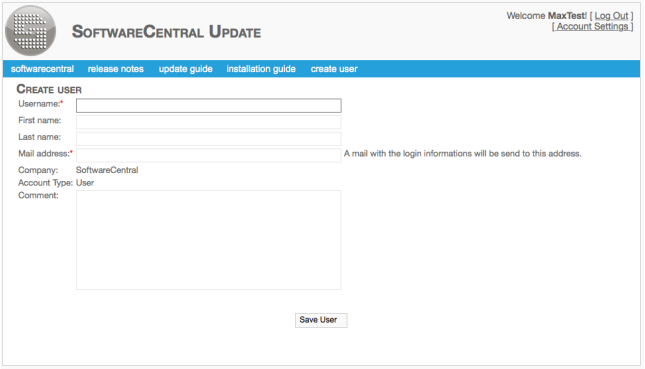
The account used in SoftwareCentral also gives access to SoftwareCentral Update.
From SoftwareCentral Update you can create additional accounts for other people in your organization who need access to SoftwareCentral updates and news.
6 Best practice
- Enter the license with an account in the administrator group. Other accounts cannot submit the screen, and they get the error message in section 1.
- Give every installation its own title. The title is what tells your installations apart. Titles with more than four dashes are refused.
- Keep the server able to reach SoftwareCentral Update, through the proxy if you use one. A lost connection is logged after 15 days, and SoftwareCentral stops working 30 days after the last contact.
- Enter the license when no one is using the portal. Submit clears the caches and restarts the web site.
- Get one offline key per installation. Each key is checked against the installation it was made for, so a key from another installation does not work here.
7 Troubleshooting
| Symptom | Cause | What to do |
|---|---|---|
| “No license available for SoftwareCentral. You must be a member of the administrator group to enter the license information.” | You are not a member of the administrator group. | Sign in with an account that is in the administrator group. If this is a new installation, or you were just added to the group, restart the web server that hosts SoftwareCentral. |
| “Only members of the built in administrator group may enter license information.” | You opened the License screen without being in the administrator group. The Submit button is hidden. | Sign in as a member of the administrator group. |
| “You must be a member of the administrator group to change the license.” | You clicked Submit without being in the administrator group. | Sign in as a member of the administrator group. |
| “Please give your installation a title.”, “Please enter your username.”, “Please enter your password.”, or “The title can not contain more than 4 dashes ( - ).” | A field is empty, or the title has more than four dashes. | Correct the field and click Submit again. The check stops before anything is saved. |
| “Invalid username or password” | SoftwareCentral Update returned no license information for the username and password. | Check the username and password with your supplier. The failed check clears the stored license, so enter the title, username and password again. |
| “Invalid license information” in red on the License screen | The stored license could not be verified. | Check the username and password, or the offline key. For an offline installation, ask your supplier for a new key. |
| The log says “Connection to SoftwareCentral Update has been lost for x days.” | SoftwareCentral has not reached SoftwareCentral Update for more than 15 days. It stops working 30 days after the last contact. | Make sure the server can reach SoftwareCentral Update, through the proxy if you use one. If that is not possible, ask your supplier for an offline license key (section 4). |
| The log gives a warning: “The maximum number of clients allowed for this installation has been exceeded. Please contact your SoftwareCentral vendor.” | More managed devices are counted than the license allows. SoftwareCentral writes this warning to the log and shows a warning on the front page. | Contact your supplier to update the number of clients in your license. |
| The log says “Your license has expired. SoftwareCentral will stop working in x days.” | The expiry date of the license has passed. | Ask your supplier for a new license key and enter it in the License Information window (section 3). |
| I get a 404 error when I start SoftwareCentral. | The old license key was missing or invalid. | Update SoftwareCentral to the newest version. |