1 Why the header is needed
SoftwareCentral runs as an intranet site on your network. By default Microsoft has enabled Display intranet sites in Compatibility View.
This setting might cause some interfaces in SoftwareCentral not to look as intended. To avoid this, create a new HTTP Response Header in the Internet Information Services (IIS) Manager.
Some windows already set it
Many SoftwareCentral windows already carry the same compatibility tag in their page, for example
<meta http-equiv="X-UA-Compatible" content="IE=Edge" />. The header covers the pages that do not. The same header is also present in Web.config, but as a commented-out block, so SoftwareCentral does not set it on its own; add it in IIS as described below.
2 Add the header in IIS
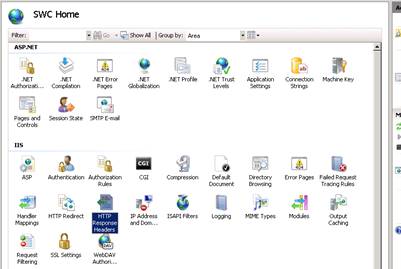
Add a custom HTTP response header to the SoftwareCentral site.
| Step | What to do |
|---|---|
| 1 | When the site is selected, open HTTP Response Headers. |
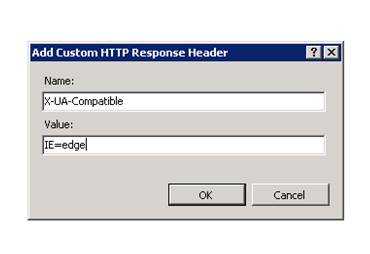
| 2 | Create a new HTTP Response Header by clicking Add… in the upper right corner. |
| 3 | Give it the name X-UA-Compatible and the value IE=edge, then click OK. |
See also Restarting website.
3 Best practice
- Add the header to the SoftwareCentral site that your users open. The steps start with the site selected in IIS Manager, so choose that site first.
- Use the IIS header, not a second copy in Web.config. The Web.config block is commented out, so SoftwareCentral does not add the header itself.
- Check one window after the change. Open a SoftwareCentral window that used to look wrong and check that it now looks as intended.
4 Troubleshooting
| Symptom | Cause | What to do |
|---|---|---|
| Some SoftwareCentral windows still look wrong | The header was added to a different IIS site, or the header is not in place for the site your users open. | Select the SoftwareCentral site in IIS Manager and check that HTTP Response Headers lists X-UA-Compatible with the value IE=edge. Then see Restarting website. |