1 Overview
You must add the binding to your desired host name. The hostname should also be configured in your DNS.
The steps are: add the HTTPS binding in IIS, optionally add an HTTP binding that redirects to it, add the new address to the app registration in Azure, and tell SoftwareCentral the new address.
2 Add the HTTPS binding in IIS
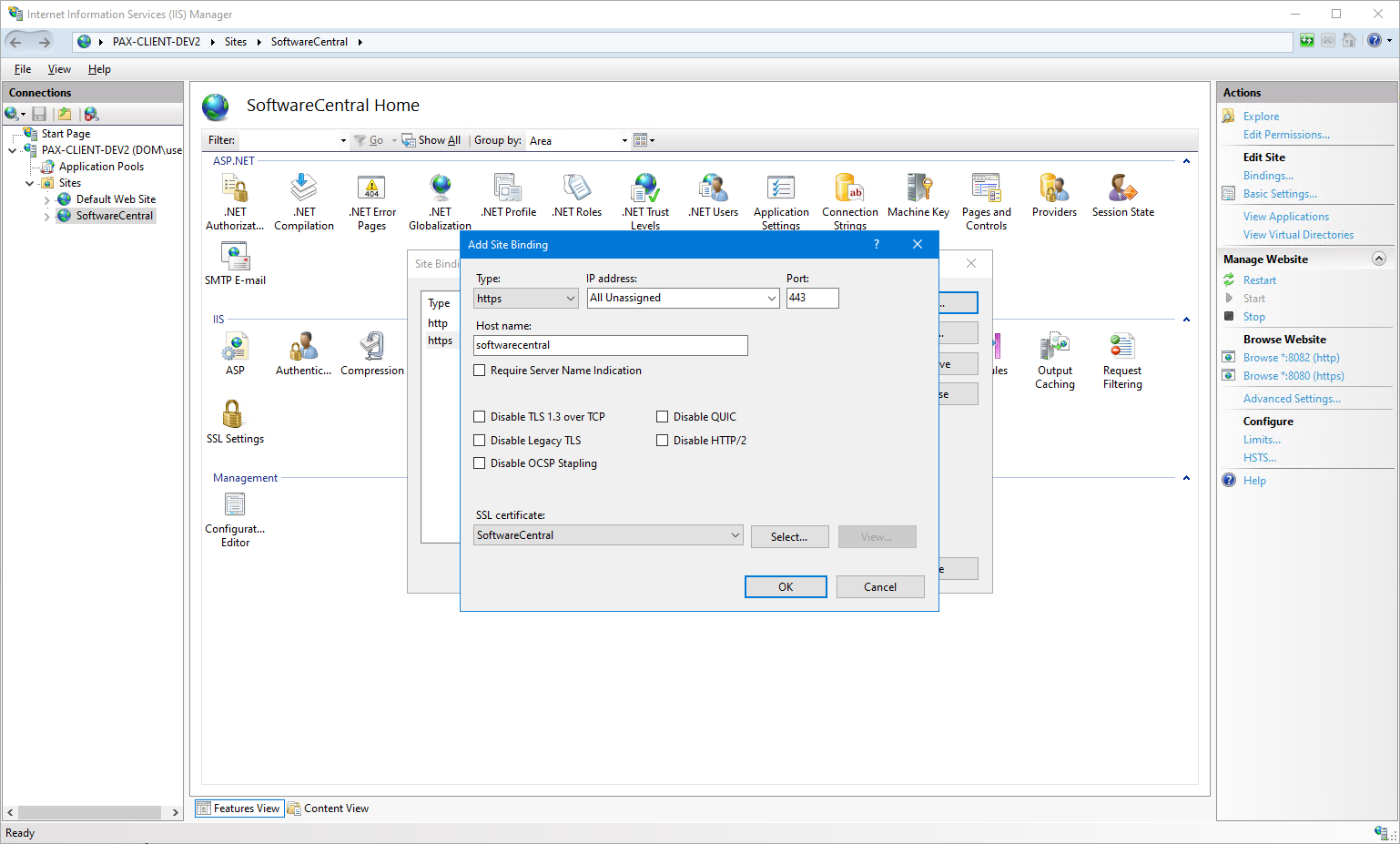
In IIS Manager, select the SoftwareCentral site and open its bindings.
Click on the "Add..." button and add a binding to your hostname. Choose the type https, enter your host name, and select the SSL certificate.
Choose a certificate trusted by your clients and click OK.
Keep the existing local binding on port 8080. You use it to reach the configuration pages from the server itself, and the app registration needs a Redirect URI for it as well (see below).
3 Redirect from HTTP (optional)
You may also add a binding on port 80 for your SoftwareCentral hostname. That way, users who do not enter https:// in their browser, will still be able to find SoftwareCentral.
A rewrite rule exists that will redirect users to the https site. It needs the IIS URL Rewrite Module listed in Prerequisites.
4 Update the app registration
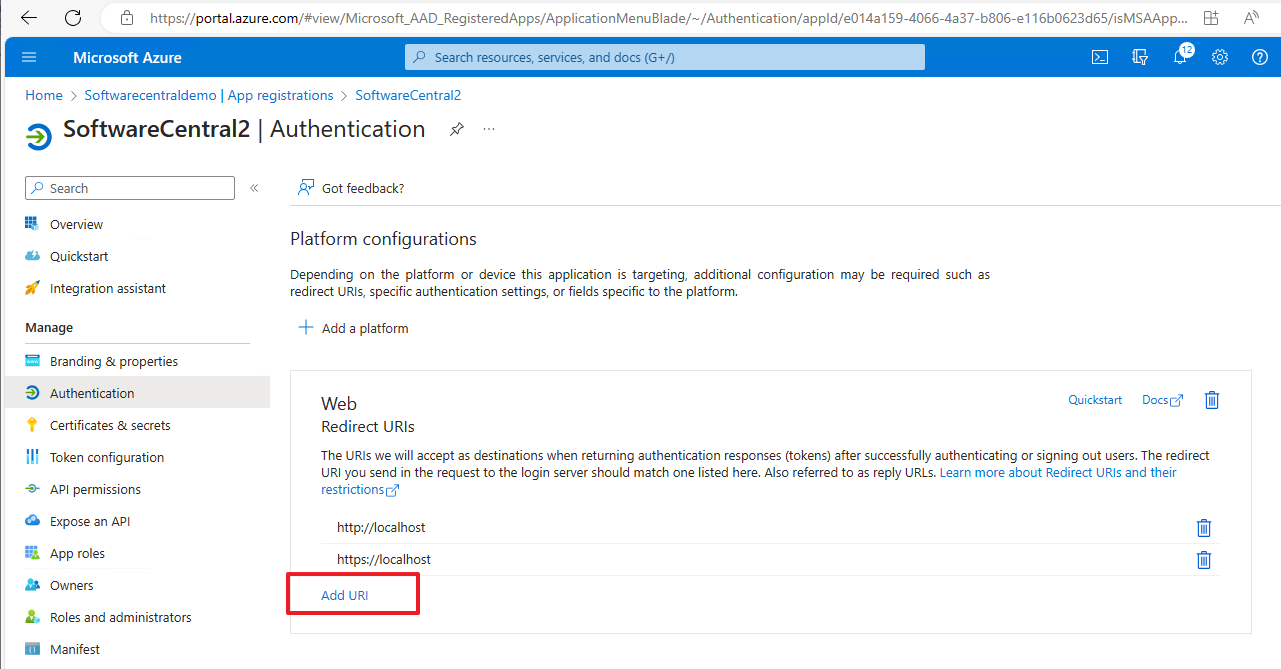
Once you have added a hostname, you must go to the App registration in the Azure portal and add the new hostname to the Redirect URIs.
In the app registration, open Authentication. Under the platform Web, add the address users type in the browser as a Redirect URI, for example https://softwarecentral.contoso.com (SoftwareCentral sends the address without a path and without a trailing slash, so enter it in exactly that form). Make sure ID tokens is ticked. Add one Redirect URI for every address users sign in from, and keep the one for the local binding on the server.
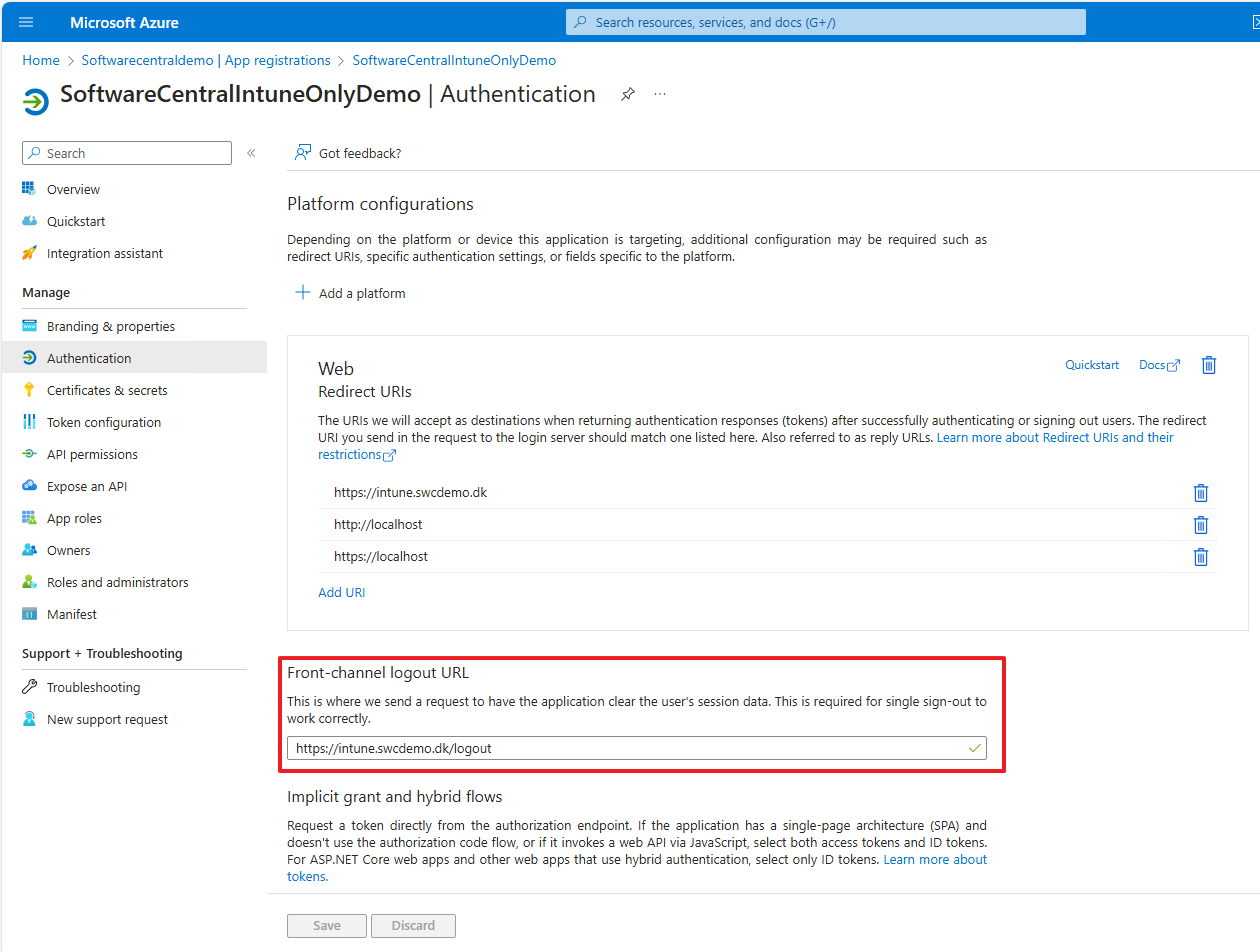
You should also add the Front-channel logout URL. This is required if you want to use single sign-out.
The sign-out URL is your hostname /logout
For example https://softwarecentral.contoso.com/logout. When a user signs out in one place, SoftwareCentral receives this call and signs the user out of the other open SoftwareCentral sessions.
5 Tell SoftwareCentral the new address
Set Application Base URL in the SoftwareCentral settings to the new address, for example https://softwarecentral.contoso.com/.
SoftwareCentral uses this address when it builds links, for example the links in mails about approvals.
6 If sign-in fails
| You see | What to check |
|---|---|
| An error about a missing security token (nonce) | The address is not HTTPS, or the sign-in was started from a bookmark or an old link. Use the https address, or type the base address of the site manually. |
| An error from Microsoft that the redirect address does not match | The exact address you use is missing from the Redirect URIs of the app registration. |
| Access denied for your account | The account belongs to a tenant that is not added and enabled in SoftwareCentral. |
7 Best practice
- Use HTTPS before go-live, with a certificate issued by an authority your clients trust. Do not ask users to click through certificate warnings.
- Add the HTTP-to-HTTPS redirect so users who type the plain address still end up on the secure site.
- Renew the web server certificate before it expires; sign-in stops working for users whose browsers reject it.
- Keep the Redirect URIs of the app registration limited to the addresses you really use.
- After each change, sign in from a client computer, not only from the server.