1 Why and how it works
This can be helpful if your OSD collection has a limiting collection other than the All Systems collection. The computer is added to the collection chosen on the Import Computer form, immediately after the import.
- Create a Drop-down machine variable, for example Category, with one item for each collection.
- Move the variable to the top of the Import Computer form.
- Write a PowerShell script that reads the variable and calls SoftwareCentral to add the computer to the collection.
- Enable the Import Computer custom action and point it at the script.
- Import a computer and choose a collection in the variable.
2 Create the Category variable
Create the variable in the Machine Variables interface (see Machine Variables). Click Add new variable, then fill in the window.
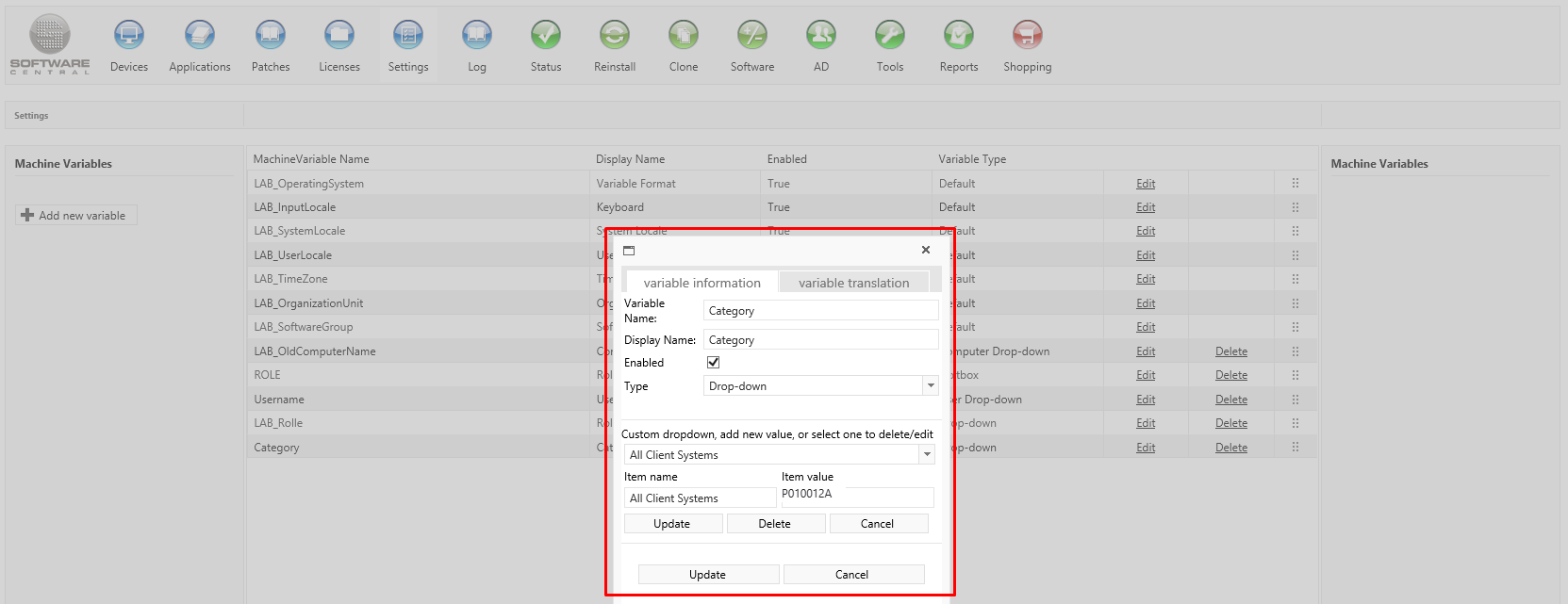
| Setting | What to enter |
|---|---|
| Variable Name | Category. The script reads the variable by this name, so the two must match exactly. |
| Display Name | The label the reader sees on the Import Computer form, for example Category. |
| Enabled | Ticked, so that the variable is shown. |
| Type | Drop-down. The other types are Textbox, User Drop-down and Computer Drop-down. The script needs a drop-down with collection IDs. |
| Item name | The collection name the reader picks, for example All Client Systems. |
| Item value | The collection ID the script passes to SoftwareCentral, for example P010012A. Take the ID from the collection list (see the picture below). |
Add one item for each collection with Add, and save the variable with Save. Cancel closes the window without a change.

3 Show the variable on the form
Drag the Category row to the top of the Machine Variables list. Each row has a grip at its right end; the tooltip reads Drag to change the order of the variables.
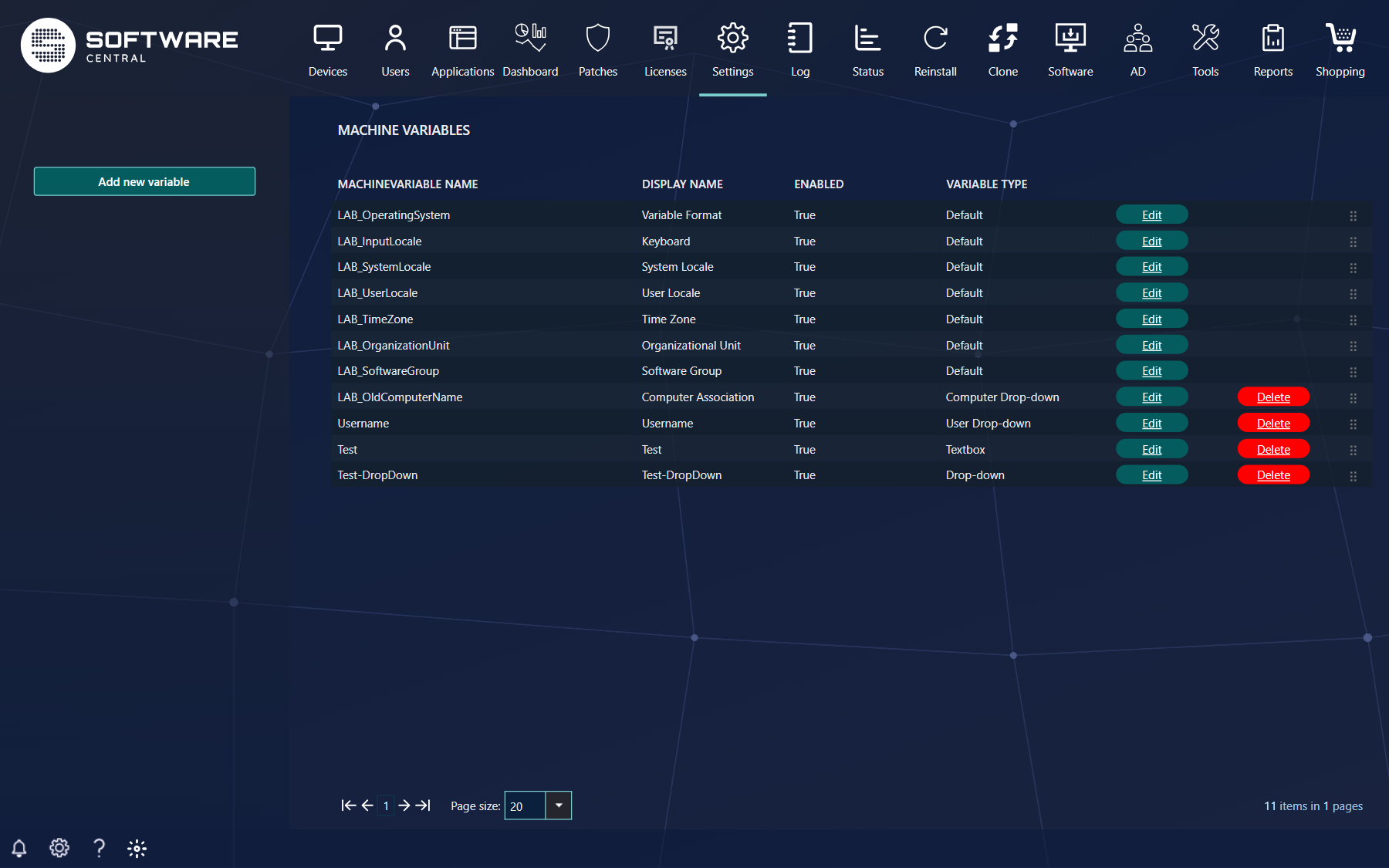

Open the Import Computer form. The variable appears under Optional computer settings. If a computer template makes the variable mandatory, the heading changes to Computer settings.
You can add the new Machine Variable to Computer Templates and make it mandatory. This example does not cover that.

4 The script
Create a new PowerShell script and copy the code below into it. Change the address of the web service to your own SoftwareCentral address.
Import Computer - Add to Collection after import
# Import Computer - Add to Collection after import
#
# This script adds a newly imported computer to a collection, defined by a Machine Variable.
# See how to configure this script in the manual.
#
# Load parameters:
Param
(
[int]$ResourceID,
[string]$Hostname,
[string]$MacAddress,
[string]$SMBIOSGUID,
[string]$SiteCode
)
# Write to the SoftwareCentral log, that the script has started:
Write-Host "Launching PowerShell Script after Computer Import for computer: '" $Hostname "'."
# Define the MachineVariable Name we want the Value from:
[String]$strVariableName = "Category"
# The object that will make the call to the Web Service
# Change the address to your own SoftwareCentral site address
$proxy = New-WebServiceProxy -Uri "http://softwarecentral/Api/WS_Devices.asmx" -Class "Proxy" -UseDefaultCredential
# Call the Web Service and get the Machine Variable Value
$strVariableValue = $proxy.GetMachineVariable($Hostname,$SiteCode,$strVariableName)
if (![string]::IsNullOrEmpty($strVariableValue))
{
    # If the Machine Variable Value is not null or empty, add the computer to the collection
    Write-Host $proxy.AddToCollection($Hostname,$strVariableValue,$SiteCode)
}
Save your PowerShell script on the server where SoftwareCentral is installed or on a share that SoftwareCentral can read from. Note that you should not add this script to the folder where SoftwareCentral is installed.
The script receives these values from the custom action. The names are the same as in the Variables list of the custom action.
| Parameter | Value |
|---|---|
| ResourceID | The SoftwareCentral resource ID of the computer. |
| Hostname | The computer name. |
| MacAddress | The MAC address of the computer. |
| SMBIOSGUID | The SMBIOS GUID of the computer. The text NULL is passed when the computer has none. |
| SiteCode | The ConfigMgr site code. |
Note that this script uses the SoftwareCentral API methods "Devices - Get Machine Variable" and "Devices - Add to collection".
To simplify the setup, you should add the SoftwareCentral application pool user to the SoftwareCentral Administrators Group. If you do not do this, you must grant access to each web service for the application pool user.
See Web Service Security for more information on how to allow access for users who are not members of the SoftwareCentral Administrators Group.
5 Enable the custom action
Go to Settings in SoftwareCentral, open the SoftwareCentral group on the left and select Custom Actions.
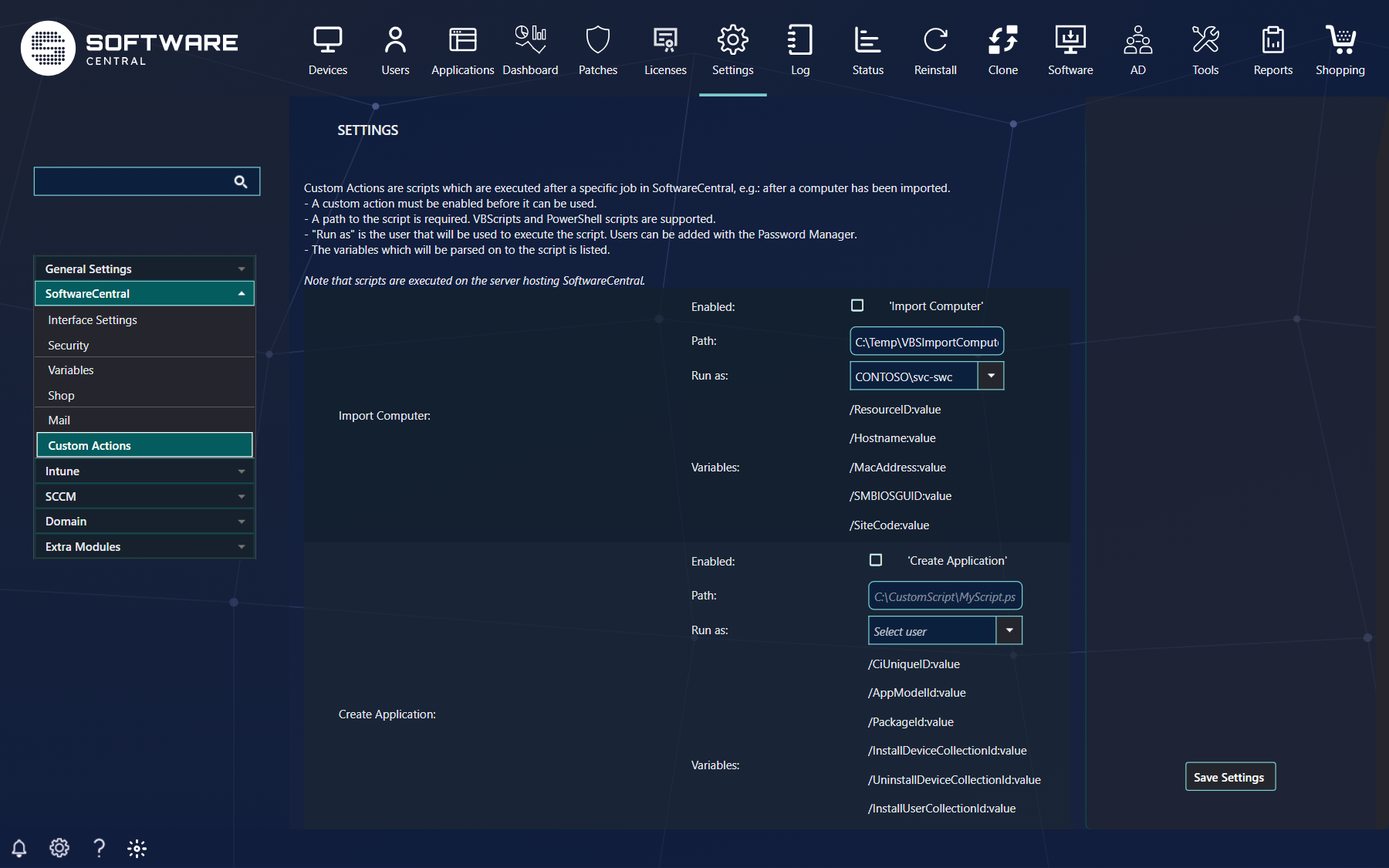
| Setting | What to do |
|---|---|
| Enabled ('Import Computer') | Tick the box. A custom action that is not enabled does not run. |
| Path | The full local or UNC path to the script, for example a .ps1 or .vbs file. The path is required. |
| Run as | Select a user from the list. Users are added with the Password Manager. If you select the application pool user, the script runs as that account directly. If you select another user, the script runs as that user after its password is checked. |
| Variables | The values the script receives. This list is set by SoftwareCentral and cannot be edited. |
Click Save Settings to save the tab.
6 Test the setup
Go to Import Computer, choose a collection in Category, and import a computer.
After the computer is imported, the SoftwareCentral log shows that the script ran and that the computer was added to the collection:
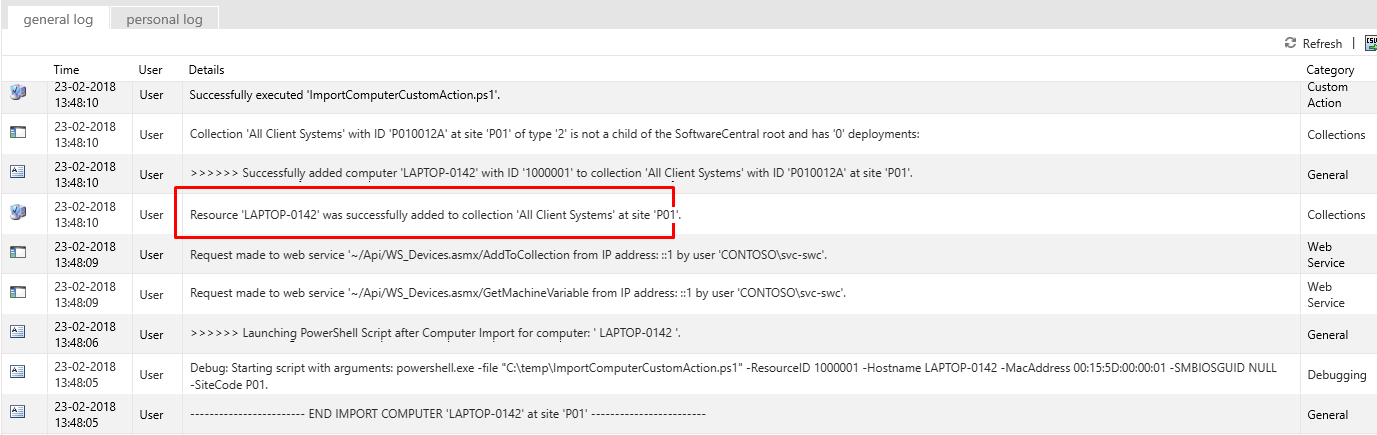
The lines to look for are:
| Log message | What it means |
|---|---|
| "Launching PowerShell Script after Computer Import for computer: 'name'." | The script has started. |
| "Successfully executed 'script name'." | The script ran and exited without an error. |
| "Resource 'name' was successfully added to collection 'collection name' at site 'site code'." | The computer was added to the collection. |
7 Best practice
- Use collection IDs in Item value, not collection names. SoftwareCentral checks the ID with the ConfigMgr site; a wrong ID stops the add with the message Collection does not exist.
- Give the importing roles access to the collections they can choose. A role that is not an administrator can only add computers to collections assigned to it. Other collections fail with This role is not allowed to operate on this collection.
- Use the application pool user for Run as when you can. It needs no password. Another user works only while the password stored in the Password Manager is correct.
- Keep the script where only administrators can change it. The script runs on the server with the rights of the account set in Run as.
- Test with one computer first. Check the log after the import before you use the setup for everyone.
8 Troubleshooting
| Symptom | Cause | What to do |
|---|---|---|
| No "Launching PowerShell Script" line in the log after an import | The Import Computer custom action is not enabled, or its Path is empty. | Tick Enabled, enter the path to the script, and click Save Settings. |
| "Failed to execute 'script' from 'server' with user 'user'." with "Make sure that the script exists and the user has permission to execute it." | The path is wrong, or the Run as user cannot read the script. | Check the Path, and check that the Run as user can read the file. |
| "Failed to launch script 'script'." | The script could not be started. | Check the path and the Run as user, then import again and read the log. |
| "Invalid credentials - wrong username or password." | The password stored for the Run as user in the Password Manager is wrong. | Update the password of that user in the Password Manager. |
| "Script 'script' exited with code: 'code'." | The script ended with an error. | Read the log lines written by the script. The Debug: Starting script with arguments line shows the values it received. |
| "Failed to authorize connection to web service 'class/method'." | The account that runs the script is not an administrator and has no security role with access to the web service. | See Web Service Security, or add the application pool user to the SoftwareCentral Administrators group. |
| "Failed to add computer 'name' ... to collection 'collection' with ID 'ID' at site 'site'." followed by "Collection does not exist." | The Item value is not a collection ID on this site. | Correct the Item value of the item in the Category variable. |
| "Failed to add computer 'name' ... to collection 'collection' ..." followed by "This role is not allowed to operate on this collection." | The role of the account that runs the script is not assigned to that collection. | Assign the collection to the role, or use another collection. |
| The computer is imported but is not added to any collection, and the log has no error | Nothing was chosen in Category, so the script adds nothing. | Choose a collection on the Import Computer form, or set Category as mandatory in the computer template. |