1 Open Collection Management
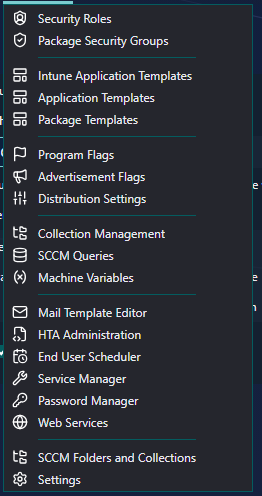
Open Settings › Collection Management from the top menu.
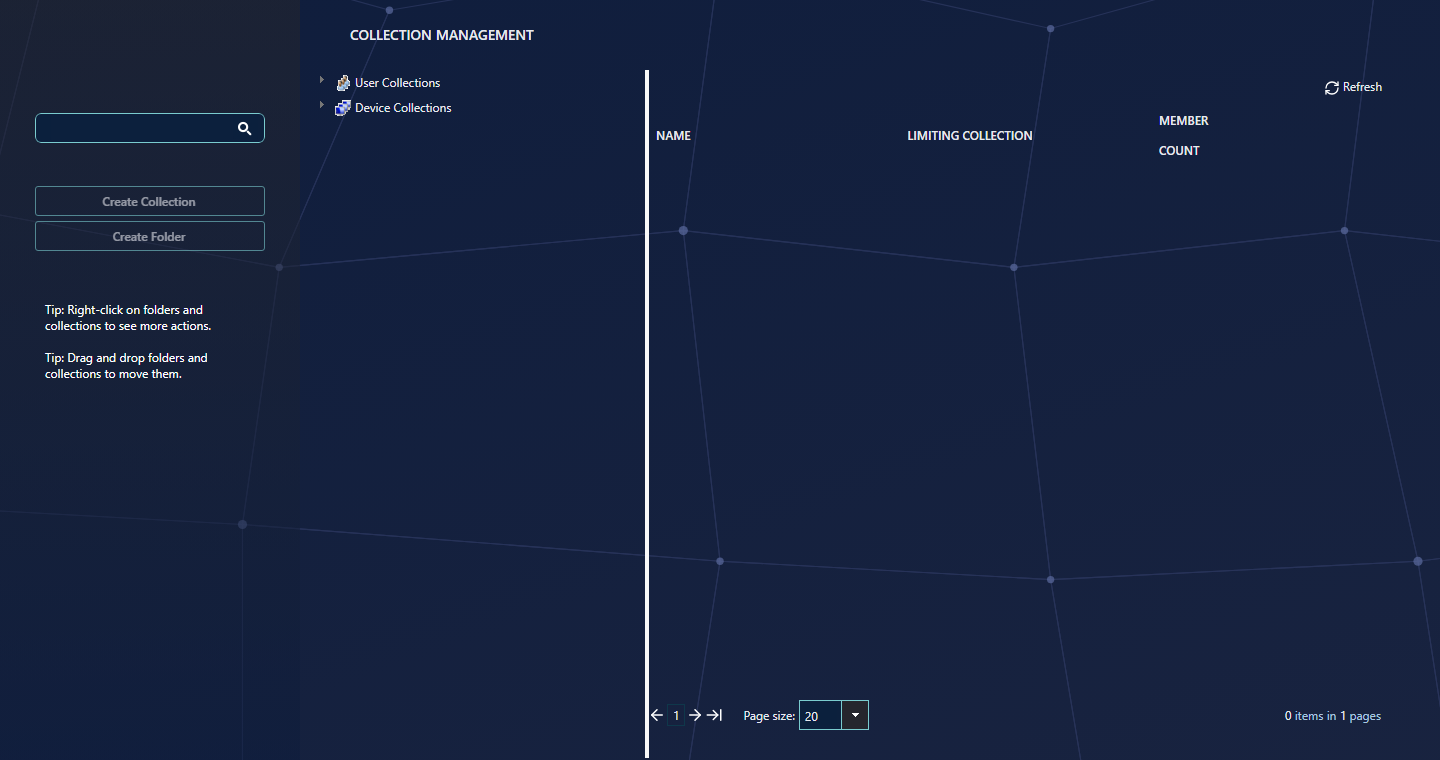
The page opens with two nodes in the left tree, User Collections and Device Collections. Your organisation can limit this interface for each security role, so you may not see it.
2 Browse folders and collections
Expand a node in the tree to see its folders. Click a folder to list its collections on the right.
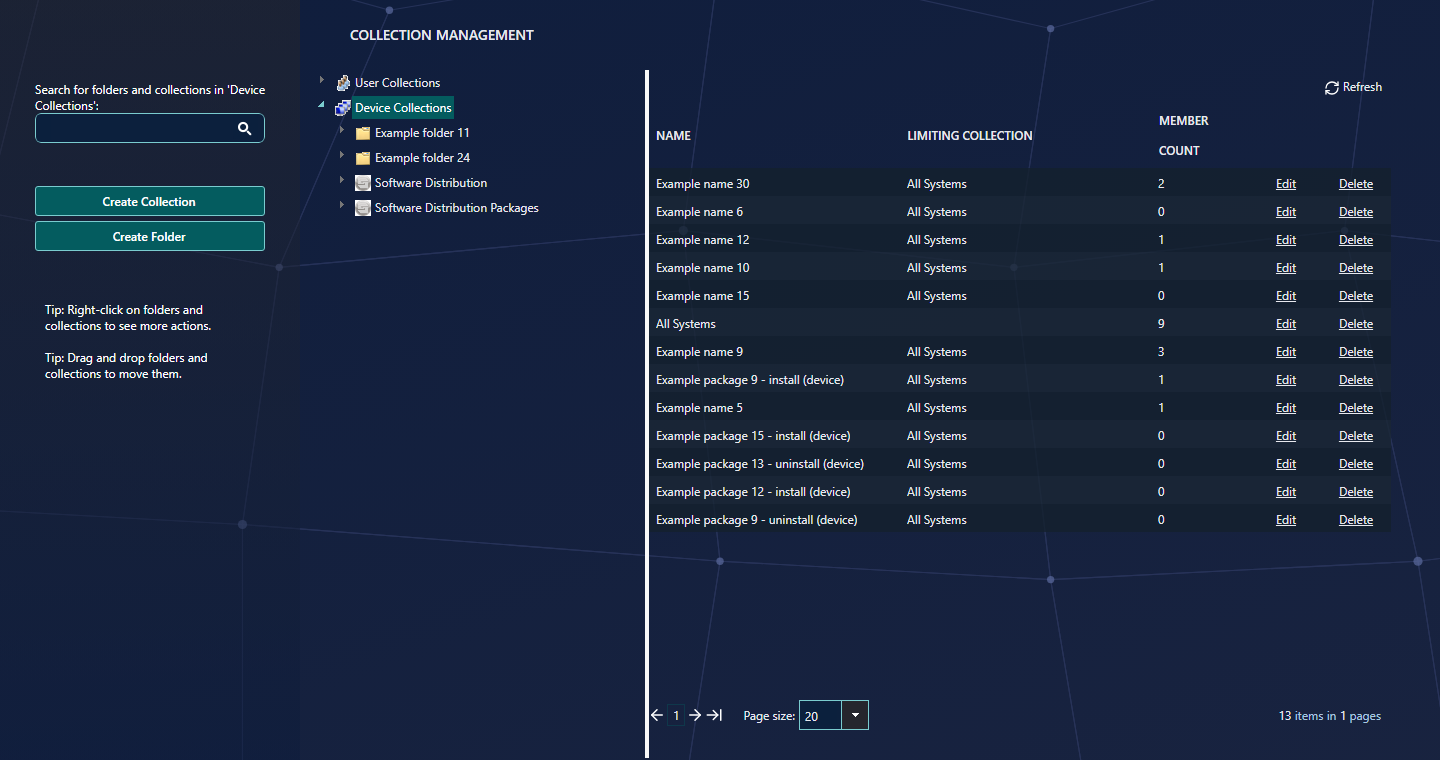
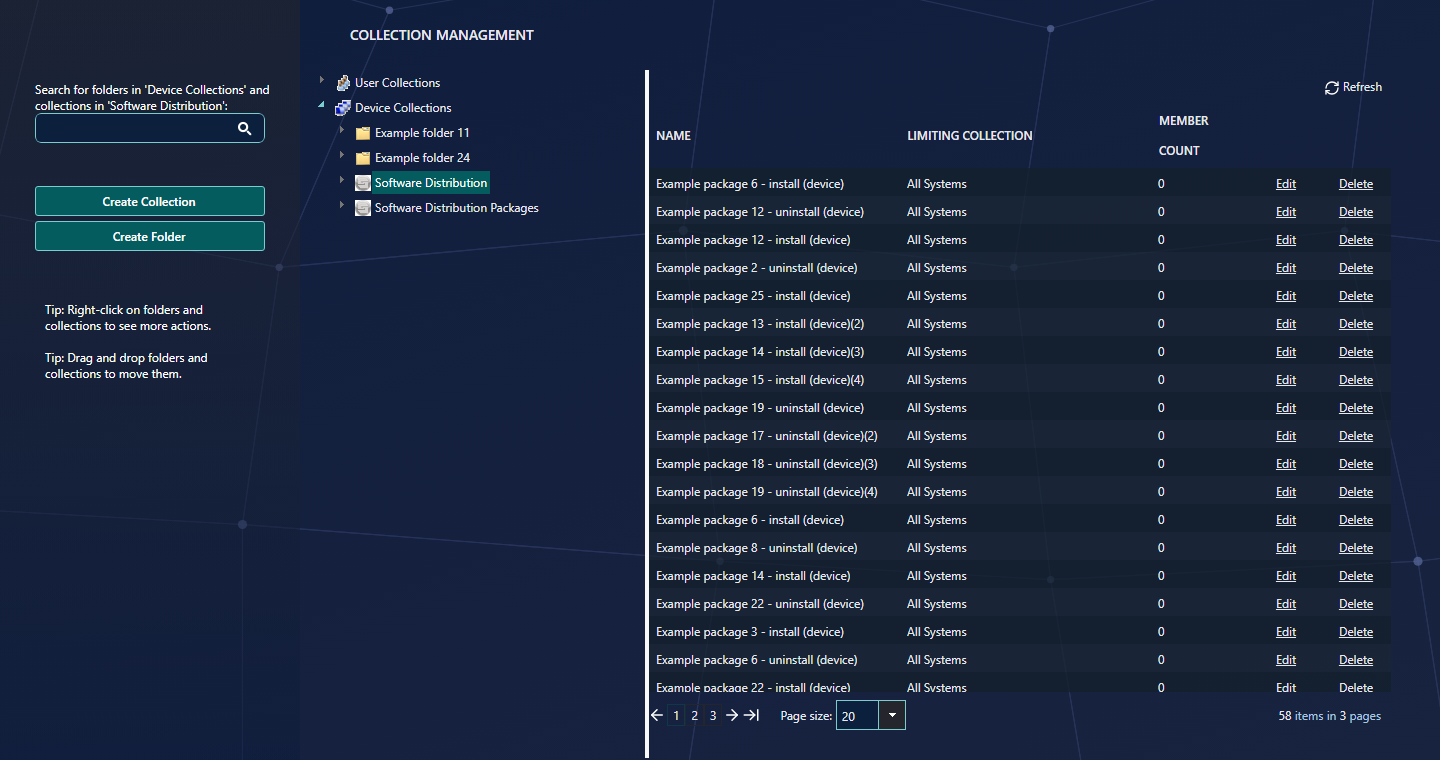
- The search box searches folders in the node you expanded last, and collections in the folder you clicked last. Its label says where it is searching, for example Search for folders and collections in 'Device Collections'.
- Drag a folder or a collection onto another folder to move it. The tip on the page says so.
- Right-click a folder or a collection for more actions, such as create, edit, move, delete or update membership.
3 Create, rename, move and delete folders
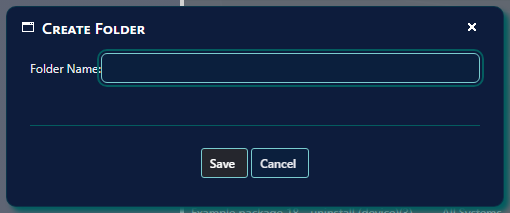
Select the folder where the new folder should go, then click Create Folder on the left, or right-click the folder and choose Create Folder.
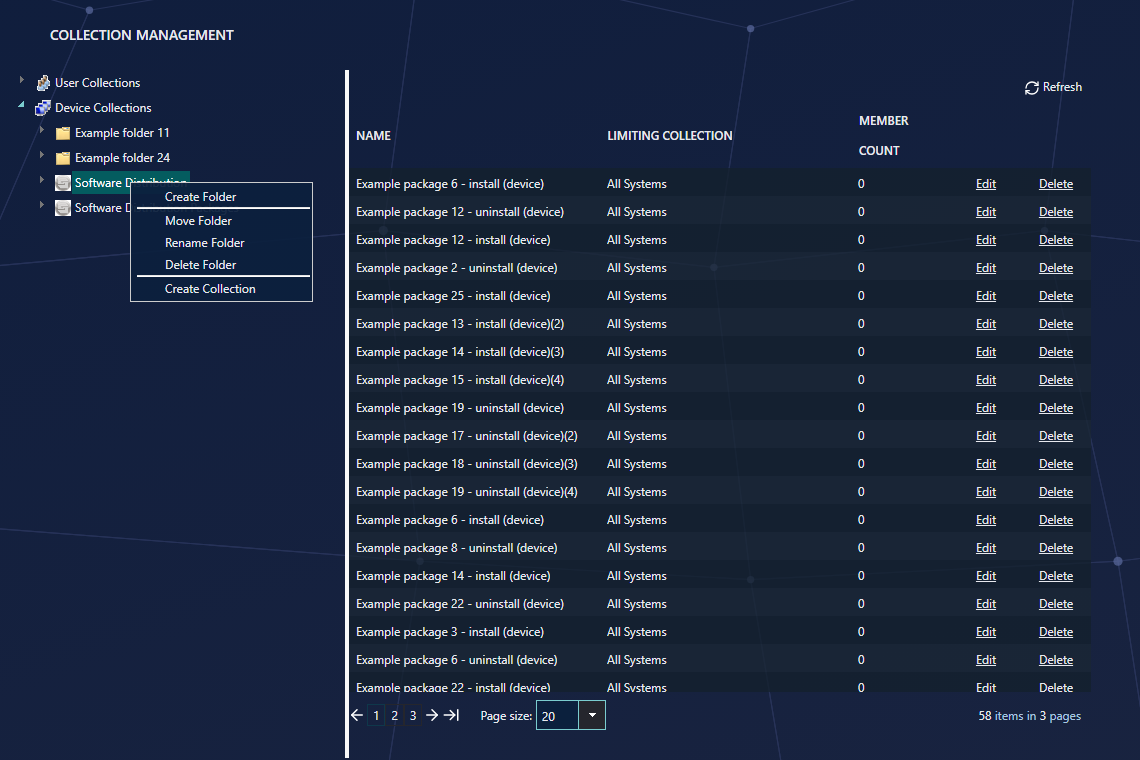
- Rename Folder: right-click the folder and choose Rename Folder.
- Move Folder: right-click the folder and choose Move Folder. You are then asked for the new location. You can also drag the folder to its new place.
- Delete Folder: right-click the folder and choose Delete Folder. The three SoftwareCentral folders that hold packages and applications cannot be deleted; SoftwareCentral tells you so when you try.
4 Create a collection
Select the folder where the collection should go, then click Create Collection on the left, or right-click the folder and choose Create Collection.
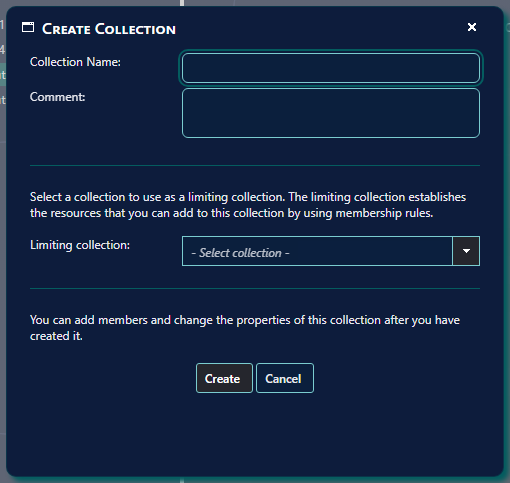
The collection is placed in the folder you selected. You can add members and change the properties later by editing the collection.
5 Edit a collection
Click Edit on the collection's row, or right-click the collection and choose Edit.
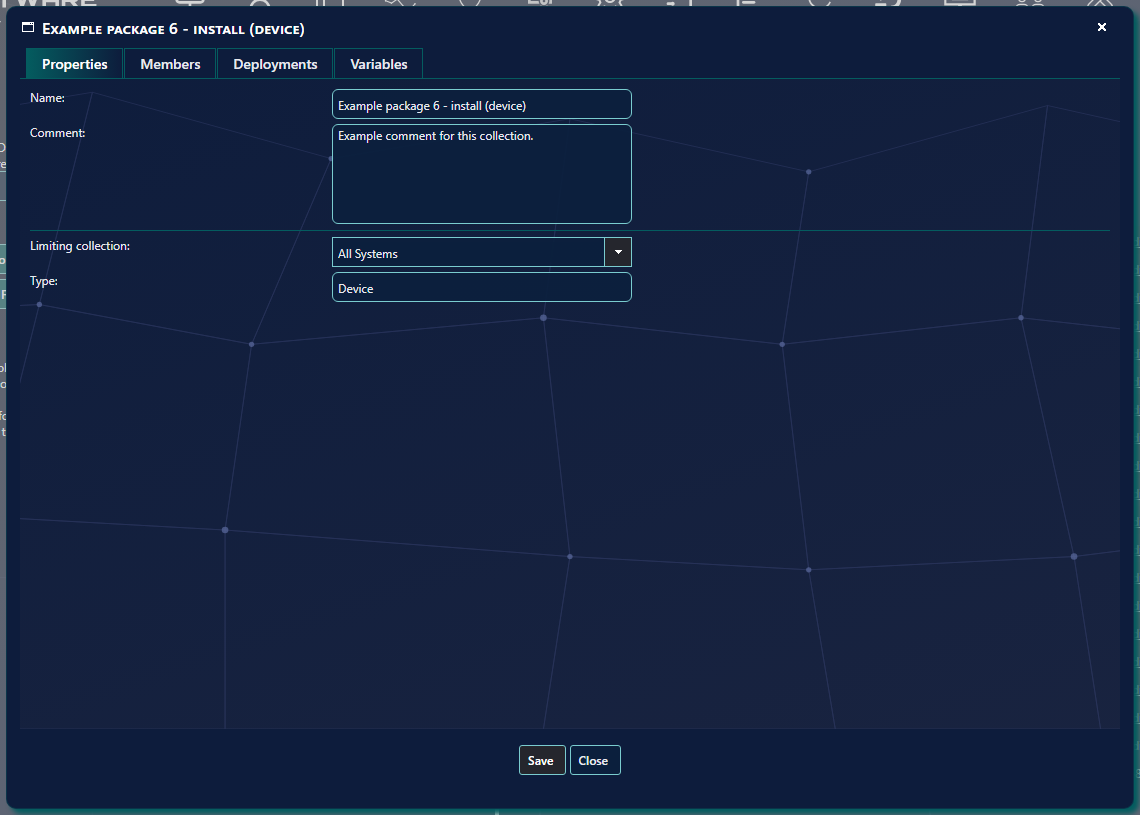
6 Membership rules
On the Members tab you add the rules that decide which computers or users are in the collection.
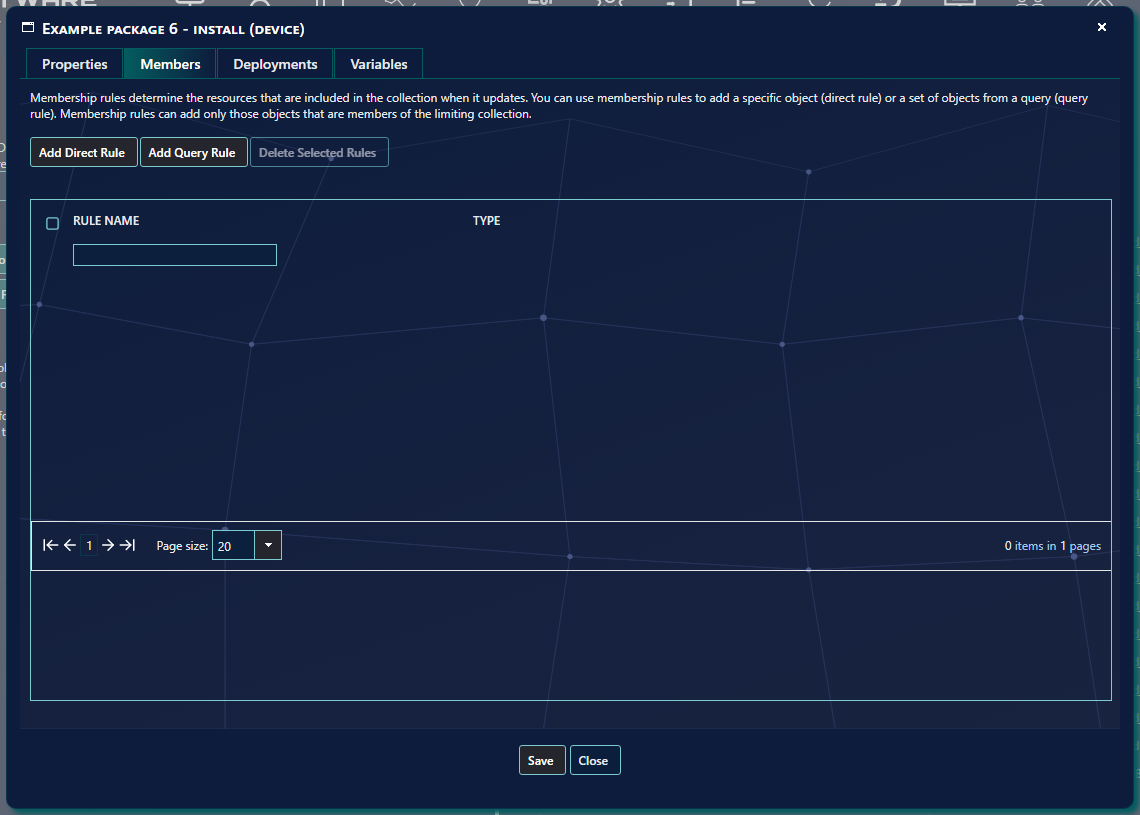
| On the Members tab | What it does |
|---|---|
| Add Direct Rule | Adds specific computers or users to the collection. |
| Add Query Rule | Adds every computer or user returned by a query. |
| Delete Selected Rules | Deletes the rules you tick on the left. It is greyed out until a rule is ticked. |
| Search field | Finds rules by their name. The filter is on the Rule Name column. |
Direct membership rule
Click Add Direct Rule. A new window opens where you select the resources to add.
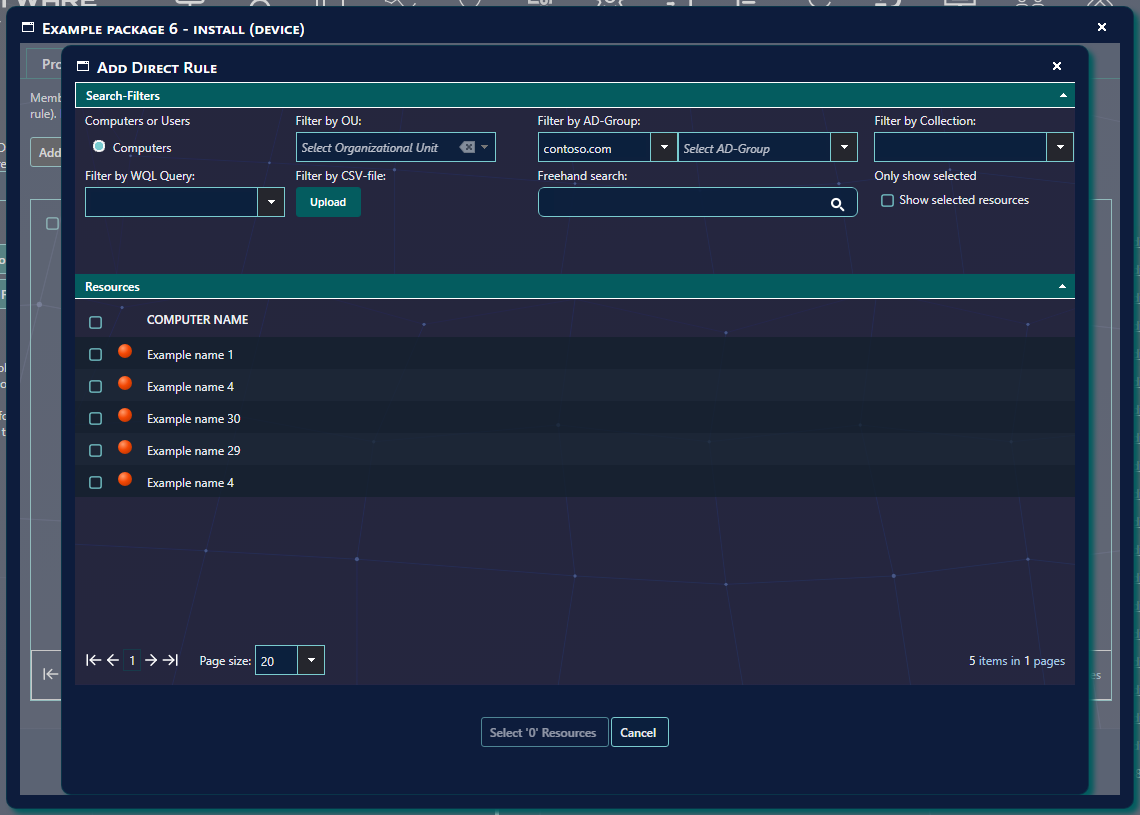
You can apply filters to the list, for example to copy all members of another collection or of an AD group. Once you have selected the resources, click the Select 'x' Resources button, where x is the number you selected. The resources are added to the collection immediately.
Query rule
Click Add Query Rule. The query window opens.
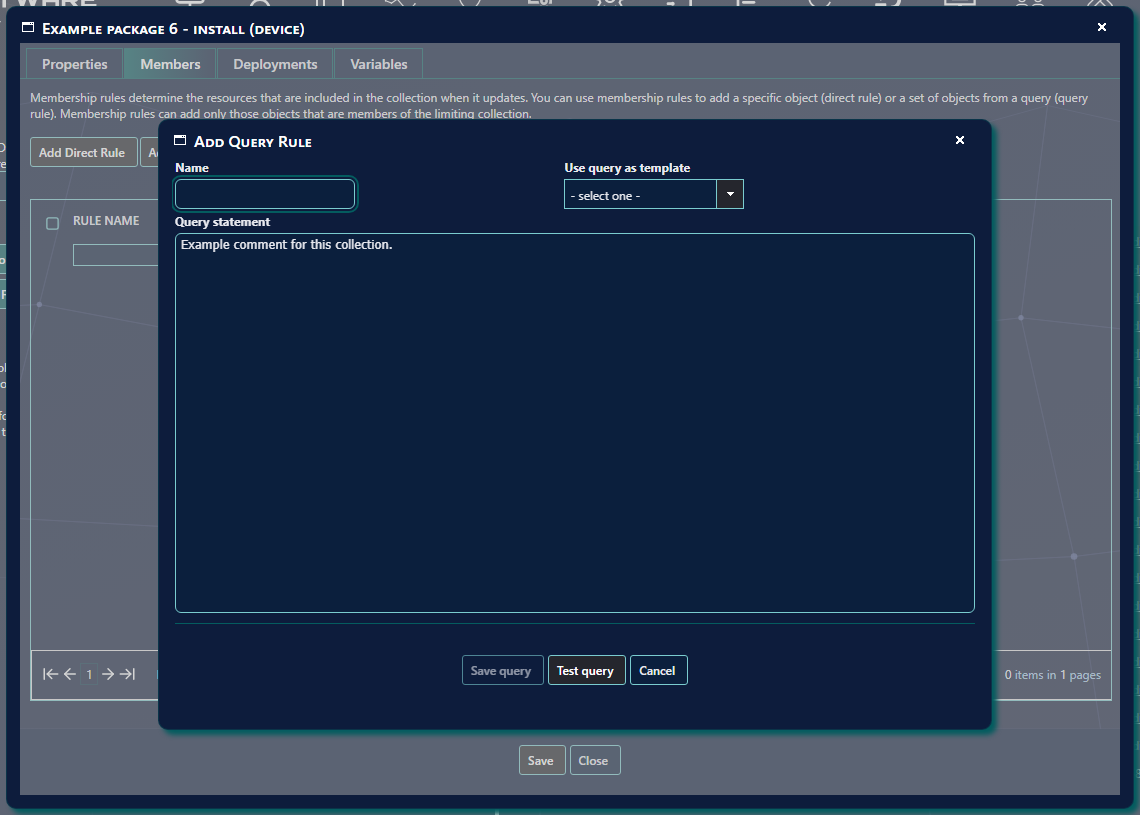
Give your query a name and optionally use an existing SCCM query as a template. You can then edit the query. Use Test query at the bottom to see what the query will return. When the query is ready, click Save query.
7 Deployments
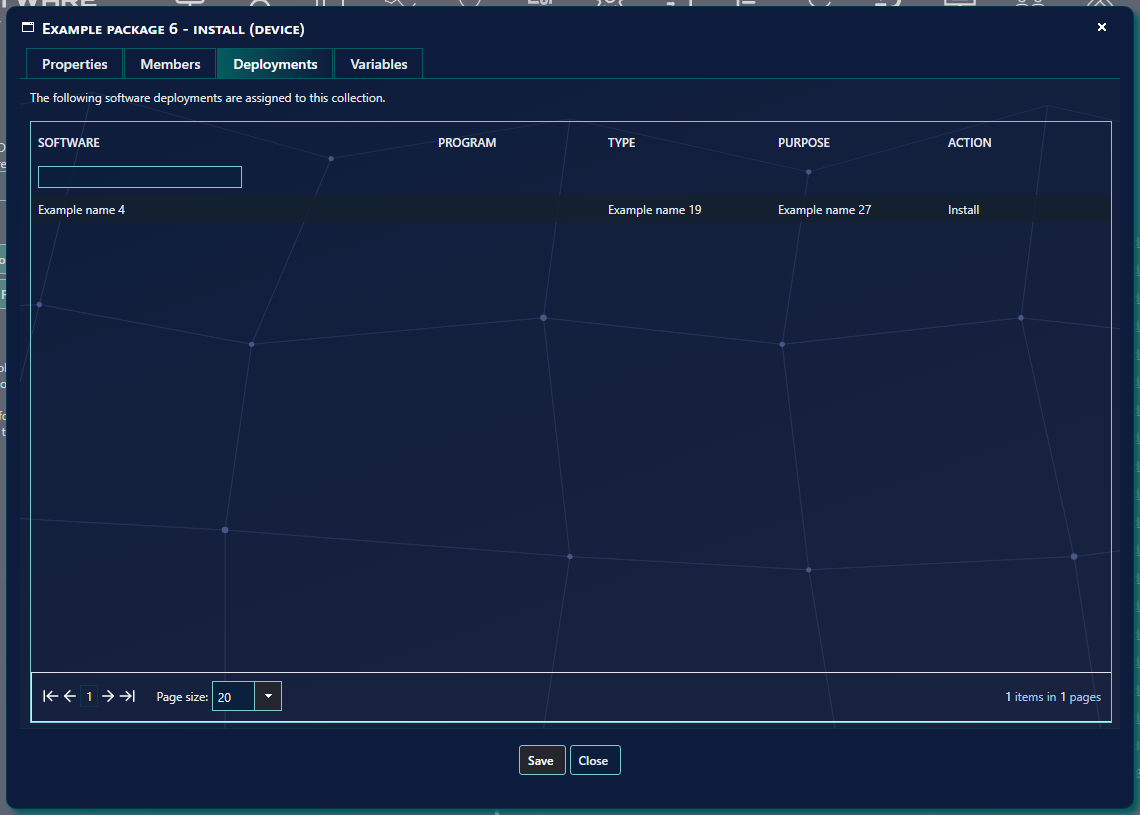
The Deployments tab shows what is currently deployed to the collection.
8 Collection variables
The Variables tab holds the task sequence variables that computers in this collection use.
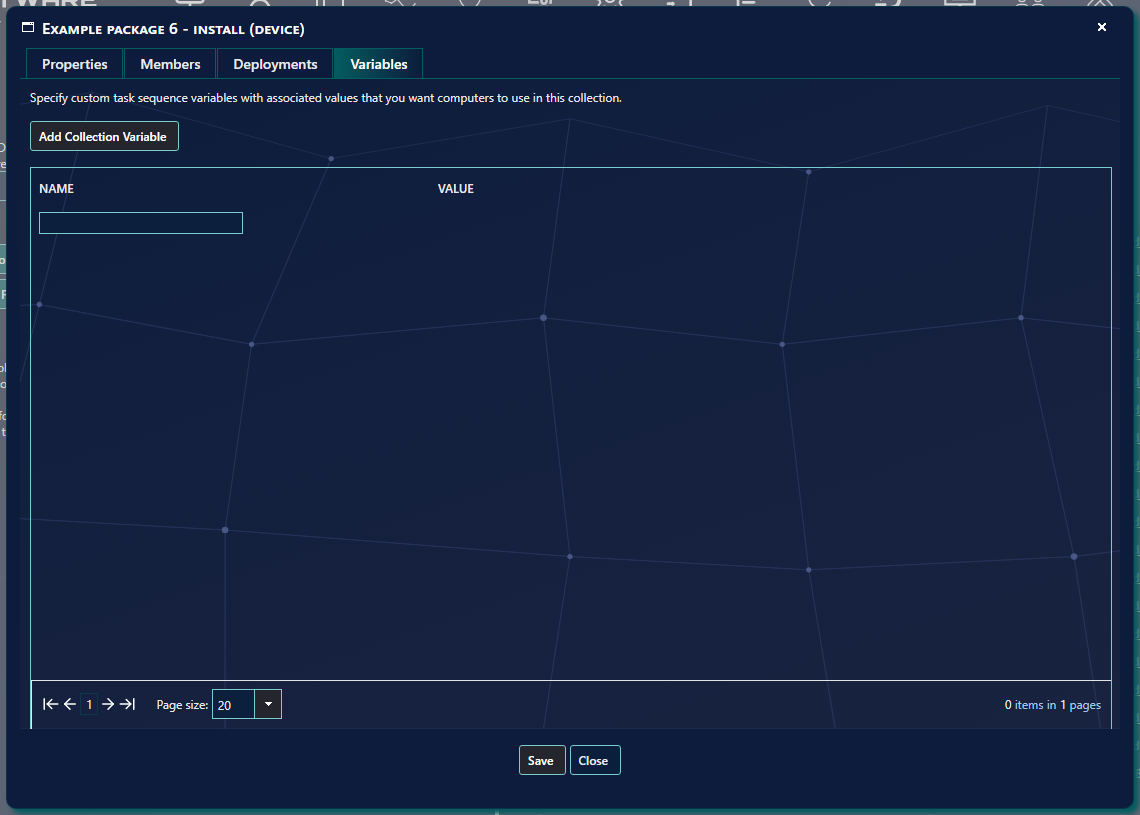
Click Add Collection Variable to add a new variable.
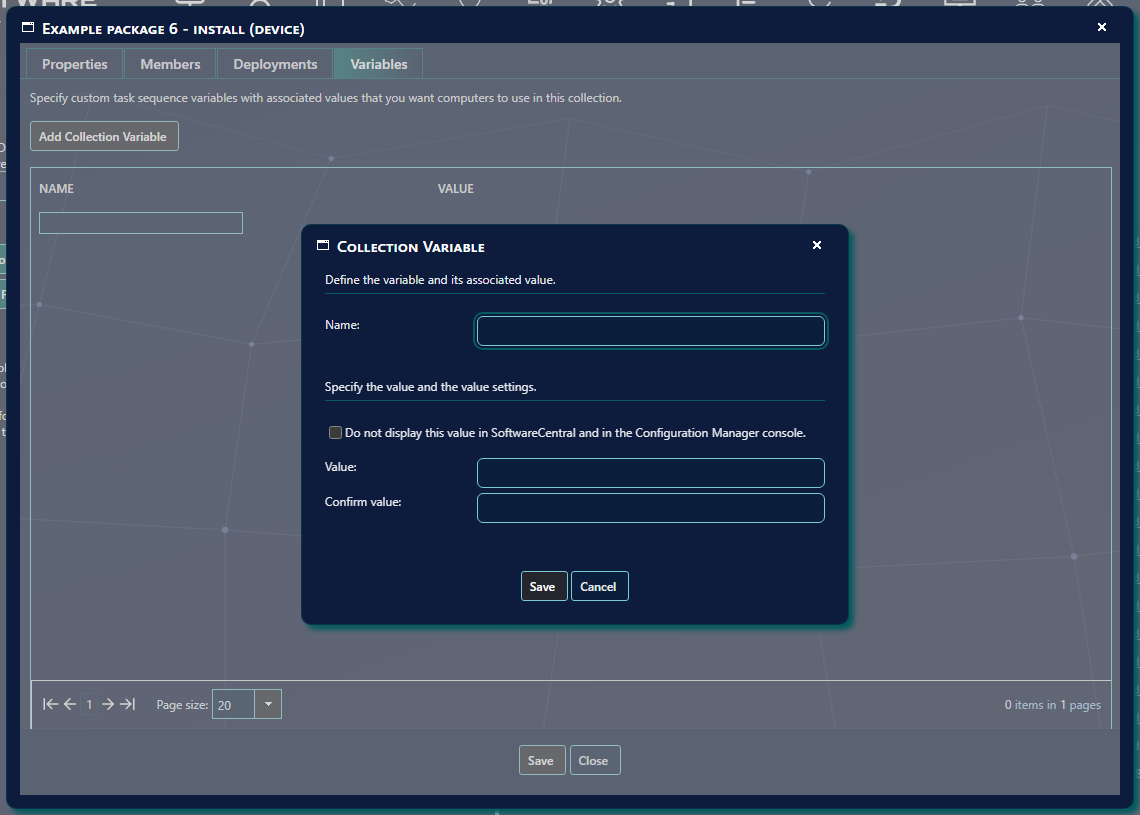
- The name must be between 1 and 256 characters long. It can only contain letters, numbers and underscores (
_), and it cannot start with an underscore. - Tick Do not display this value in SoftwareCentral and in the Configuration Manager console to hide the value from both interfaces.
- Once ready, click Save.
- To edit a variable, click Edit on its row. To delete a variable, click Delete on its row.

9 Move and delete a collection
To move a collection, drag it to the folder where you want it, or right-click it and choose Move.
Right-click the collection and choose Move. You are then prompted for a location for the collection. You must select a target folder.
To delete a collection, right-click it and choose Delete, or click Delete on its row. The confirmation asks Are you sure you want to delete the collection.
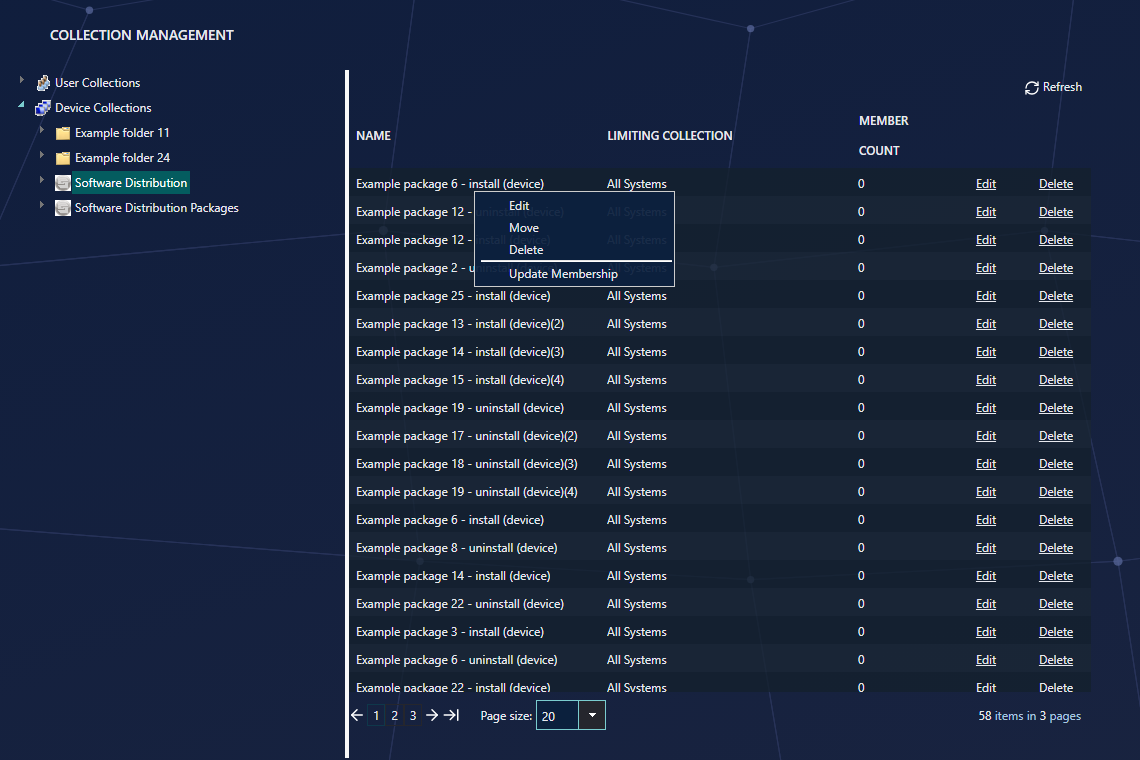
10 Update membership
After you add membership rules, the member count can take a while to change.
Configuration Manager re-evaluates the membership rules when you choose Update Membership from the collection's right-click menu. This can take a while. Use the Refresh button at the top right of the page to see the new member count once it has been re-evaluated.
11 Best practice
- Leave the SoftwareCentral folders and collections alone. The folders with the SoftwareCentral icon, and the collections in them, are the ones packages and applications use. SoftwareCentral refuses to delete its package and application distribution folders, and the rest should not be moved or renamed by hand.
- Choose the limiting collection with care. Membership rules can only add members of the limiting collection, so a narrow limiting collection hides the resources you want to add.
- Hide secret values. Tick the check box in the Collection Variable window for any value that must not be seen in SoftwareCentral or the Configuration Manager console.
- Prefer direct rules for a few computers. Use a query rule when the group must follow a rule, and remember that software deployed through a query rule cannot be uninstalled from SoftwareCentral.
- Give a collection an accurate name and comment. The name is what you search for in the tree and the search box, and the comment tells the next administrator what the collection is for.
12 Troubleshooting
| Symptom | Cause | What to do |
|---|---|---|
| "Create Collection" or "Create Folder" is greyed out | No folder is selected in the tree. | Click the folder where the new item should go. The tooltip says You must select a folder before you can create a collection. |
| "A name is required." | The Collection Name box is empty. | Type a name. |
| "This name is already in use." | A collection with that name already exists on the site. | Choose another name. |
| "You must select a limiting collection." | No limiting collection was chosen in Create Collection. | Choose a limiting collection and click Create again. |
| "You must enter a name for the folder." or "A folder with this name already exists." | The folder name is empty, or the parent folder already has a folder with that name. | Type a unique name in the folder window. |
| "Cannot delete root collections." | The collection is a root collection, such as All Systems or All Users. | Root collections are kept. Delete the collections under them instead. |
| "This folder is the SoftwareCentral package root folder and cannot be deleted.", or the matching message for the application distribution folders | The folder is one of the SoftwareCentral folders. | Leave the folder in place. Delete only other folders. |
| "Cannot delete this collection. This collection is limiting collection to: ..." | The named collections use this collection as their limiting collection. | Change the limiting collection of those collections first, then delete this one. |
| "Name cannot start with an underscore '_'.", "Name can only contain alphanumeric characters and underscores." or "This name has already been used." (variables) | The variable name breaks a naming rule, or the collection already has a variable with that name. | Change the name. Names are 1 to 256 characters of letters, numbers and underscores. |
| "Values do not match." (variables) | The Value and Confirm value boxes are different. | Type the same value in both boxes. |
| "You must select a target folder." | A move was started without choosing a folder. | Select the target folder, then click Save. |
| "Failed to save collection. See the log for details.", "Failed to create collection. See the log for details.", "Failed to delete collection. See the log for details." and the matching folder and move messages | The change did not reach Configuration Manager. | Open the Log page, find the error for the same time, and check the Configuration Manager connection in Settings. |
| The member count stays at 0 after you add rules | Configuration Manager has not re-evaluated the membership yet. | Right-click the collection, choose Update Membership, wait, then click Refresh. |
See also SCCM Folders and Collections for the folders SoftwareCentral needs, and Default Collection Structure for how collections are laid out.