1 Select the source computer
Open Clone › Clone Single Computer. Choose the computer to copy from in Select computer in the left menu. The software assigned to it is shown in the centre.
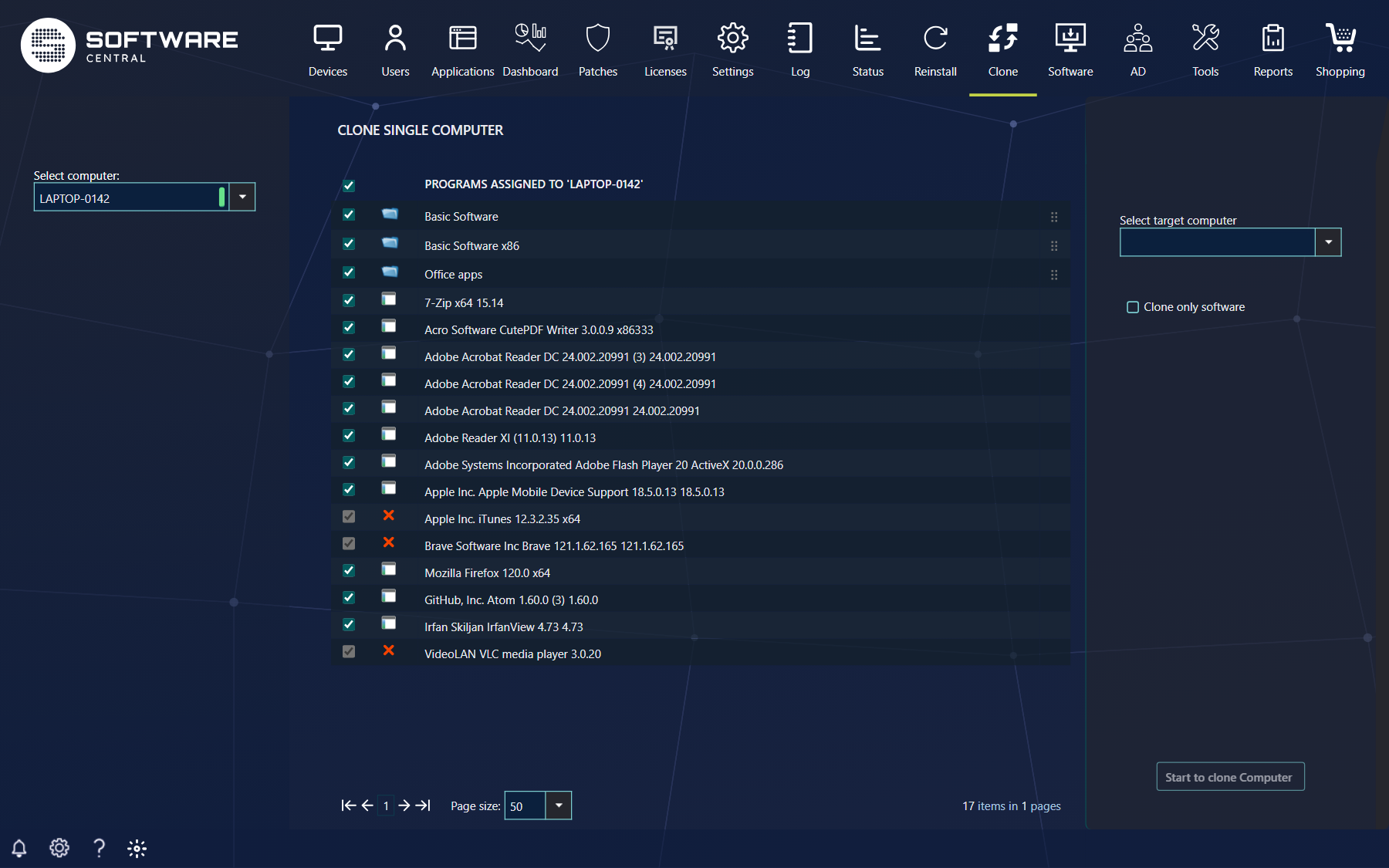
- Untick any software you do not want to clone to the target computer.
- A folder icon marks a Software Group. Software Groups can be reordered with the drag handle on the right; they are installed in the order shown.
- Software with a red cross cannot be added to the target computer (tooltip Not applied by direct rule. Cannot be removed.): it reaches the source computer through a query, not directly. It stays ticked.
- The checkbox in the column header selects or clears all software that can be changed.
- Your IT department can limit cloning to software that belongs to certain package security groups; other software is then not listed.
- Use Quick-find installed software to search the list.
2 Select the target computer
In the right menu, choose the target in Select target computer.
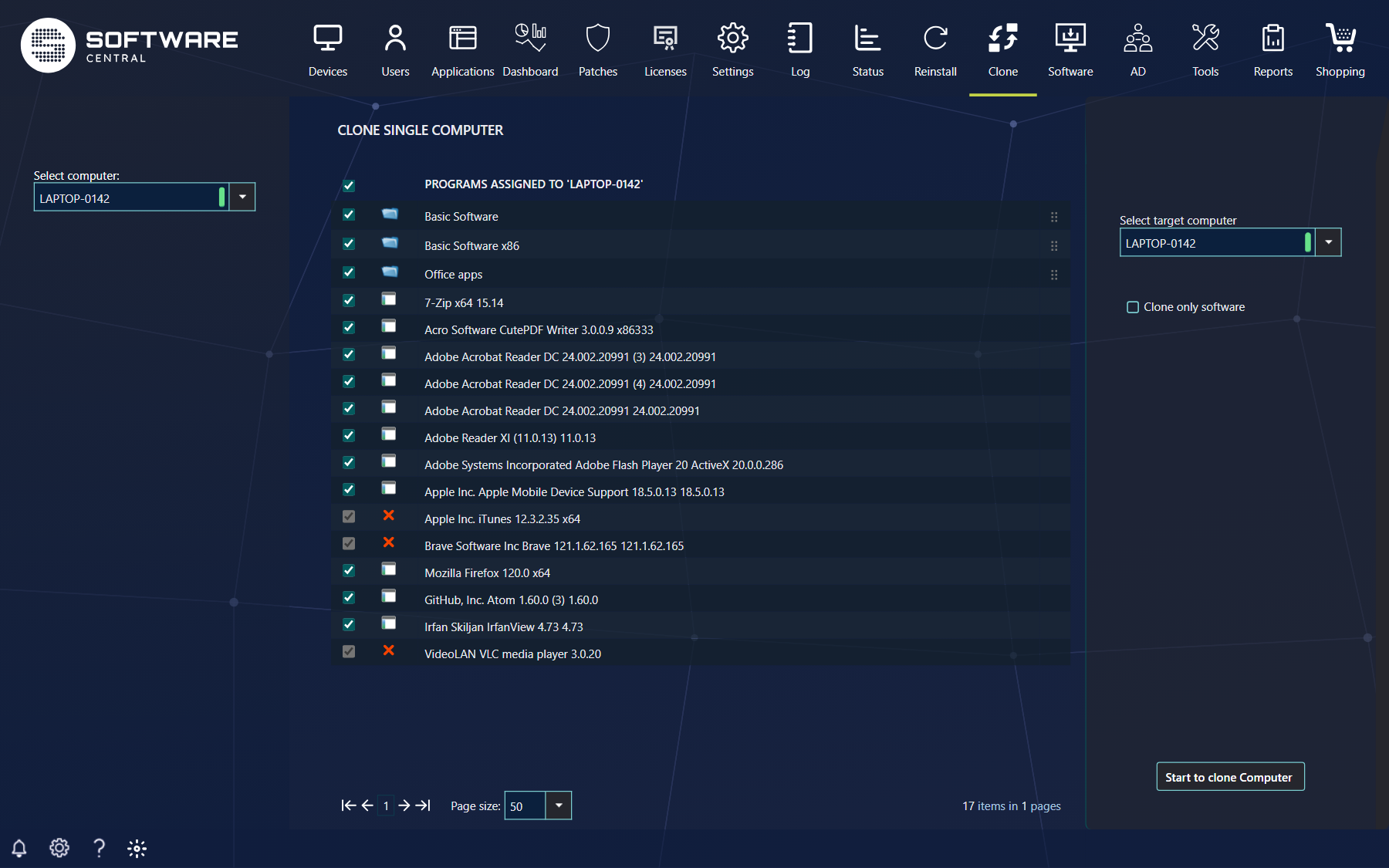
A coloured marker next to each computer shows whether it is online. Click the green marker to open a window with details about the computer; click the red marker to check its status again.
Intune devices
When your organisation uses Intune, the list of computers also contains Intune devices. If you choose an Intune device as the source, the target list shows Intune devices, Clone only software is ticked and cannot be changed, and Migrate User Data is hidden. The applications assigned to the source are listed; the ticked ones are installed on the target device, which is then synchronised. If you choose a ConfigMgr computer as the source, only ConfigMgr computers can be selected as target. In an Intune-only environment the list contains only Intune devices.
3 Software only, or a complete clone
The target is cloned in one of two ways, controlled by Clone only software.
| Clone only software | What happens to the target computer |
|---|---|
| Not ticked (default) | The target is reinstalled and every program assigned to it is removed. It becomes a complete 1-to-1 clone of the source: operating system, machine variables and software. |
| Ticked | Only the assigned software is cloned. The target is not reinstalled and its existing software is not removed. No machine variables, software groups or operating system are assigned to it. |
If the option is greyed out, the source computer has no operating system assigned, so you can only clone the software. Your IT department can also force this option on for everybody, so that complete clones are not possible.
Migrate User Data
Some environments show a Migrate User Data option. When it is on, the user's files and settings are restored on the target computer after the reinstallation. Administrators can switch it off for all users in the Settings menu. It is not available together with Clone only software. When it is on, SoftwareCentral also creates a computer association between the source and the target computer.
4 Start the cloning
Click Start to clone Computer in the lower right corner. The button is enabled once a source and a target computer are selected. Follow the progress in the Deployment Manager, where the job is named Cloning computer source to target for a complete clone, or Cloning software from source to target for a software-only clone.
5 Best practice
- Use Clone only software for a computer that is already in use. It adds software without reinstalling the computer or removing anything.
- Check the target twice before a complete clone. The target is reinstalled and every program assigned to it is removed.
- Clone from a computer that is set up the way you want the target to be. The software list is only a copy of what is assigned to the source, so remove anything the target should not get.
- When many computers should look the same, make a computer template and use it with Reinstall Multiple Computers instead of cloning one computer at a time.