1 Open Client Manager
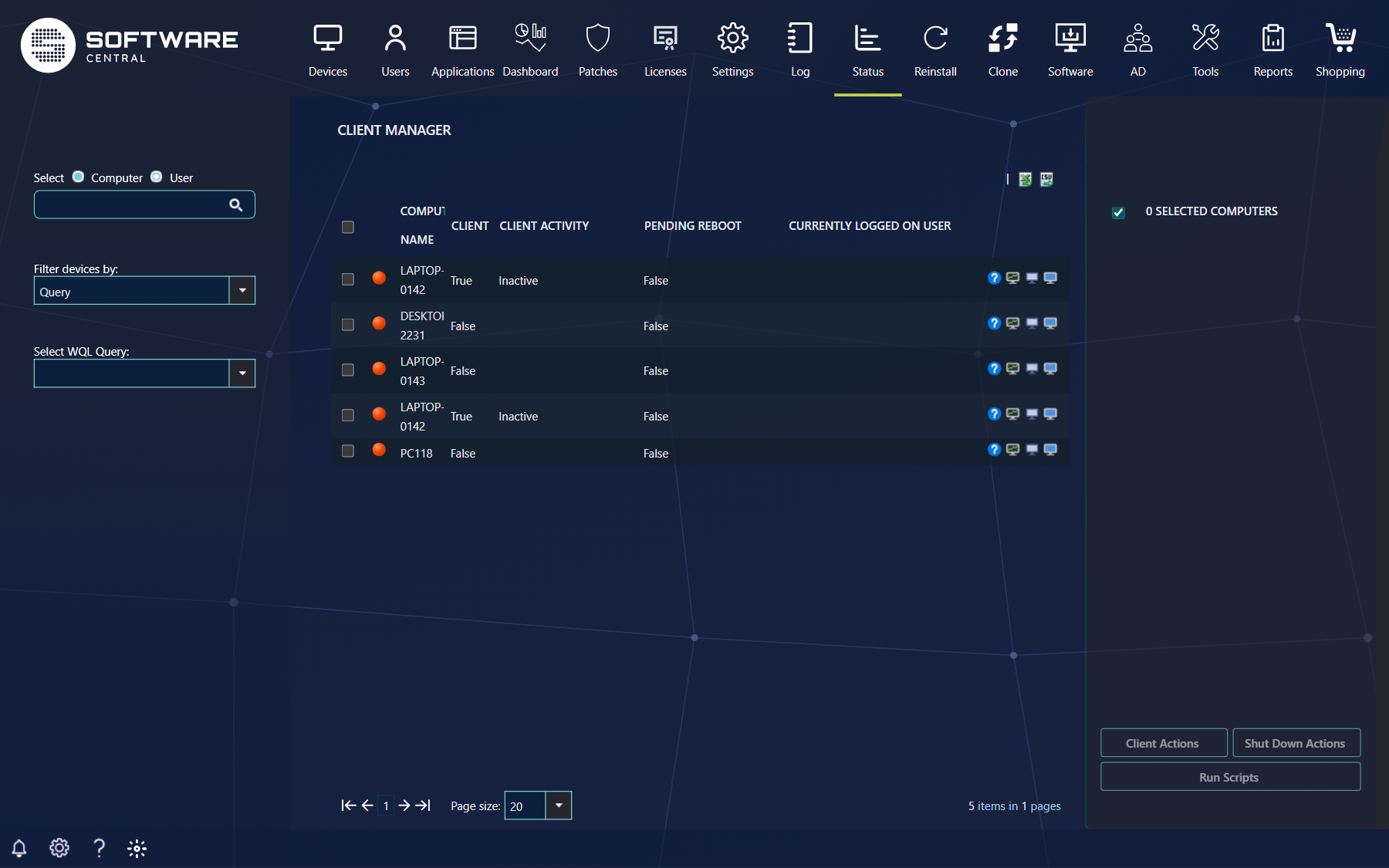
The Client Manager works as a web-based client centre. Open it from Status › Client Manager.
It lists computers with their name, whether the SCCM client is installed, the client activity, whether a reboot is pending, the user, the user currently logged on and the MAC address. Each row has four buttons on the right. The list can be exported to Excel or CSV with the icons above the grid.
| Column | What it tells you |
|---|---|
| Online marker (green, red or yellow) | Green means the computer is online, red offline and yellow unknown. Shown with SCCM 1602 or later when Use SCCM Client Online Status is enabled in the Settings menu. |
| Computer Name | The name of the computer. |
| Client, Client Activity | Whether the SCCM client is installed, and whether the client is Active or Inactive. |
| Pending Reboot | Whether the client reports a reboot as pending. |
| Type | The type of device. |
| User, Currently Logged on User | The last user who logged on to the computer, and the user logged on now. With Use display name in the Settings menu, the last user is shown by display name instead of user name. |
| MacAddress | Only shown with SCCM 1806 or later when Show mac addresses is enabled in the Settings menu. |
If your administrator has defined an extra search property for devices, it is shown as an extra column and is searched together with the computer name.
2 Find the computers
Use the search field to find a computer by its name, MAC address, SMBIOS GUID or user name. Switch between Computer and User above it.
With Filter devices by you can also list computers by Query, Collection, OU, AD-Group or CSV-file. Press Enter after each search value; every value narrows the list further. With User selected, the list shows the primary computers of the user you pick.
You only see the computers your security role may manage.
3 Actions on several computers
When you tick one or more computers, the three buttons in the lower right corner become active. Each opens a window with the available actions.
Ticked computers move to the Target Computers list on the right. Untick a computer there to take it out, or use the header checkbox to remove all of them. If your security role limits the number of computers you can work on in one operation, the page tells you You are only allowed to select that many computers when you try to add more.
The buttons are Client Actions, Shut Down Actions and Run Scripts. Your security role decides which of them you see, and which actions inside Client Actions are offered: Install Client, Clear PXE, Wake On Lan and the standard client actions can each be given or withheld.
Client Actions
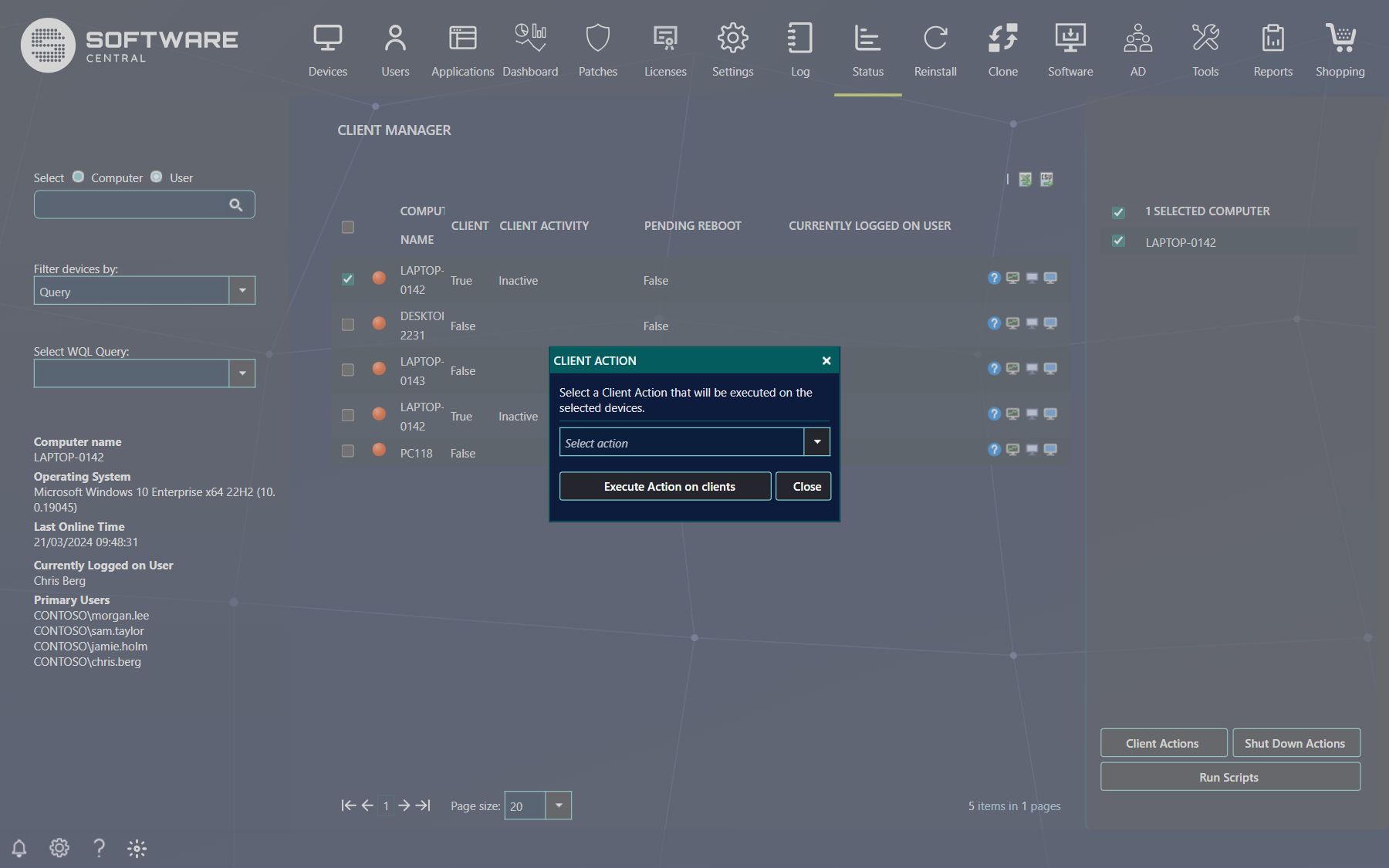
| Action | What it does |
|---|---|
| Install Client | Installs the SCCM client on the selected computers, or tries to reinstall it if it is already there. The computers do not need to be online to queue the job. |
| Clear PXE | Clears the last PXE advertisement on the selected computers. |
| Wake On Lan | Sends a Wake-On-Lan packet to try to turn the computers on. Your administrator can choose in the Settings menu whether the packet is sent by SoftwareCentral or by the SCCM client (Use SCCM to send Wake on Lan package, SCCM 1810 or later). |
| Application Deployment Evaluation Cycle, Discovery Data Collection Cycle, File Collection Cycle, Hardware Inventory Cycle, Machine Policy Retrieval & Evaluation Cycle, Software Inventory Cycle, Software Metering Usage Report Cycle, Software Updates Scan Cycle, Software Updates Deployment Evaluation Cycle, Windows Installer Source List Update Cycle, Machine Policy Agent Cleanup, Validate Machine Policy | The standard ConfigMgr client actions. The computers must be online. |
Shut Down Actions
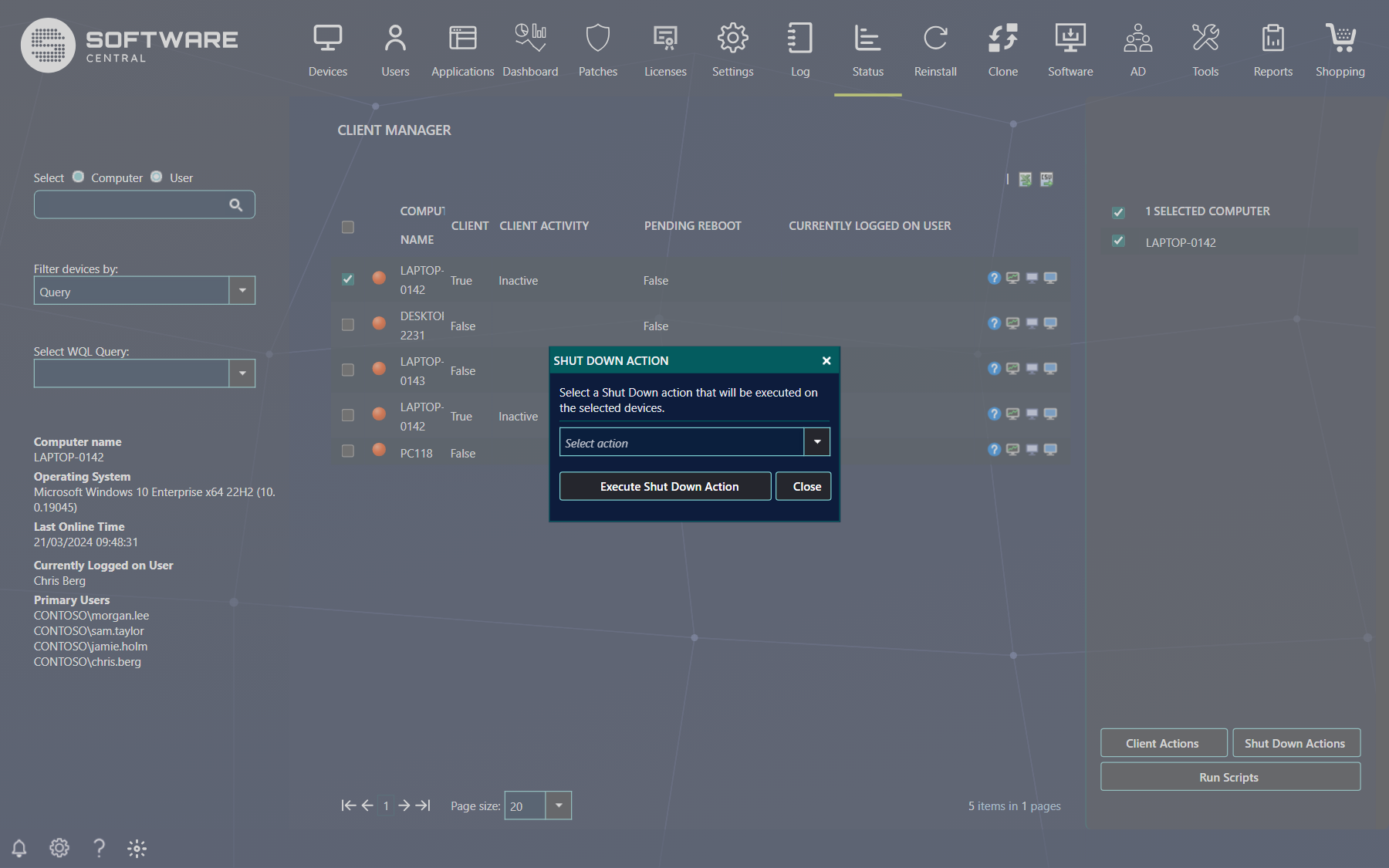
| Action | What it does |
|---|---|
| Log Off | Forces a log off. |
| Shutdown | Forces a shutdown. |
| Reboot | Forces a reboot. With SCCM 1710 or later and Use SCCM Client Notifications enabled in the Settings menu, the SCCM client is notified to request the reboot instead. |
| Power Off | Forces a power off. |
Run Scripts
Run Scripts executes PowerShell scripts on the selected devices.
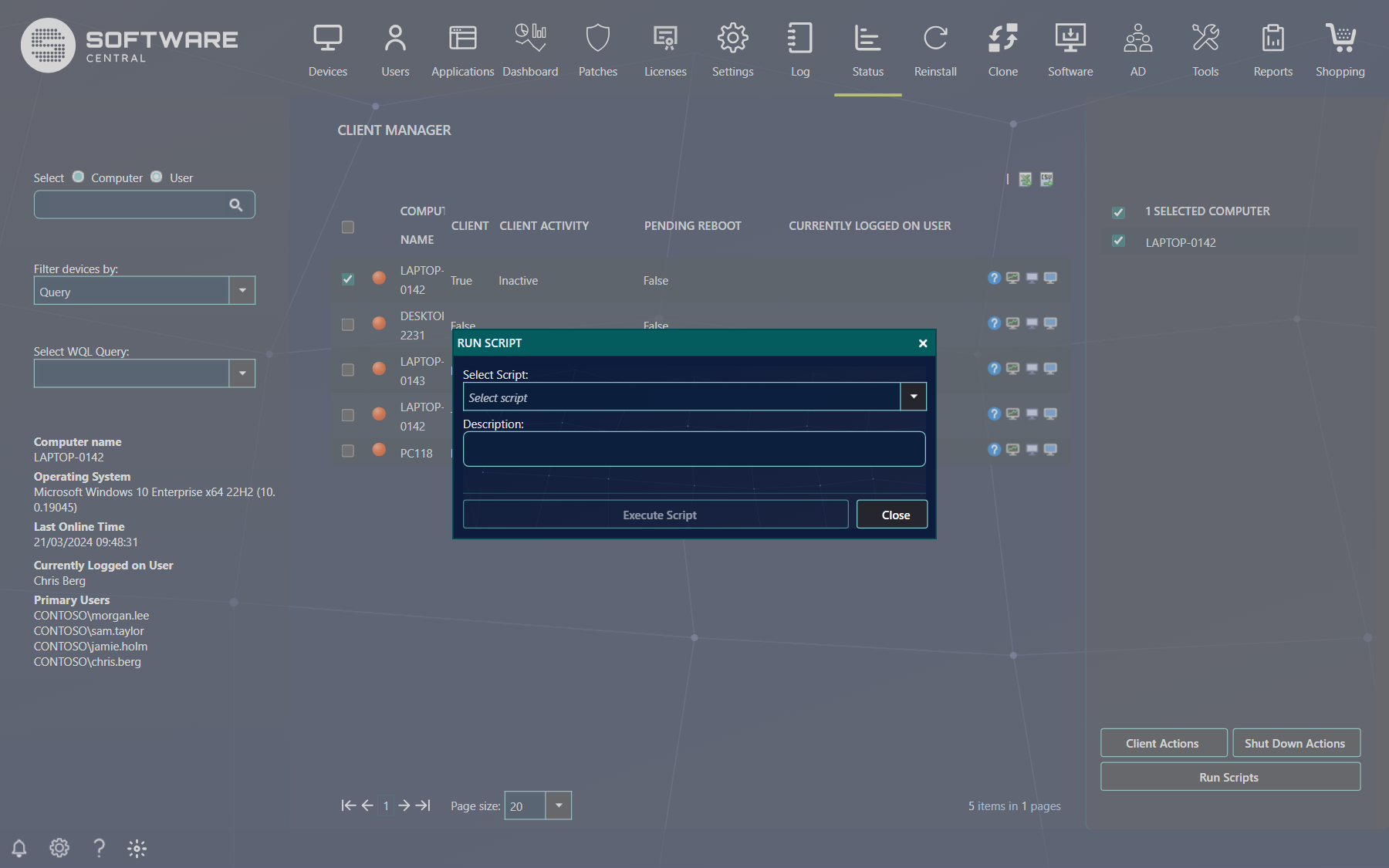
Select a script and read its description. If it needs parameters, you are asked to fill them in. Parameters are checked as you type, against the minimum and maximum length, the pattern and the error message defined for the parameter in ConfigMgr, and Execute Script stays disabled until all required parameters are valid. Parameters that the script marks as hidden cannot be edited. Your security role decides which scripts are listed. When you click Execute Script, the window closes and another opens with the status and output for each targeted device. The status overview can be exported to CSV, PDF or Excel with the buttons in the upper right corner.
4 Buttons on each computer
The buttons at the end of each row open tools for that computer.
| Button | What it does |
|---|---|
| Computer Information (the question mark) | Opens a window with general information about the client computer. |
| Remote Task Manager | Shows all running processes on the client and lets you terminate them. Create Process starts a new process. Because of Windows security restrictions, the user of that computer cannot interact with a process started from here. |
| Resource Explorer | A web version of the ConfigMgr Resource Explorer, showing all collected client inventory data. The grid can be exported to PDF or Excel. |
| Remote Control | Connects to the client. If it is not configured, see Remote Control. |
Each button is only shown if your security role has the function: Remote Task Manager, Resource Explorer and Remote Control can be given separately.
5 Best practice
- Try it on one computer first. Run a new script or action on a single computer and check the result before you target many.
- Read the online marker. The standard client actions need the computer to be online; only Install Client can be queued for a computer that is offline.
- Check the Target Computers list before you execute. It is the list the action is sent to.
- Give people only the actions they need. Shut down actions, scripts, the remote task manager and remote control are separate functions in the security role, and Maximum number of resources limits how many computers one operation can reach.
- Use Client Log to find out why an action did not have the effect you expected.