1 The three domains
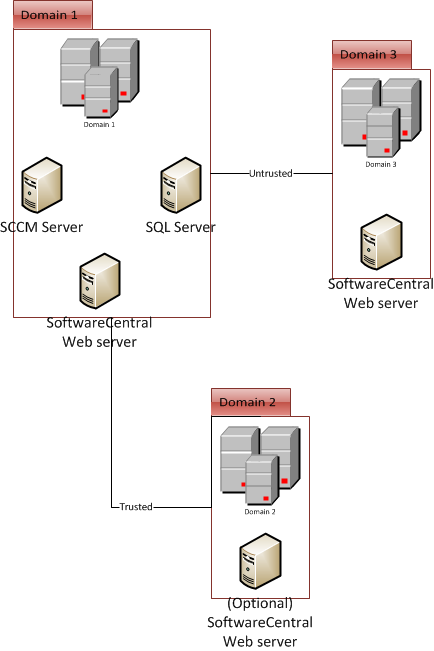
The setup in this topic uses three domains. Each one has a different role.
| Domain | Role in the setup |
|---|---|
| Domain 1 | The primary domain, where the SCCM server is located. The SQL server and a SoftwareCentral web server are in this domain too. |
| Domain 2 | An example of a trusted domain with a secondary SoftwareCentral installation. Its web server is optional. |
| Domain 3 | An untrusted domain with a separate SoftwareCentral installation. Users here cannot use the installation in Domain 1 directly. |
2 Which installations to set up
Domain 1 and Domain 2 are installed and configured as described in the installation guide. Domain 3 gets its own installation, which uses the same SoftwareCentral database.
To set up Domain 3, first configure the domain from the trusted side, then install SoftwareCentral there. The two topics are listed under Next steps.
3 Restrictions
Not on the SMS Provider server
SoftwareCentral cannot be installed on the same server as the SMS Provider.
Cloud installations
For cloud installations, the CloudConnector is installed in Domain 1 and the other SoftwareCentral installations are skipped. The SCCM connection string can still use a trusted connection. The CloudConnector cannot be installed on the same server as the SMS Provider.
4 Next steps
| Step | Topic | What it covers |
|---|---|---|
| 1 | Configuring SoftwareCentral with an untrusted domain | Adding the domain in Settings, setting its trust and service account, entering the SCCM connection, and creating the administrator role. Done from the trusted domain. |
| 2 | Installing SoftwareCentral in the untrusted domain | Installing the second site in Domain 3 and connecting it to the existing database with a SQL login. |
5 Best practice
- Keep SoftwareCentral off the SMS Provider server. The SMS Provider and SoftwareCentral, or the CloudConnector, must be on different servers.
- Configure the untrusted domain before you install in it. Each domain needs its trust setting and service account in place first. The steps are in Configuring SoftwareCentral with an untrusted domain.
- Give each untrusted domain a service account. A service account with the same permissions as the SoftwareCentral service account is needed in that domain. See Domain.
- For the cloud, install the CloudConnector in Domain 1 only. The other installations are skipped in that setup.