1 Open the overview
Open it from Licenses › License Overview.
The page shows every package in SoftwareCentral that you can see, with its license type and how many licenses are left. This page can be helpful if you have many packages in multiple license groups and need to determine where a specific package belongs.
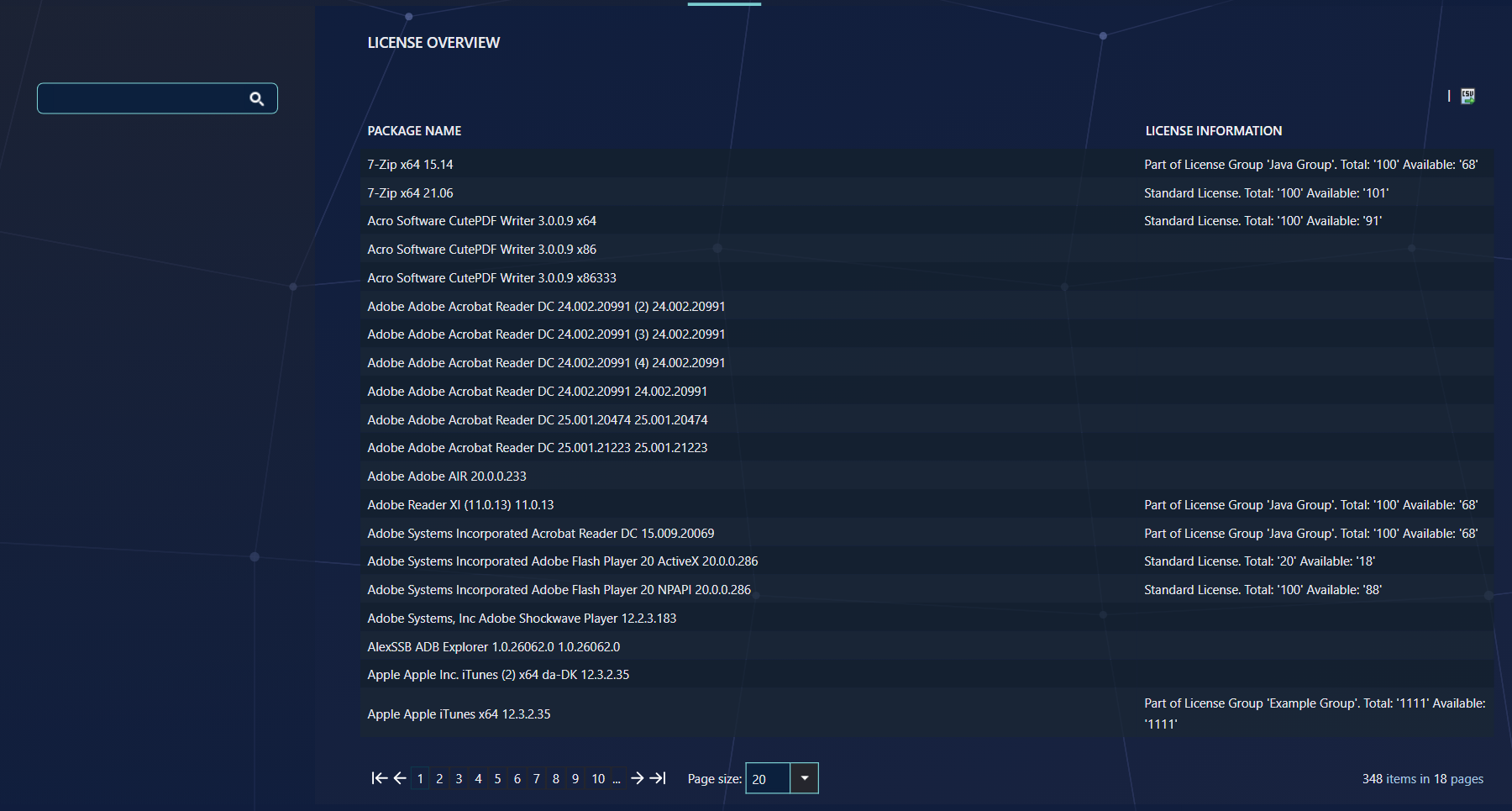
| Column | What it tells you |
|---|---|
| Package Name | The package. Software groups and application groups are not listed; a license group appears through the packages it contains. |
| License Information | The license type and the counts, as explained in section 2. |
The list is shown in pages of 20, 50 or 100 packages. Which packages you see depends on your security role.
2 Reading the list
The License Information text tells you what kind of license the package has and how many licenses are left.
| Text you see | What it means |
|---|---|
| Standard License. Total: 'n' Available: 'n' | The package has a license of its own. Total is the number of licenses. Available is the number that is not in use. |
| Part of License Group 'name'. Total: 'n' Available: 'n' | The package belongs to a license group. The counts are the group's, and every package in the group shares them. |
| Custom License of type: 'type' | The package has a custom license. This text appears only when the custom license module is enabled. |
| (empty) | No license is set for this package. |
3 Search
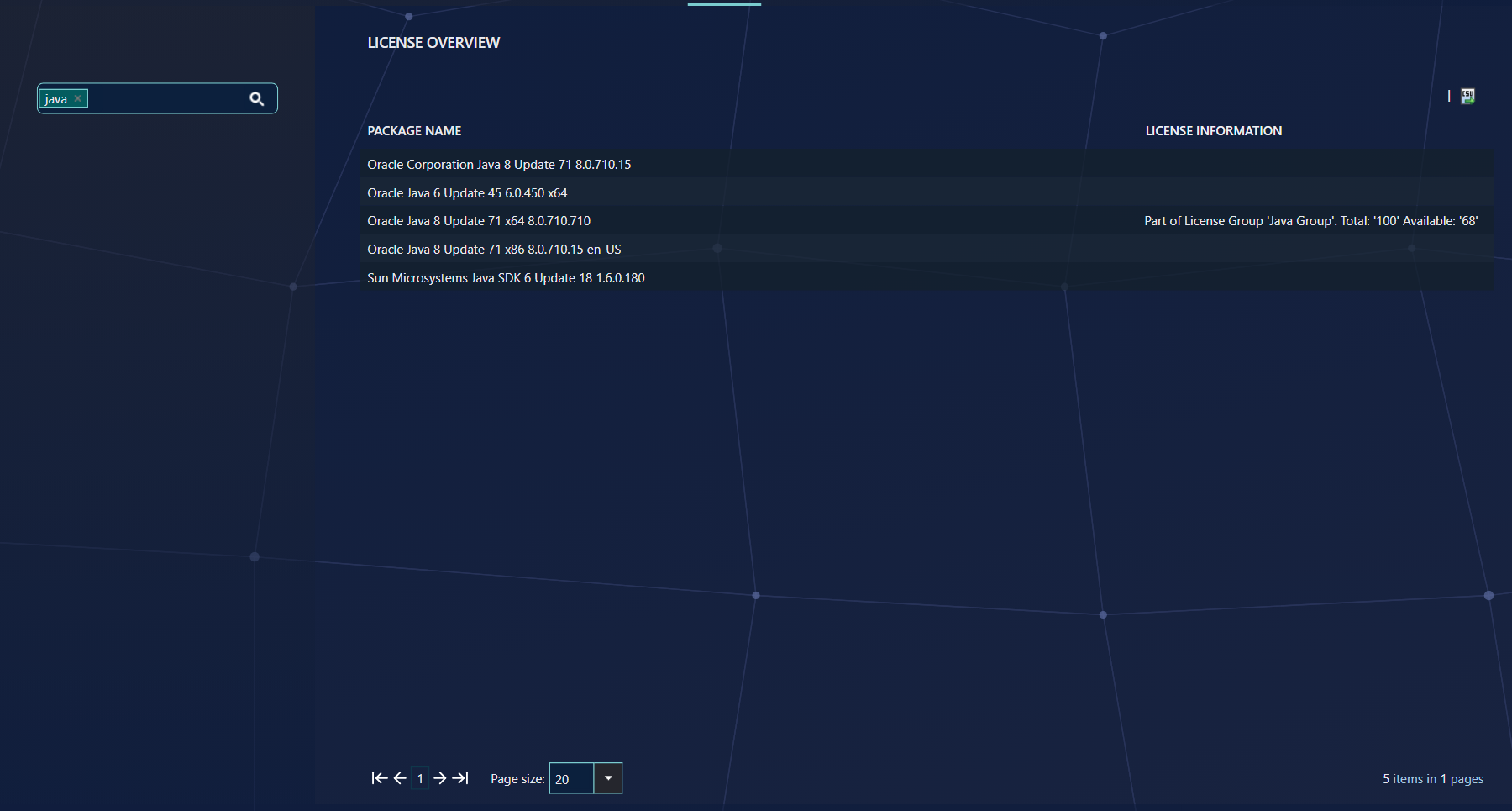
Type a name in the search box on the left and press Enter.
The list is filtered on the package name. Each value you add narrows the list further: a package must match every value you have entered. Click the × on a value to remove it.
4 Find a package's license group
Look at the License Information column of the package.
If the text says Part of License Group, the name after it is the group the package belongs to. The example in section 3 shows that Oracle Java 8 Update 71 x64 is part of the Java Group. To see every package in a group, search for the group's packages or use Manage Licenses to edit the group.
To export the list, use the CSV icon at the top right of the grid. The export is a CSV file of the list you see.
5 Best practice
- Remember that a package's own license is shown first. If a package has a license of its own and also belongs to a group, the list shows its own license, not the group's.
- Check the group before you change it. Before you change a license group in Manage Licenses, check here which packages show its name.
- Correct counts on Validate Licenses, not here. This page only shows the counts. To bring them into line with the ConfigMgr installs, use Validate Licenses.
- Use two or three search values to narrow a long list, for example a vendor name and a product name.
6 Troubleshooting
| Symptom | Cause | What to do |
|---|---|---|
| You cannot open License Overview, or you get an access denied error. | The page is only available when the license module is enabled. Whether the module is enabled comes from the installation's license, so the license may not include it. | Ask your SoftwareCentral supplier whether your license includes the license module. |
| The list shows “No packages match your criteria”. | The search values match no package. Every value must match. | Click the × on a search value, or change the words. |
| A package shows an empty License Information cell. | No license is set for that package. This is not an error. | If the package needs a license, set it in Manage Licenses. |