1 Create the task sequence
The next step is to create an empty task sequence that will hold the new image. In the Configuration Manager console, go to Task Sequence and press Create Task Sequence, and a new wizard will open.
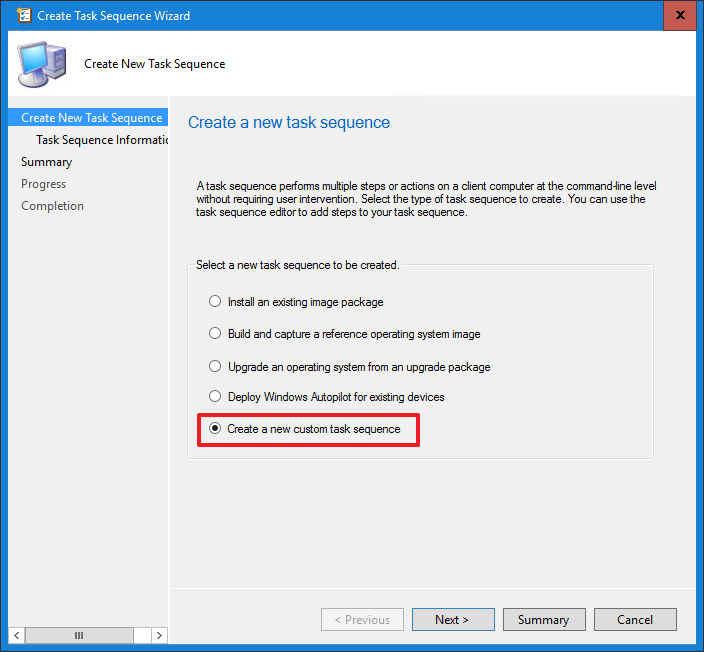
- Select Create a new custom task sequence in the first step, as seen above.
- Press Next.
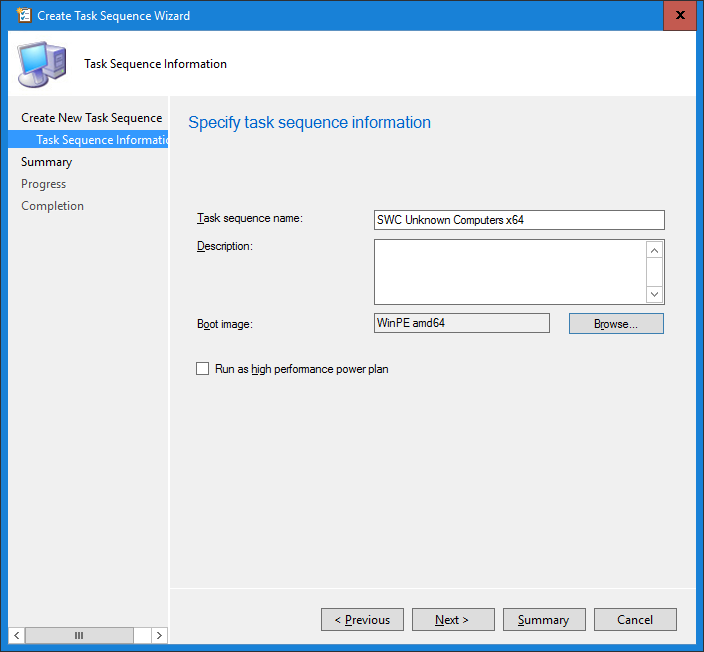
- Name the task sequence SWC Unknown Computers, as seen in the picture below.
- Press Browse.
- Select the newly created boot image.
- Press Next.
- Press Next and make sure there is no error.
2 Next step
Deploy the task sequence to the unknown computers. See HTA Deployment.
3 Best practice
- Use this task sequence for unknown computers only. The boot image in it starts the HTA, so no other task sequence should be deployed to the same collection. See the note in HTA Deployment.
- Select the boot image you prepared on the Setup Windows PE page. A boot image without the prestart command does not start the HTA.
- Read the summary before you finish. Step 7 asks you to make sure there is no error; fix any error before you go on to the deployment.