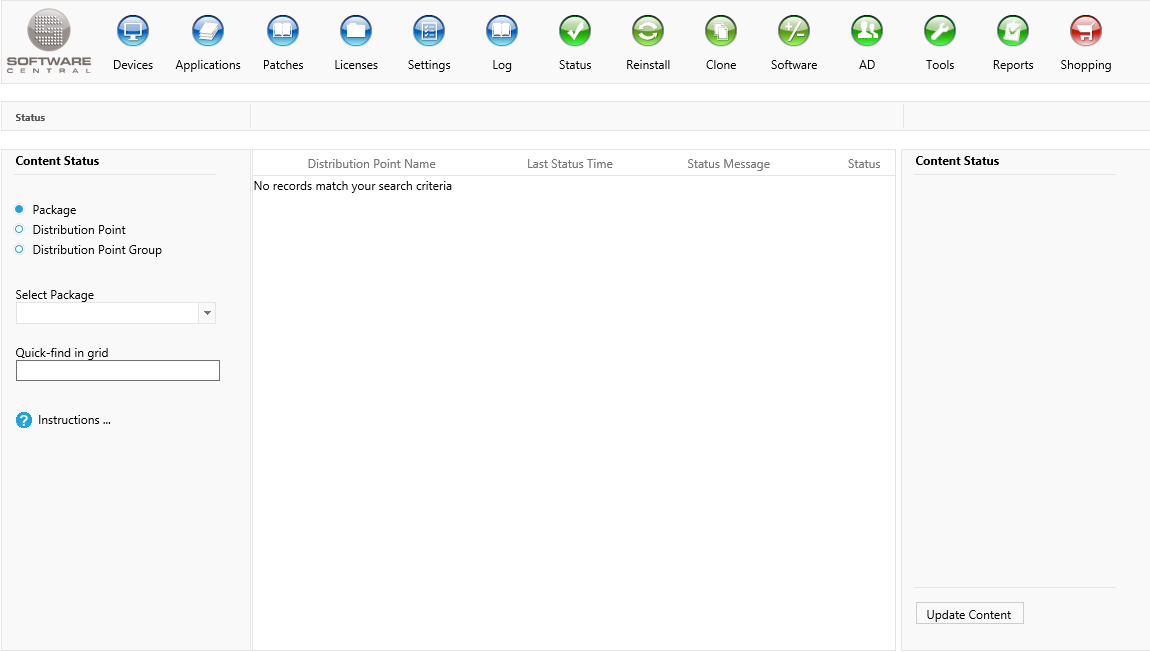
1 Open Content Status
Content Status is found under the Status menu.
2 Choose what to view
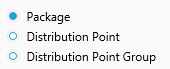
Start by selecting Package, Distribution Point or Distribution Point Group from the three buttons.
The page opens with Distribution Point selected.
3 Pick an item and read the status
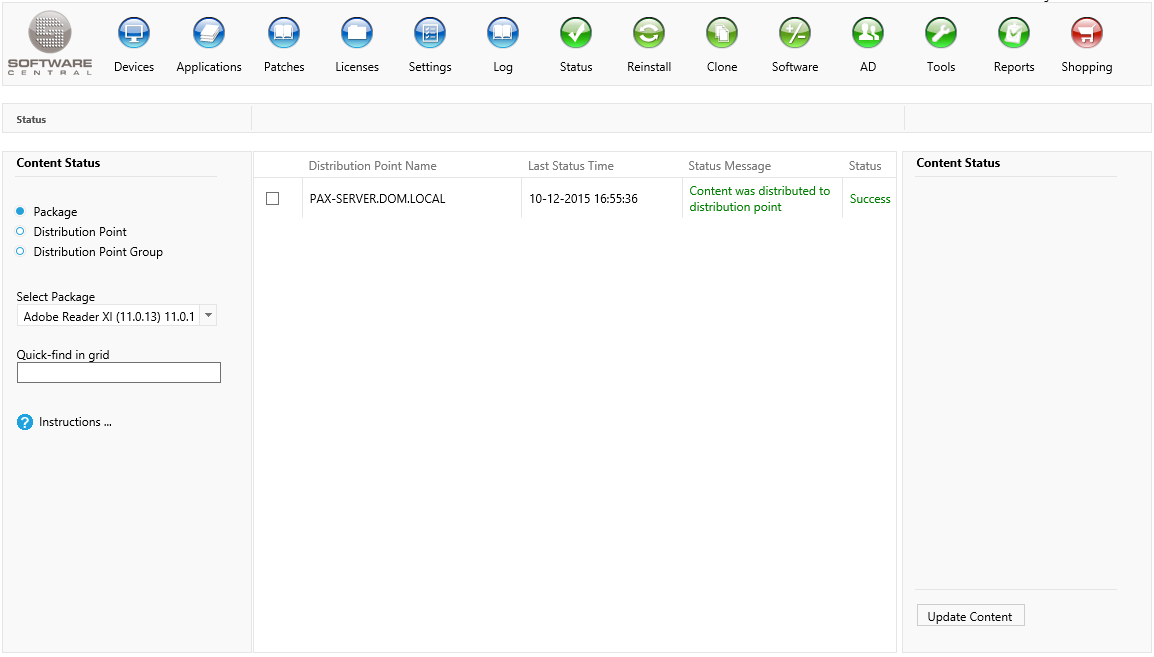
Next, select an item in the drop-down below the three buttons.
The label of the drop-down follows the view you chose: Select Package, Select Distribution Point or Select Distribution Point Group. To find a package quickly, type part of its name in the Quick-find in grid box and press Enter.
If an application or package is selected, all the distribution points where the package or application is distributed are shown, with the status of the content on each distribution point.
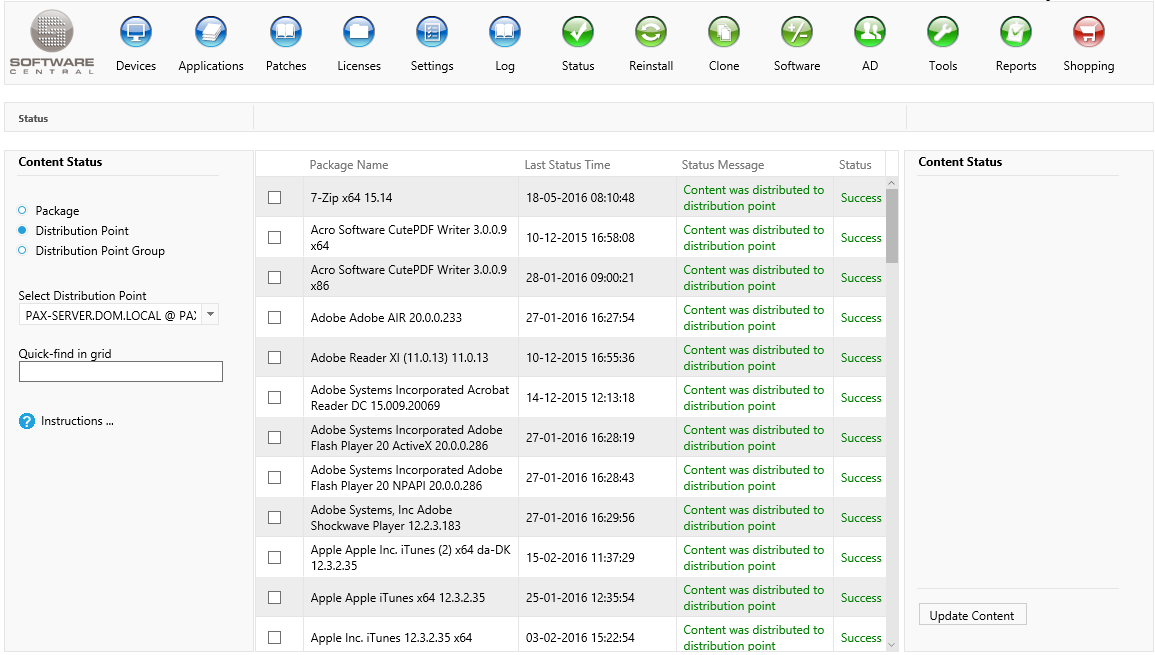
When you select a distribution point or distribution point group, all the packages and applications on it are shown with the status of each of them.
| Option | What it does |
|---|---|
| Only show failed distributions | Lists only the items whose distribution has failed. It works with the drop-down: tick it after you select an item. Untick it to see everything again. |
4 Update the content
This interface also provides the ability to update the content of packages and applications.
Each row that is already distributed has a refresh icon in the Update Content column. Click the icon on the row you want to update. Its tooltip reads Update content for this package.
The update runs in the background, so the page does not show a result. If an update fails, SoftwareCentral writes Failed to update distributed content at site with the site code to the Log.
5 Best practice
- Give the update function only to the roles that manage distribution. It is a role permission; without it the Update Content column is hidden.
- Find the failed items first. Tick Only show failed distributions and update those rows, instead of every package.
- Update one item at a time, when the network is quiet. Updating content can load the network, and clients may update afterwards.
- Check the Log after an update. A failed update is written there, not shown on the page.
6 Troubleshooting
| Symptom | Cause | What to do |
|---|---|---|
| “Failed to update distributed content at site” in the Log | The update did not complete at the ConfigMgr site. The page shows no error for it. | Open the Log, read the entry and its details, check the distribution point, then try the update again. |
| Nothing is listed after you tick Only show failed distributions | No distribution for the selected item has failed. | Untick the box to see every distribution. |
| No refresh icon and no Update Content column | Your role does not include the update function, or the content is not on that distribution point yet. | Ask your administrator for the update function. Distribute the content to the point first, then update it. |