1 Open All Reports
Open the Reports menu and click All Reports.

2 Load a report
Choose the report category, then the report name, and click Load Report. The report is shown below the buttons.
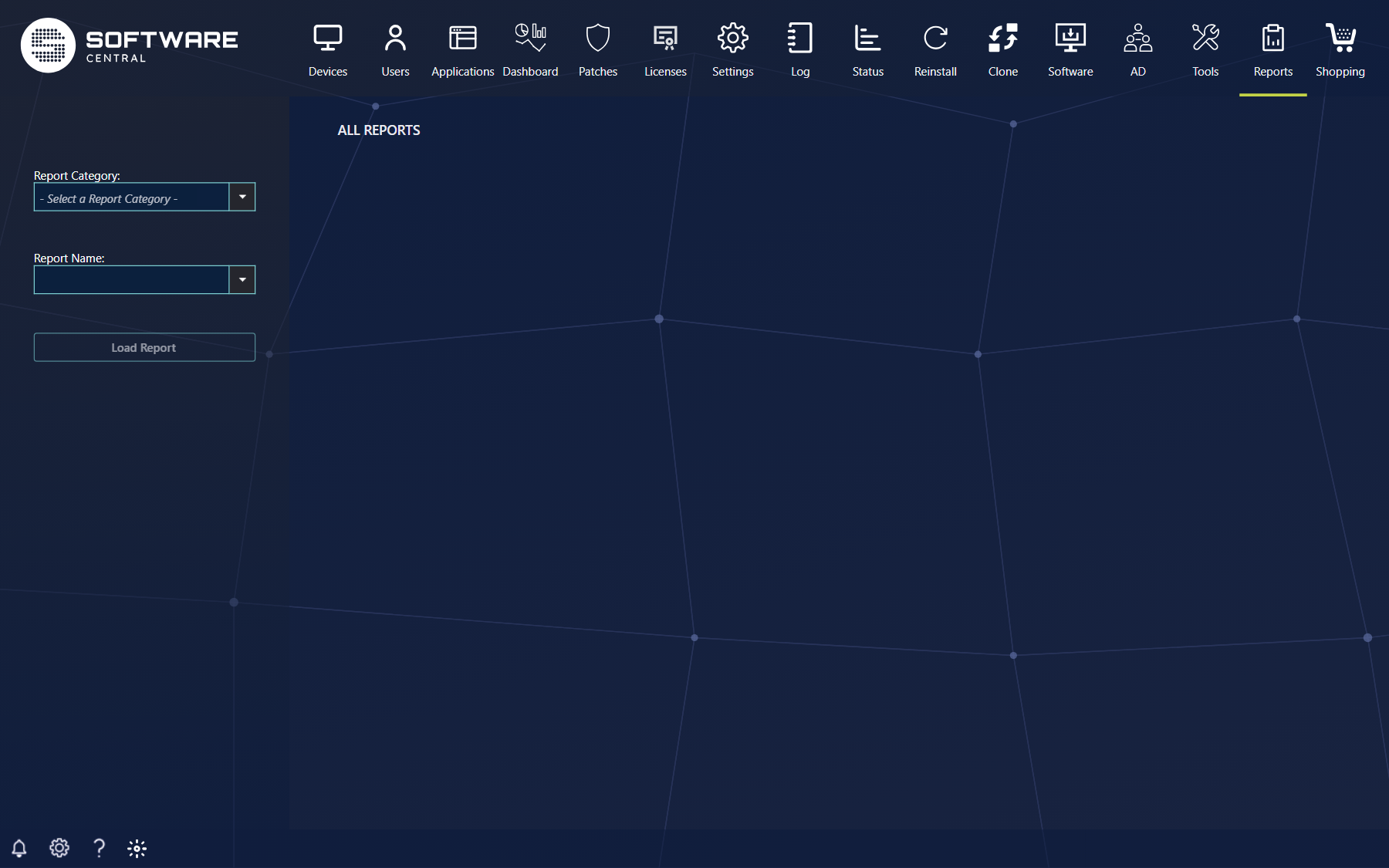
| Box or button | What to do |
|---|---|
| Report Category | Choose a folder of reports. The box starts with - Select a Report Category -. |
| Report Name | Choose a report from the category. Type the start of a report name to narrow the list. |
| Load Report | Shows the report. Nothing is shown until you click it. |
Choosing a different category clears the report name and the report that was shown.
3 Which reports and data you see
All Reports is not limited by the reports that are assigned to your security role. The list shows the reports in the ConfigMgr report folder on the reporting server.
- The list is the same for every role that can open the page. SoftwareCentral does not check the reports assigned to a security role on this page.
- The data comes from the reporting server with the account of the application pool. The reporting server is called with the Windows credentials of the SoftwareCentral application pool. The reports show only the data that this account may read in ConfigMgr and in reporting services.
- To give a role only some reports, use SCCM Reports. That page lists only the reports assigned to your security role.
4 Reporting server settings
The page finds the reporting server and the report folder from two settings. Both are on the SCCM group of the Settings page.
| Setting | What it does |
|---|---|
| SCCM Reporting Server (URL) | The address of the reporting server, for example http://SWC-SERVER01/ReportServer/. If it is left at its default, the server of the ConfigMgr central site is used. |
| SCCM Reporting Folder | The folder on the reporting server that holds the reports. The default is ConfigMgr_ followed by the site code. This box is editable for ConfigMgr 2012 only. |
5 Best practice
- Check the reporting rights of the application pool account. That account reads the report data, so it decides what every user of All Reports sees.
- Give the Reports menu only to roles that may see all the reports in the folder. For a role that should see only some reports, assign those reports to the role on the SCCM Reports page instead.
- Set the reporting server address and the folder when the defaults do not match your reporting server. The defaults assume the reporting server is on the ConfigMgr central site and that the folder name uses the site code.
6 Troubleshooting
| Symptom | Cause | What to do |
|---|---|---|
| The Report Name list is empty after you choose a category | The reporting server address or the report folder does not match the reporting server. | Check SCCM Reporting Server (URL) and SCCM Reporting Folder in the SCCM group of the Settings page. Ask the administrator of the reporting server for the folder name. |
| A report is shown without data, or with fewer rows than expected | The application pool account may not read all of the data in ConfigMgr or in reporting services. | Ask the administrator to check the reporting rights of the application pool account. |
| A report you expect is not in the list | The report is not in the folder that the page reads. | Check the folder setting. A report in another folder is not listed on this page. |