1 Where to find it
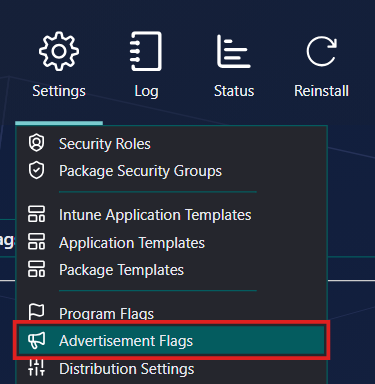
Open Settings in the top menu and click Advertisement Flags.
2 The Install and Uninstall tabs
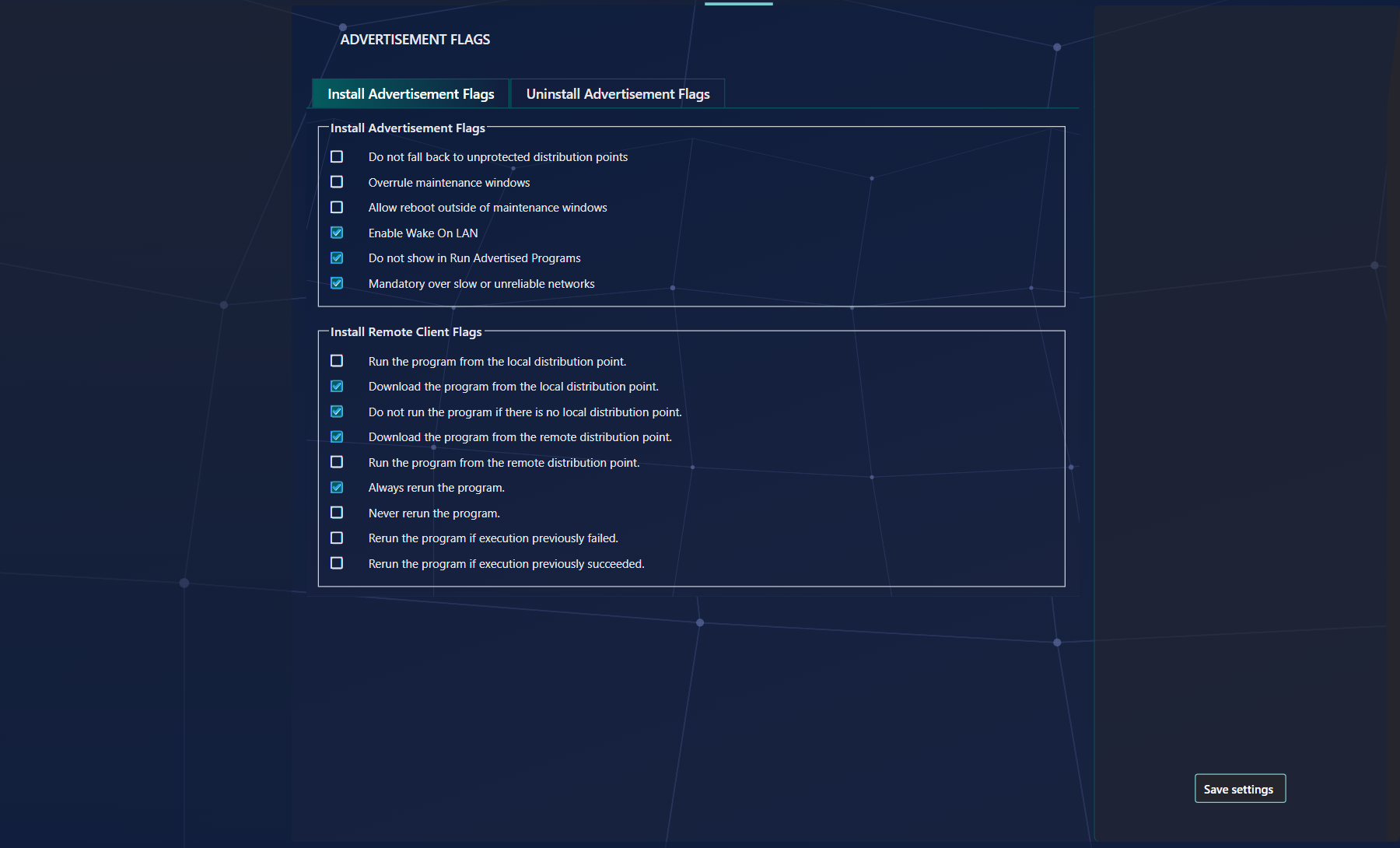
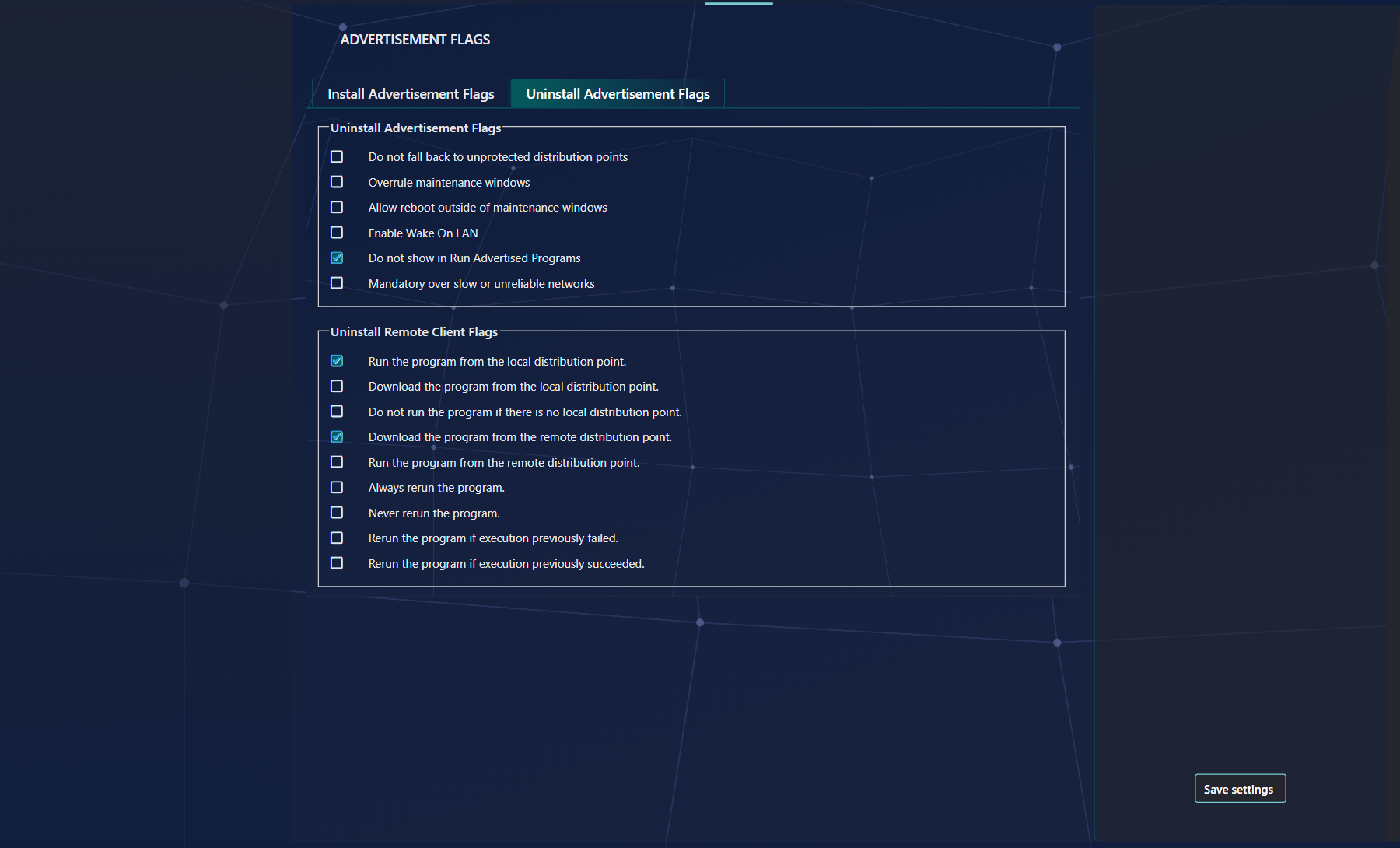
The page has two tabs, Install Advertisement Flags and Uninstall Advertisement Flags. Each tab has the same two groups: the advertisement flags, and the remote client flags. The install and uninstall defaults are saved separately.
3 Advertisement flags
Tick a flag to make it a default. The value is the bit number that Configuration Manager stores for the flag.
| Flag | Value | What it does |
|---|---|---|
| Do not fall back to unprotected distribution points | 17 | The client does not fall back to an unprotected distribution point. |
| Overrule maintenance windows | 20 | The advertisement overrides maintenance windows when it is announced to the user. |
| Allow reboot outside of maintenance windows | 21 | The computer may reboot outside maintenance windows. |
| Enable Wake On LAN | 22 | The advertisement is announced to the user with Wake On LAN enabled. |
| Do not show in Run Advertised Programs | 25 | The user should not run the program on their own, independently of the assignment. |
| Mandatory over slow or unreliable networks | 26 | The assignment is mandatory over a slow network connection. |
4 Remote client flags
The remote client flags say where the program runs from and when it runs again. They are set in the second group of each tab.
| Flag | Value |
|---|---|
| Run the program from the local distribution point. | 3 |
| Download the program from the local distribution point. | 4 |
| Do not run the program if there is no local distribution point. | 5 |
| Download the program from the remote distribution point. | 6 |
| Run the program from the remote distribution point. | 7 |
| Always rerun the program. | 11 |
| Never rerun the program. | 12 |
| Rerun the program if execution previously failed. | 13 |
| Rerun the program if execution previously succeeded. | 14 |
5 Saving the defaults
Click Save settings on the right. The Log then shows Successfully saved default Advertisement Flags.
Saving changes only the defaults. The defaults are applied when SoftwareCentral creates the advertisements of a new package, and they fill in the advertisement settings of a package template. Advertisements that already exist are not changed by this page.
6 Best practice
- Set the defaults before you create packages. New packages take their advertisement flags from these defaults.
- Pick one option from each pair and one rerun option. The screen clears the partner option, so tick the one you need and leave the others clear.
- Tick the timing flags only when the business needs them. Overrule maintenance windows, Allow reboot outside of maintenance windows and Enable Wake On LAN change when users and computers are asked to run the program.
- Use Do not show in Run Advertised Programs when users must not start the program themselves. It stops users from running the program on their own, outside the assignment.
7 Troubleshooting
| Symptom | Cause | What to do |
|---|---|---|
| An existing advertisement does not have the flags you saved on this page. | The defaults are used only when an advertisement is created. Saving the defaults does not change advertisements that already exist. | Change the flags on the existing advertisement in the Configuration Manager console. |
| A new package has different advertisement flags from the defaults. | A package template keeps the advertisement flags it was saved with. | Open Settings › Package Templates, edit the template and check its Deployment Settings panel. |