1 Overview
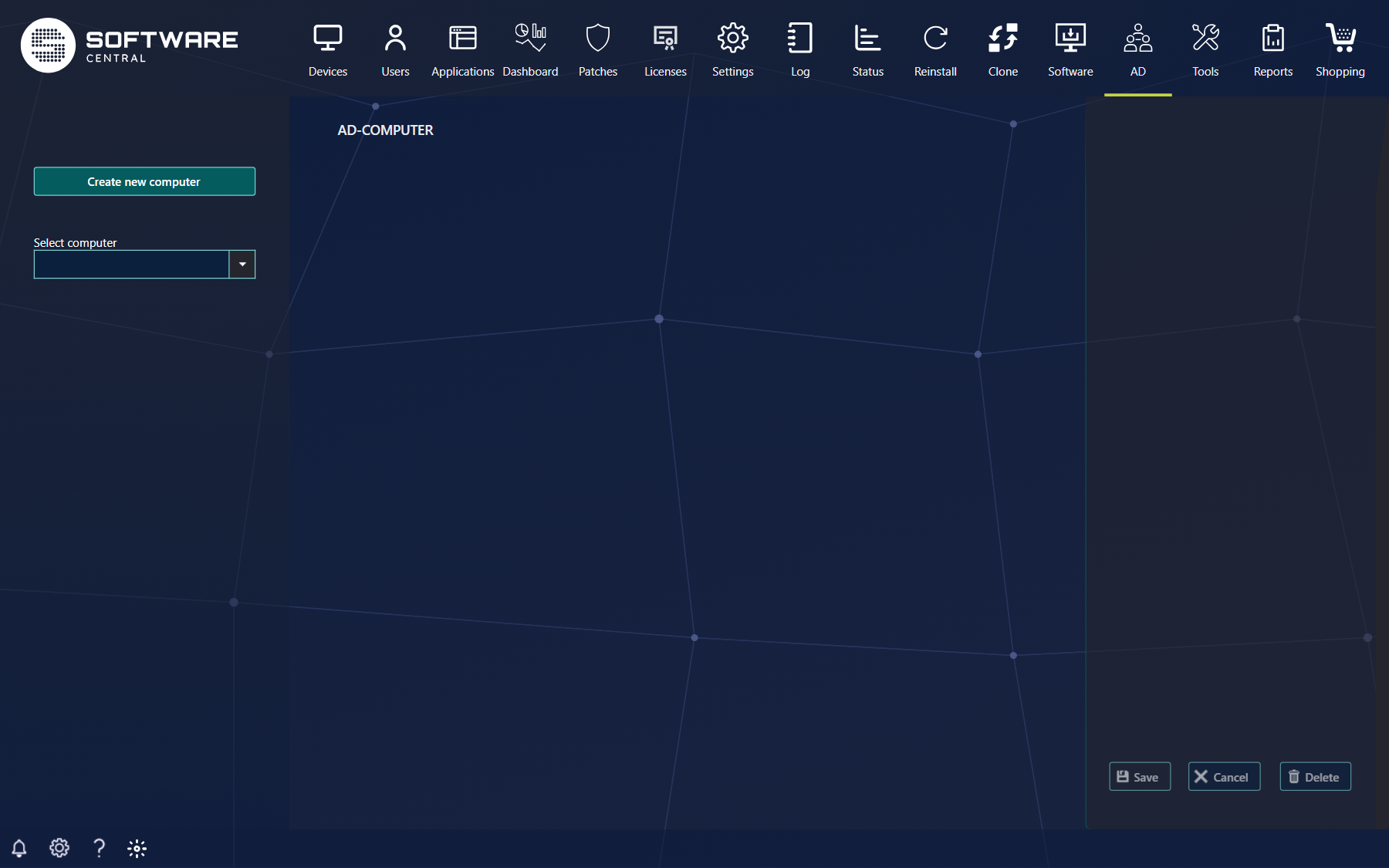
For administration of AD- computers, go to the AD menu button and then AD- computers.
When this page is loaded the middle of interface is empty, for easy finding a specific computer, use the user drop down in the left side of the interface. If you have access to more than one domain, select the domain first in the drop-down above it.
What you can do depends on your security role. The Create new computer button, Save and Delete are only shown if your role has the permission, and a role that may only view computers cannot change anything. The page is part of the Active Directory Module.
2 Create new AD computer
For creating a new AD computer click the Create new computer button in the left side of the interface, this will populate the middle interface. The creation can at any time during the creating be canceled by clicking Cancel in the right corner.
The page has three tabs: Computer Information, Manager and Membership.
· Computer Information:
In this part of the process the organization unit, name and NetBIOS name fields mandatory to be filed out. If a field is missing SoftwareCentral says that the organizational unit, computer name and/or NetBIOS name is mandatory, and it refuses a name that already exists in the domain.
A description can be added to the computer, other settings can’t be changed. Use Copy settings from another computer to start from an existing computer.
| Field | What it shows |
|---|---|
| Organizational Unit | Where the computer account is created. |
| Name, NetBIOS name, DNS name | The names of the computer account. |
| OS name, OS version, Service Pack | Read from the directory when the computer has registered them. |
| Description and Notes | Free text. |
| Computer actions | The button Disable computer, or Enable computer if the account is disabled. |
| BitLocker Recovery Password | Shown for an existing computer that has BitLocker recovery passwords stored in Active Directory, with the date. Read-only. |
| Local Administrative Password | Shown for an existing computer that has a local administrator password stored with LAPS, and only if your role has the permission to see it. Hover over it to see when it expires. Read-only. |
· Manager:
In this tab the manager of the computer can be selected with Select manager, the data of this user is the read form the AD, and shown under Manager information: name, office, phone numbers and address.
· AD-group Membership
Note: A computer will automatically be added to the “Domain computers” group, this group is not showed in the interface at this point.
All other groups the user need to member of is selected, and added to user by pressing Add membership
The grid lists the groups the computer is a member of, with the columns Name and Domain. Edit opens the group and Remove takes the computer out of it; Edit is only shown if your role may edit the groups of a computer.
When all settings is set, press Save
3 Edit AD computer
To edit an existing AD computer, go to the AD computer main interface, and select the wanted AD computer in the left side of the interface.
This will populate the middle interface with all the settings from the computer. These can now be changed as wanted.
Press Save to save changes, or Cancel to discard them.
4 Delete AD computer
To delete an existing AD computer, go to the AD computer main interface, and select the wanted AD computer in the left side of the interface and press, Delete in the bottom right corner of the interface. SoftwareCentral asks you to confirm before the computer account is deleted.
5 Best practice
- Give only the roles that need it the permission to see the local administrator password, and the permissions to edit and delete computer accounts.
- Disable a computer account that is out of use before you delete it, so you can enable it again if it turns out to be needed.
- Create a computer account only for a computer that has no account yet. SoftwareCentral refuses a name that already exists in the domain.
- Fill in Description and Manager, so it is clear who is responsible for the computer.