SoftwareCentral · Licenses

Manage Licenses

Count the licenses that are used by your software.

License counter Notifications

1 Overview

SoftwareCentral has a license module to manage your licenses. It works by setting a number of available licenses for each package or a group of packages which share a license. SoftwareCentral will then keep track of where the licenses are used and make sure the license count isn’t exceeded.

Other features include detailed reporting and license harvesting.

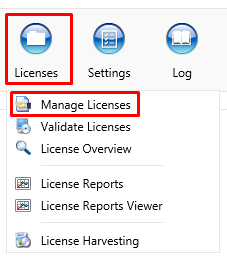
All license counters, both single packages and groups, are set up from Manage Licenses. Manage Licenses is located under Licenses button.
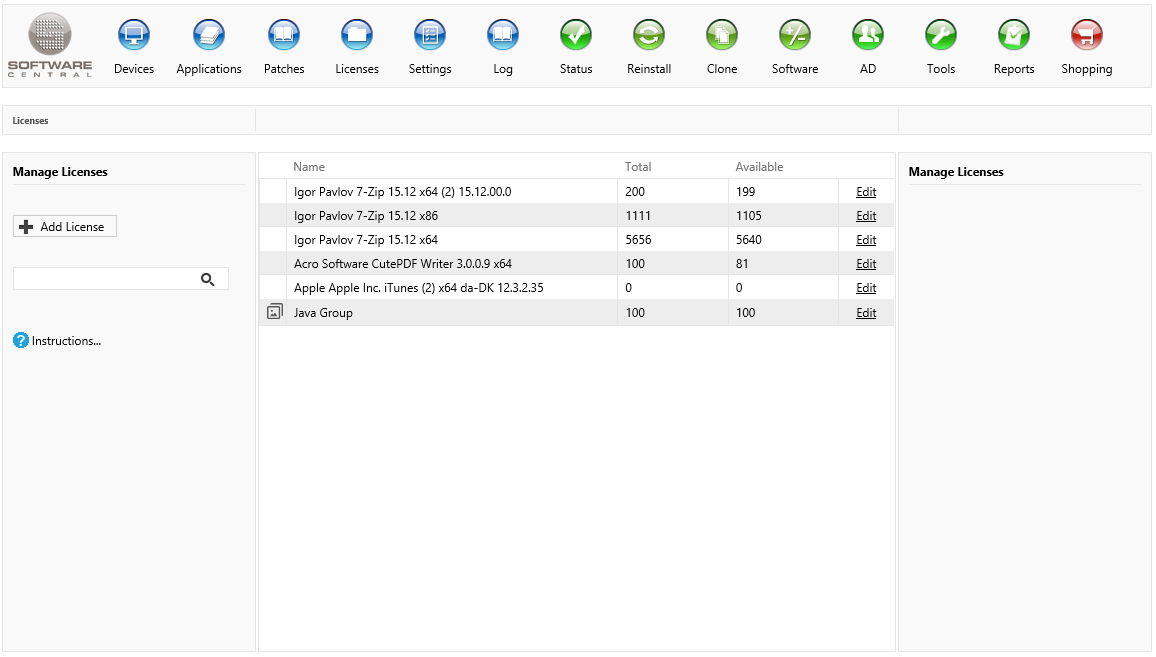
The page is only available when the license module is enabled. In the left menu you find the Add License button and a search box that filters the grid on the name of the license or group. Which packages you see also depends on your security role, and a license group is hidden if it contains a package your role may not see.

The grid in the middle lists the licenses, 20, 50 or 100 per page:

ColumnWhat it tells you
IconA group icon marks a license group. Hover over a row to see whether it is a single package or a license group, and how many packages the group contains.
NameEither the package name or the license group name. Click it to edit the license.
TotalThe total amount of licenses a given package or group has.
AvailableThe amount of licenses currently not in use. If this number becomes negative it means that too many licenses are in use. If the available license count becomes larger than the total amount of licenses it means that the package was uninstalled from a computer that wasn’t registered in the license module.
EditOpens the license so you can change it.
Note To reset the counter, click “Edit” and then click on “Reset Counter”.

2 Add a license

Click on the Add License button, found in left side of the menu in manage licenses, and a new window will appear.
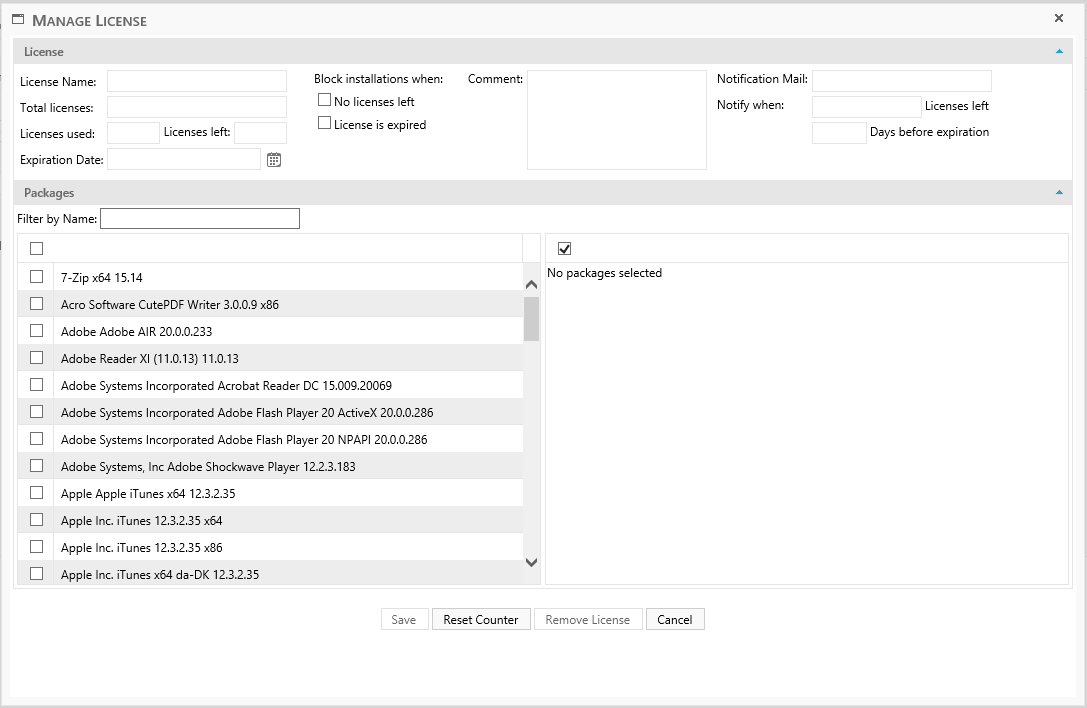
Follow these steps to create a license.

1. Enter the amount of licenses in Total licenses.

2. Select one or more packages from the grid to the left.

Use the Filter by Name box to filter the grid. The checkbox in the header of the grid selects all packages. If more than one package is selected, it will automatically create a License Group.

Note: The naming textbox, License Name, can only be changed if a license group is created. A license group needs a name that no other group uses.

Optional settings:

SettingWhat it does
Expiration DateEnter the date where the licenses will expire.
Block installations when – No licenses leftIt won’t be possible to install the package when the counter reaches zero.
Block installations when – License is expiredIt won’t be possible to install the package after the date selected in Expiration Date.
CommentA description of the license.
Notification MailThe mail address of the person that needs information if the license is about to expire, or there are only a few licenses left.
Notify when … Licenses leftEnter the number of licenses left at which a mail is sent to the notification mail.
… Days before expirationEnter the number of days before the expiration date at which a mail is sent to the notification mail.
Add Primary User(s) or Currently Logged on User to AD-GroupSelect a domain and an AD group, and choose which users go into it. With Primary User(s), the primary users of a device are added to the group when the program is deployed to the device, and removed again when the program is removed from the device. With Currently Logged on User, the user that is logged on is added instead. The program can then only be deployed if the computer is online and a user is logged on.

The boxes Licenses used and Licenses left are shown for information and cannot be edited.

The notification mail is sent in these cases:

- When the number of licenses left reaches the number entered, because of an order, an installation or a synchronization with the SCCM. The mail is sent at once. It is repeated by the service at the interval set for reminders in Settings (14 days by default) for as long as the number of licenses left stays at or below the number entered.

- When the license is about to expire. This mail is checked once a day by the service, and repeated at the same interval.

- When the total number of licenses or the notification threshold is changed, showing what changed.

- Once, when the number of licenses left is above the number entered again after a mail was sent for it, for example when License Harvesting has uninstalled software. This mail is also checked once a day.

ButtonWhat it does
SaveClick Save to save the license. The window tells you if something is missing, for example if no packages are selected, if Total licenses is not a positive number, or if the name of a license group is empty or already in use.
Reset CounterThe "Reset Counter" button will reset the license counter. It removes all stored data for the selected packages, including the install history, and asks you to confirm first.
Remove LicenseThe "Remove License" button will remove the license, with all install history for the package or group of packages. It asks you to confirm first, and it is only available when you edit an existing license.
CancelCloses the window without saving.

3 Edit a license

Click the Edit button next to a package or License Group.

The same window as before will open. From here the license count all other settings can be changed.

If the package is changed, it might be necessary to use the Reset Counter button and then go to “Validate Licenses” to get the current installation count from the SCCM server.

4 Best practice

  • Always fill in Notification Mail with a person or a shared mailbox that owns the license, and set both thresholds: Licenses left and Days before expiration, so the owner hears about a shortage or an expiry in time.
  • Use a license group when several packages share one pool of licenses, so they are counted against the same total.
  • Turn on No licenses left and License is expired under Block installations when only for software where you must not exceed the number you own. Leave them off if you only want to monitor the count.
  • After you change the packages of a license, use Reset Counter and then Validate Licenses to load the real installation count from ConfigMgr. An administrator can also let SoftwareCentral synchronise with ConfigMgr every night, with the setting Synchronize with the SCCM every night under Settings › Extra Modules › License Module.
  • Check the Available column regularly. A negative number means more copies are in use than you own, and a number above Total means software was removed from a computer that was not registered.

5 See also